Framekit templates
Start from a designer-made template
 Use template
 Use template
 Use template
 Use template
 Use template
 Use template
 Use template
 Use template
A filmmaker records a sixty-two minute interview and knows there are perhaps six good minutes in it. Finding them is an afternoon of scrubbing, the vertical reframe is another hour, and captioning by hand is the job nobody volunteers for.
Meanwhile the interview sits unpublished for three weeks, which is the actual cost, because a clip posted the same week is worth more than a better clip posted next month.
That is the job the best AI video clipping tools in 2026 are sold on, and our honest reading of the category is that they are built for the boring half and only promise the interesting half.
Captioning, reframing, and formatting are what every tool here documents in detail. Choosing which moments are worth publishing is a judgement about your audience, and no tool has any information about your audience.
So we compared six of them on what they publish, and set out a test you can run on your own recording to judge what they choose.
An AI video clipping tool is software that takes a long recording, identifies segments likely to work as standalone short videos, reframes them vertically, and adds captions, and the useful ones differ mainly in caption quality and export freedom rather than in how cleverly they choose.
OpusClip is our pick for the best AI video clipping tool in 2026 because it is built around choosing moments, cutting on spoken-word boundaries, and its free tier lets you judge that on your own recording, though free exports carry a watermark and captioning is Submagic's speciality rather than its own.
Submagic is the caption-first choice at $12 a month billed annually, Descript is the safest choice because you can fix what the AI got wrong, and Kapwing is the most flexible general editor of the group.
Updated in September 2026: we re-verified Framekit's plans and where the clips are meant to point, because Framekit is the site and store a short-form audience lands on rather than another editor in the ranking; clipping prices are as checked in August 2026.
On 12 October 2026 we deleted an interview test and its selection counts that we could not document; the ranking now stands on published plans and on how each tool is designed.
What This Clipping Comparison Is Based On
We compared six clipping tools on what each vendor documents rather than on marketing reels: the free tier, upload and length caps, watermark rules, entry prices and metering unit on each pricing page, read in August 2026, plus the clipping method each one describes, such as OpusClip cutting on spoken-word boundaries.
We did not put a recording through these tools for this article, so nothing below scores moment selection or caption quality as a measured result.
Selection has a right answer only for the person who knows the recording, which is why the twenty-minute test further down asks you to use one where you already know the best moment.
Prices carry one of two labels. A figure marked published was visible on the vendor's own pricing page at the time of writing in August 2026.
A price described as reported could not be read at the source because the vendor's page blocks automated checks, which applies to one entry here and is stated plainly in it rather than buried.
Free tiers get close attention, because in this category they are where the watermarks and caps live, and they are where you can check output quality for yourself before paying.
Weighting, which you are welcome to rearrange: caption quality 30 percent, moment selection 25 percent, export freedom including watermarks 20 percent, editing control when the AI is wrong 15 percent, and cost 10 percent; the first two are our reading of how each tool is designed and what it documents, not measured scores.
Captions outrank selection because a badly chosen clip wastes a post and a badly captioned clip wastes the viewer, and viewers are less forgiving than algorithms.
In one linewe compared six tools on their published plans, free-tier caps, watermarks and documented clipping methods in August 2026, weighted caption quality above moment selection, and left the output judgement to a test you run yourself.
By the Numbers
Six tools and six pricing pages, read in August 2026, give the figures below, and the one to hold onto is the watermark count, because whether a free tier marks its output decides whether it can prove anything beyond style.
- 3 videos a month is the free ceiling on both Submagic and HeyGen-style tools, and Submagic's free exports carry a watermark.
- 60 minutes a month is Vizard's free upload allowance and also Descript's free media allowance, which is one hour-long interview and no more.
- 1 minute is Kapwing's free export length limit, at 720p with a watermark, which is enough to evaluate and not to publish.
- $12 a month billed annually is Submagic Starter, covering 15 videos of up to 2 minutes, the cheapest credible paid plan here.
- $16 a month billed annually is both Kapwing Pro and Descript Hobbyist, which is a useful coincidence when comparing them.
- $50 a month billed annually is Kapwing Business, the most expensive plan we would recommend to a creative.
- 4 of 6 watermark their free output, which is the single most consistent mechanic in this category.
The Full Comparison Table
Prices came off the vendor's own pricing page in August 2026 except where the row says reported or not displayed. Where a vendor meters by video count rather than by minutes, the table says so, because the two are not comparable.
| Tool | Best at | Free tier | Entry paid price | Watermark on free |
|---|---|---|---|---|
| OpusClip | Choosing moments | Free, local video to 10GB | $15/mo Starter | Yes |
| Submagic | Caption quality | 3 videos/mo, 200MB, 90 seconds | $12/mo yearly Starter | Yes |
| Descript | Fixing what the AI got wrong | 60 mins media/mo, 720p export | $16/user/mo yearly | Export capped |
| Kapwing | General editing around the clip | Unlimited exports, 1 min, 720p | $16/user/mo yearly Pro | Yes |
| Vizard | A generous free allowance | 60 mins/mo, 720p, 60 credits | Not displayed | No, capped instead |
| CapCut | Finishing and publishing fast | Substantial free tier | $19.99/mo reported | Varies |
The last column is the one that decides your evaluation rather than your purchase. Four of six watermark free output, which means the free tier tells you whether the tool picks well and cannot tell you whether the result is publishable.
1. OpusClip: The Best at the Part That Is Hardest
OpusClip ranks first on the only axis where these tools genuinely differ in difficulty, choosing the moments, because it is the tool most plainly built around that job: its free plan documents AI clipping by spoken words, so clips are cut on spoken-word boundaries rather than on arbitrary durations and are meant to end where a thought ends.
The real numbers: OpusClip offers a free plan at $0 that imports local video up to 10GB, does basic AI clipping by spoken words, provides animated caption templates with a watermark, multi-language transcription, auto hook, auto emoji highlights, 9:16 aspect ratio, dynamic layout, and shareable project links.
Starter is $15 a month and Pro is $29 a month, with Business quoted. The pricing page references a credit calculator without publishing per-plan credit allowances, so model your own usage rather than assuming.
That free tier is unusually useful for evaluation because the limitation is the watermark rather than the intelligence.
You can put a full interview through it, see exactly which moments it picks, and decide whether its judgement is worth $180 a year before spending anything, which is not true of the tools that cap you at three videos.
The standout detail nobody writes about: clipping on spoken-word boundaries sounds like a technicality and is the whole difference between a clip that feels finished and one that feels amputated.
A clip that ends mid-sentence is the most visible way an AI clip disappoints, and boundary cutting is aimed squarely at it.
The gotchacaptioning is not its speciality, and captions are what a viewer actually experiences. Pairing it with a caption-first tool means two subscriptions for one job, which is nonetheless what we would do if captions carry your brand.
Skip it ifyour source is short or scripted. Clipping intelligence has nothing to work with on a four-minute piece you already planned.
Verdict: Our pick for moment selection, because it is built around that job, and the fairest free tier for judging it on your own recording. Pair with a better captioner if captions matter more than convenience.
Clips are the top of a funnel that has to land somewhere; our guide to getting clients from your website covers the destination.
2. Submagic: The Captions Everyone Is Copying
Submagic ranks second because captions are its product rather than a feature, and captions are the part of a short video that the viewer actually reads; clipping is sold separately as the Magic Clips add-on.
Whether its word timing and emphasis styling suit your footage is a judgement to make on its three free videos, not one we measured.
The real numbers: Submagic prices Starter at $19 per member per month or $12 billed annually, covering 15 videos of up to 2 minutes.
Pro is $39 monthly or $23 annually with 40 videos of up to 5 minutes. Business and API is $69 monthly or $41 annually with 100 videos of up to 30 minutes.
The free tier gives 3 videos a month at up to 200MB and 90 seconds with a Submagic watermark. A Magic Clips add-on is $19 a month monthly or $12 annually across all paid tiers.
Read the duration caps rather than the video counts, because that is where this pricing bites.
Starter at $144 a year covers 15 videos of up to two minutes, which suits a creator posting short clips and fails immediately for anyone working with longer pieces, who is looking at Pro at $276 a year for five-minute clips.
The standout detail: the caption styles are the ones you have already seen.
That is a compliment and a warning at once, because a distinctive style becomes a generic one when a tool makes it available to everyone, and the studios that look best on short-form in 2026 are the ones customising rather than accepting the default.
The gotchaclipping is the add-on rather than the product. Magic Clips is a further $12 to $19 a month, so a creator who wants both selection and captions is paying for two features that OpusClip bundles differently.
Skip it ifyou need long clips. The two-minute ceiling on the entry plan is the real constraint, not the video count.
Verdict: Our caption pick at $144 a year, and read the duration cap before choosing the tier. Best paired with a separate clipper.
3. Descript: The One Where You Can Fix It
Descript is the safest choice in this category for a reason that has nothing to do with its AI: when the automatic selection is wrong, which it will be, you are already inside a full editor rather than looking at an export you have to take elsewhere.
Its own clip suggestions are not the reason to buy it; correcting them is a matter of editing text rather than scrubbing a timeline.
The real numbers: Descript's free tier gives 60 minutes of media a month with local exports capped at 720p and web-link exports capped at one hour, plus 100 one-time AI credits.
Hobbyist is $16 per user per month billed annually or $24 monthly, Creator is $24 annually or $35 monthly, and Business is $50 annually or $65 monthly.
Sixty minutes of free media a month is one hour-long interview and nothing else, which makes the free tier a genuine evaluation and not a workflow.
At $192 a year, Hobbyist is mid-priced here and buys something none of the pure clippers offer, which is the ability to rewrite the clip by editing its transcript.
The standout detail: because the underlying edit is text, adjusting a clip's in and out points is deleting words. On a tool whose automatic selection ends a clip two sentences too early, that is a five-second fix rather than a reason to discard the clip and start again.
The gotchait is a general editor with clipping attached rather than a clipping specialist, so neither its automatic selection nor its captions is the reason to choose it. You are buying recoverability rather than peak performance.
Skip it ifyou want to post five clips without opening an editor. That is precisely what the specialists are for.
Verdict: The safest choice at $192 a year, because it is the only tool here where being wrong costs you seconds. Not a specialist at selection or captions, and it does not much matter.
4. Kapwing: The General Editor That Also Clips
Kapwing is a browser video editor with clipping features rather than a clipper with editing attached, and for a creative who needs one tool to also crop a thumbnail, add a subtitle to a client video, or resize an asset, that breadth is the argument.
Its clipping is one feature among many, and the case for it rests on everything around the clip.
The real numbers: Kapwing's free plan allows unlimited exports with a watermark, videos up to 1 minute long, at 720p.
Pro is $16 per user per month billed annually or $24 monthly, removing the watermark, exporting in 4K, and allowing projects up to 2 hours. Business is $50 per user per month annually or $64 monthly. Enterprise is quoted.
Unlimited free exports is an unusual choice in this category and worth noticing. Every competitor here meters the number of videos; Kapwing meters length and quality instead, which means the free tier is genuinely usable for very short social clips and unusable for anything else.
The standout detail: the one-minute free ceiling maps almost exactly onto the format most people are clipping for.
A creator making sixty-second vertical clips can use free Kapwing indefinitely if they accept a watermark, which is a stranger and more generous offer than it first appears.
The gotchaat $16 per user per month, a two-person studio pays $384 a year, and per-seat pricing in a tool used occasionally is the easiest overspend in this article.
Skip it ifclipping is the only job. You are paying for an editor you will not open.
Verdict: The most useful all-rounder here at $192 a year for one person, and the best free tier for very short clips if a watermark is acceptable.
5. Vizard: The Most Generous Free Allowance
Vizard gives away more raw processing than anything else in this comparison, which makes it the right first stop for someone testing whether this category is worth any money at all.
Its 60-minute free allowance is enough to put an hour-long interview through without hitting a wall, which the three-video caps elsewhere do not allow.
The real numbers, partially: Vizard's free plan gives 60 minutes of upload a month, described as 60 credits where one credit is one minute, with 720p export and full access to the video editor.
Creator adds no watermark and 4K export at roughly 600 minutes a year, and Business adds a shared workspace and management of 20 social accounts.
The paid prices did not render to our checks, so we are not going to publish figures we could not read, and you should get them at the source.
Sixty minutes a month of free processing is meaningfully more than the three-video allowances elsewhere, and unlike Kapwing it does not watermark, capping resolution at 720p instead.
That combination, no watermark and a real minute allowance, makes it the best free tier here for judging output quality rather than merely output style.
The standout detail: metering by minutes rather than by videos suits long-form source material. A podcaster with one ninety-minute recording is penalised by a three-video cap and served properly by a minute allowance.
The gotchaunpublished paid pricing means you cannot compare it without starting a signup, which in a category this crowded is a real friction and the reason it ranks fifth rather than higher.
Skip it ifyou need to know the annual cost before you commit a workflow.
Verdict: The best free allowance in this comparison at 60 minutes a month without a watermark, and pricing we could not verify. Ideal for evaluating the category, harder to plan around.
6. CapCut: The Finisher Rather Than the Clipper
CapCut is where an enormous share of short-form video is finished regardless of where it was clipped, and it belongs here because its captions, effects, and publishing flow are the last step in most creators' workflows even when another tool made the cut.
The real numbers are reported rather than published, because CapCut's pricing pages did not respond to our automated checks.
Third-party sources in 2026 consistently report Pro at $19.99 a month and $179.99 a year, following an increase from roughly $9.99 a month and $77.99 a year, with existing annual subscribers rolled onto the new rate around February 2026.
The free tier remains substantial. Confirm all of that at the source before subscribing.
That reported increase changes CapCut's position in this comparison considerably.
At a reported $179.99 a year it is the most expensive option here, above Submagic Pro at $276 only for longer clips and above Kapwing Pro and Descript Hobbyist at $192.
A tool most people think of as the free one is now priced at the top of its category.
The standout detail: automatic captions sit in its free tier, which is the specific reason so many creators end their workflow here regardless of what they started in.
The gotchait is a free-to-start tool owned by a large platform company, your projects live in its cloud, and the last year demonstrated that the terms can change substantially without the software changing at all.
Skip it ifyou deliver client work and need pricing stability you can quote against.
Verdict: Still a strong finishing tool and no longer cheap at a reported $179.99 a year. Treat the free tier as the product and Pro as a real decision.
What the AI Is Actually Good At, and What It Is Not
What these tools document, and what they leave to you, falls into a clear division between the tasks these models handle as routine features and the one they cannot do for you, and it is worth setting out separately because it should change how you use every tool in this article rather than which one you buy.
What the software handles. Transcription of clear speech. Vertical reframing that keeps a speaker in frame. Caption timing at the word level. Detecting where a sentence ends so a clip does not stop mid-thought.
All four are what this category is sold on, and all four are the tasks that used to consume the afternoon.
What it cannot know. Which sixty seconds are worth publishing. A model can only work from signals that correlate loosely with interest, question-and-answer structure, emphatic delivery, laughter, and those signals are not the same thing as a point worth making.
The reason for the gap is instructive rather than a criticism. A model can detect that a passage sounds significant; it cannot know that your audience has heard the first point before and has never heard the third.
Selection is an audience judgement, and the audience is the thing the tool has no information about.
The workflow that follows is simple: let the tool find twenty candidates, then choose the five yourself, which on a sixty-minute source means watching twenty short clips at speed rather than an hour of footage.
That preserves nearly all the time saving and removes nearly all the risk of publishing a clip because software liked it.
In one linethese tools reliably transcribe, reframe, caption, and cut on sentence boundaries, and none of them reliably knows which moment matters, so use the AI to shortlist and make the final choice yourself.
Captions Are the Product, Not the Decoration
If you take one thing from this comparison, take this: the caption is what your viewer experiences, and it deserves more attention than the clip selection everyone benchmarks.
A lot of short-form video is watched with the sound off or in a context where sound is inconvenient, which makes the caption the primary channel rather than an accessibility feature.
That has three consequences worth acting on. Word-level timing matters more than style, because a caption that lags the speech by a beat reads as broken however well designed it is. Emphasis placement is a judgement, and tools that bold arbitrary words look automated in a way viewers register without articulating. Line length decides legibility on a phone, and a line that reads comfortably on a laptop can be too long at arm's length on a phone.
Submagic is the tool here built around all three, which is why it ranks second even though clipping is an add-on for it.
The corollary is uncomfortable for a comparison article: for many creators the correct answer is two tools, one that finds the moments and one that captions them, and no single product in this category is built as a specialist at both.
There is one caption decision no tool makes for you and it matters commercially. Whether to caption in your own voice, meaning the words as spoken including the hesitations, or in a cleaned-up version.
Cleaned reads better; verbatim sounds more like a person. For a creative business selling on personality, verbatim is usually the better choice, so check which one your tool produces by default.
In one linecaptions are the primary channel for most short-form viewers, so judge these tools on word-level timing, emphasis placement, and line length before you judge them on which moments they choose.
What Free Tiers Let You Publish
Free is universal here and almost never publishable, and the specific shape of each restriction determines whether the free tier is an evaluation or a trap.
Watermarked but unlimited describes Kapwing, which allows unlimited exports at 720p up to one minute with its mark. You can work indefinitely if the watermark is acceptable, which for a personal account it sometimes is and for a business it is not.
Watermarked and metered describes Submagic at 3 videos a month up to 90 seconds and 200MB, and OpusClip, which watermarks its animated caption templates on free. Both let you judge the quality of the output and neither lets you use it.
Unwatermarked and capped describes Vizard at 60 minutes a month with 720p export, and Descript at 60 minutes of media a month with local exports capped at 720p.
These are the two free tiers where the output is usable at small sizes, which makes them the best for genuine evaluation.
The practical route through, for a creative deciding whether this category is worth any money: put one real long recording through Vizard free to judge output quality without a watermark, put the same recording through OpusClip free to judge moment selection, and only then decide which half of the job you are actually buying.
That costs nothing and answers the question better than any article.
In one lineVizard and Descript are the only free tiers here that export without a watermark, capping resolution instead, which makes them the right pair for judging output quality before spending anything.
The Twenty-Minute Test to Run on Your Own Recording
Take one long recording you already have and where you already know the best moment, because that knowledge is what makes this test meaningful. Run it through two free tiers and score three things.
First, whether either tool surfaced your known best moment anywhere in its suggestions, since if neither did you have learned that selection is your job permanently and you should optimise for captions instead.
Second, whether the clips end on a completed thought or mid-sentence, which is the difference between a clip you can post and one you have to re-edit.
Third, read the captions on a phone at arm's length and check the line length and the emphasis placement, because that is how your viewers will read them and it is not how you read them on a laptop.
Twenty minutes answers which half of this category you are actually buying.
Repurposing Without Republishing the Same Thing
The reason to clip a long recording is not to fill a feed, and creators who treat it that way produce a lot of posts and very little effect.
A clip works when it is a complete small thing: one claim, one story, one useful instruction, with a beginning and an end.
A clip fails when it is an excerpt, meaning a slice of a longer argument that assumes context the viewer does not have.
The tools cannot tell these apart, because both look identical as waveform and transcript, and this is the specific judgement they leave to you.
That has a practical consequence for how many clips a source actually yields. An hour-long interview might contain three complete small things and perhaps two more that could be made complete with a sentence of setup recorded afterwards.
It will rarely contain the fifteen clips a tool will happily generate from it, and publishing fifteen would bury the three that work.
Two habits fix most of this. Record a one-sentence setup for any clip that needs context, which takes thirty seconds on your phone and converts an excerpt into a complete thing.
And decide the number of clips after watching the candidates rather than before, because the tool's default is a quantity target and a quantity target is how a feed becomes noise.
There is also a sequencing question worth deciding deliberately.
In our view, publishing three strong clips over three weeks serves most creative businesses better than publishing fifteen over three days, because the audience you are building watches over time rather than in one sitting, and a week of your best work is a better introduction than a day of everything.
In one linea clip works when it is one complete small thing and fails when it is an excerpt, the tools cannot tell the difference, and a sixty-minute interview may hold only three of the former rather than the fifteen a tool will generate.
What This Costs in Time, Honestly
The marketing for this category implies minutes, and our estimate of the attention it really takes is closer to half an hour per source, which is still a large saving and worth stating plainly so you can decide whether it is worth the subscription.
The shape of the work, as we would budget it rather than as a timed result: upload and processing runs unattended, so it costs waiting rather than attention.
Reviewing the candidates and choosing means watching perhaps twenty short clips at speed, which we would budget at about ten minutes. Correcting the in and out points on the ones you keep is quickest in a text-based editor.
Checking captions for proper nouns is not optional if a client name appears.
For three published clips from one source, we would budget roughly twenty-five to thirty minutes of your attention.
Doing the same work manually, scrubbing a sixty-minute timeline to find moments, reframing, and captioning by hand, is most of an afternoon, so the saving is real but smaller than the near-total saving implied; time your own first run and replace our estimate with your number.
The saving also degrades in a way worth knowing: it is largest on long, unscripted, single-speaker or two-speaker material and smallest on anything already tight.
A twelve-minute scripted piece yields almost nothing to a clipping tool, because there is no waste to find and the structure was already decided when it was written.
In one linebudget around twenty-five to thirty minutes of attention for three published clips from a one-hour source, an estimate to replace with your own timing, which is a real saving against doing it manually but not the near-total saving the category implies.
The Decision Guide
Take these in order and stop at the first that fits. Several branches end in two tools rather than one, which is the honest shape of this category rather than an evasion.
Start with the source. Is your material long-form and conversational? If no, meaning short scripted pieces you already planned, none of these tools has anything to work with and you should caption in whatever editor you already use. If yes, continue.
Do you want the tool to find the moments, or only to finish them? If finding matters most, OpusClip, free to evaluate and $15 a month for Starter, whose spoken-word boundaries are meant to make clips end where a thought ends. If finishing matters most, continue.
Are captions the thing your audience actually experiences? If yes, and for most short-form they are, Submagic at $12 a month billed annually for clips up to 2 minutes, or $23 for up to 5 minutes on Pro. Check the duration cap rather than the video count.
Will you need to correct what the AI chose? If yes, and you will, Descript at $16 per user per month billed annually, because editing the transcript edits the clip and a wrong in-point is a five-second fix rather than a restart.
Do you also need a general editor for thumbnails, resizes, and client subtitles? If yes, Kapwing Pro at $16 per user per month billed annually, whose free tier also allows unlimited watermarked exports up to one minute.
Do you want to test the category before spending? Vizard free at 60 minutes a month with no watermark, paired with OpusClip free to judge selection. Get Vizard's paid pricing at the source, because it is not published.
Any branch. Are you already finishing in CapCut? Check what you are paying, because Pro is reported to have moved to $19.99 a month and $179.99 a year, which makes the tool most people think of as the free one the most expensive here.
Where Your Website Fits In
Clips are the top of a funnel and they are the part everyone optimises.
The bottom of that funnel is a page, and a short video that performs beautifully while pointing at a link-in-bio with three links on it has converted attention into nothing, which is a common shape of this problem in creative businesses.
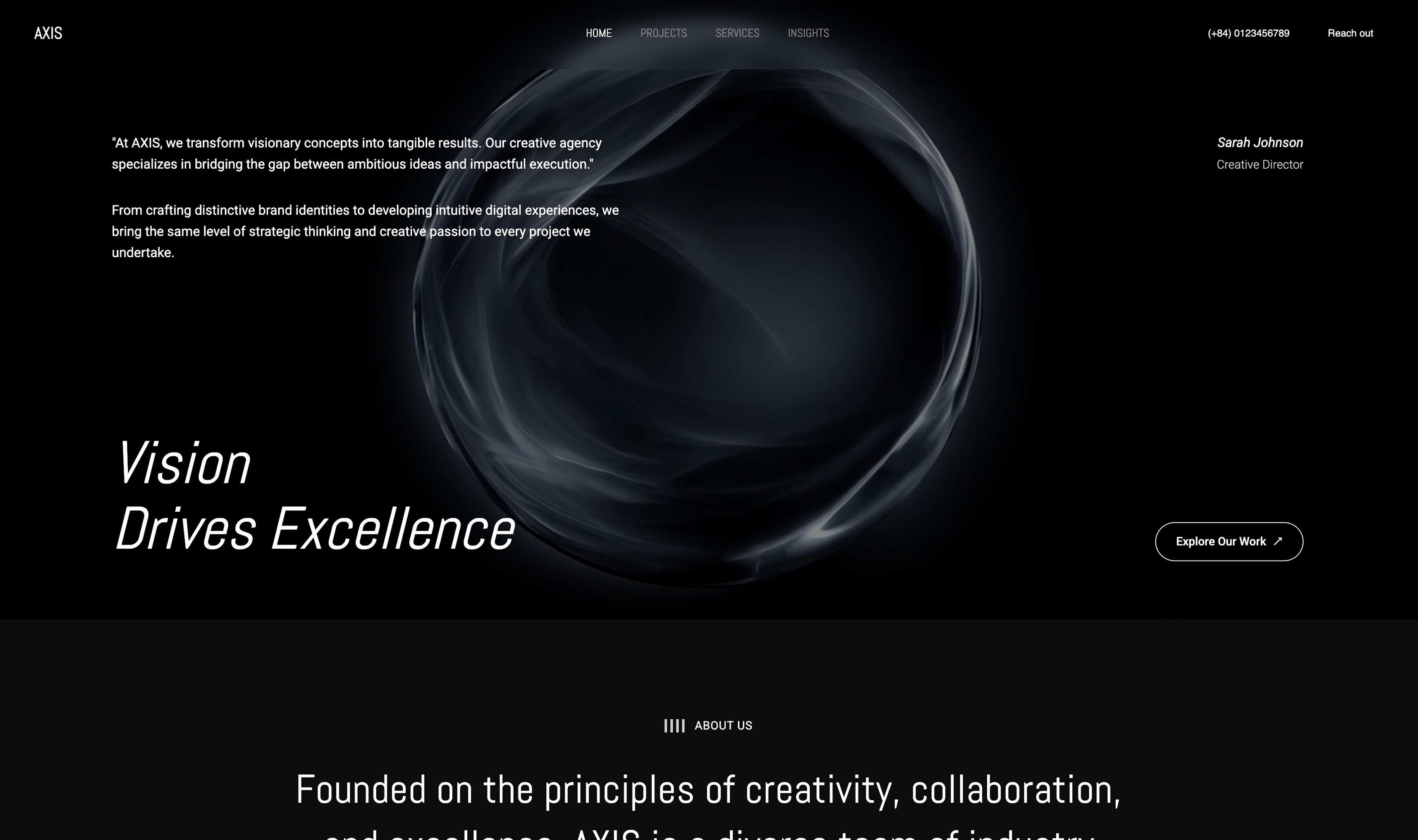
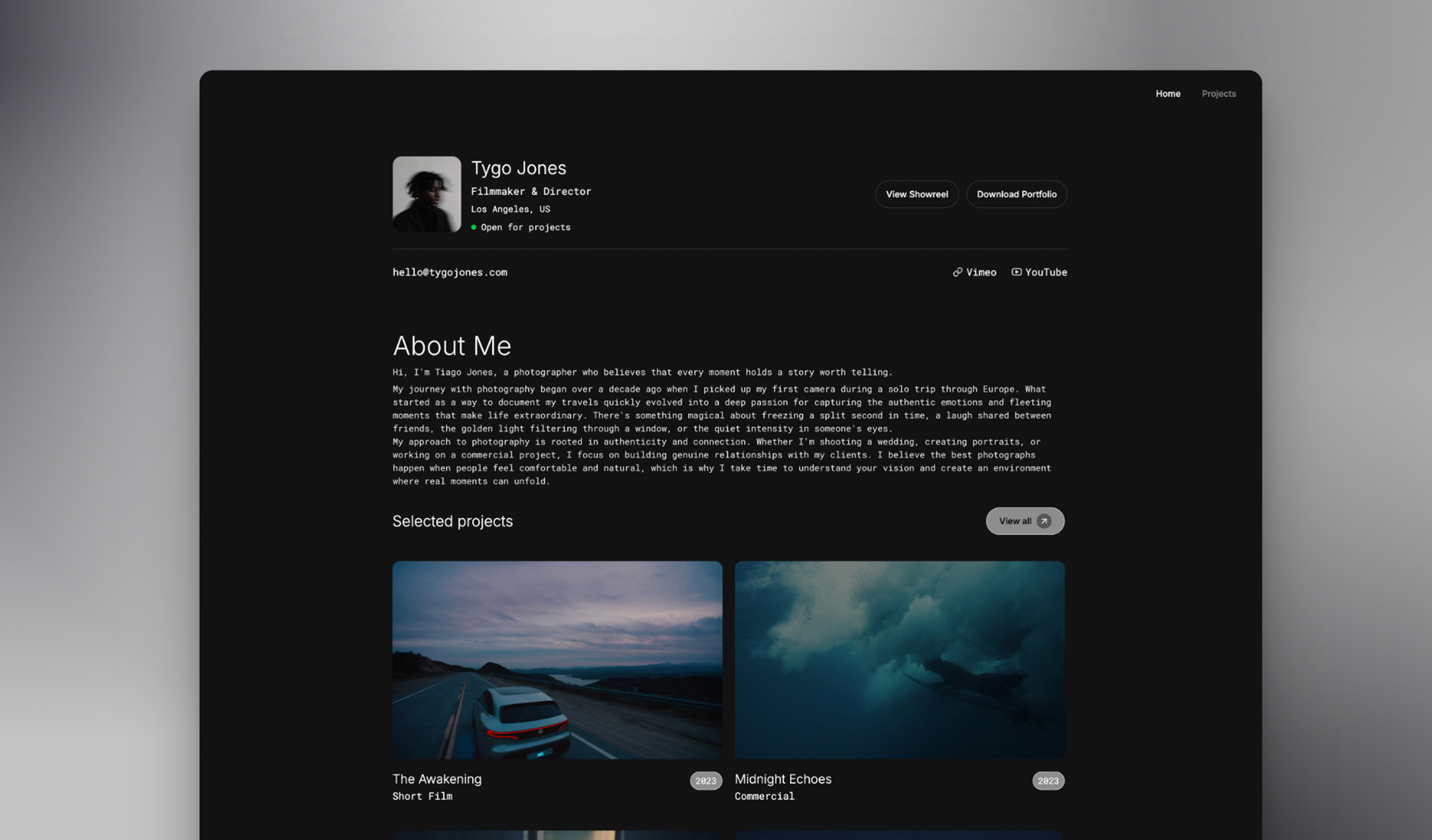
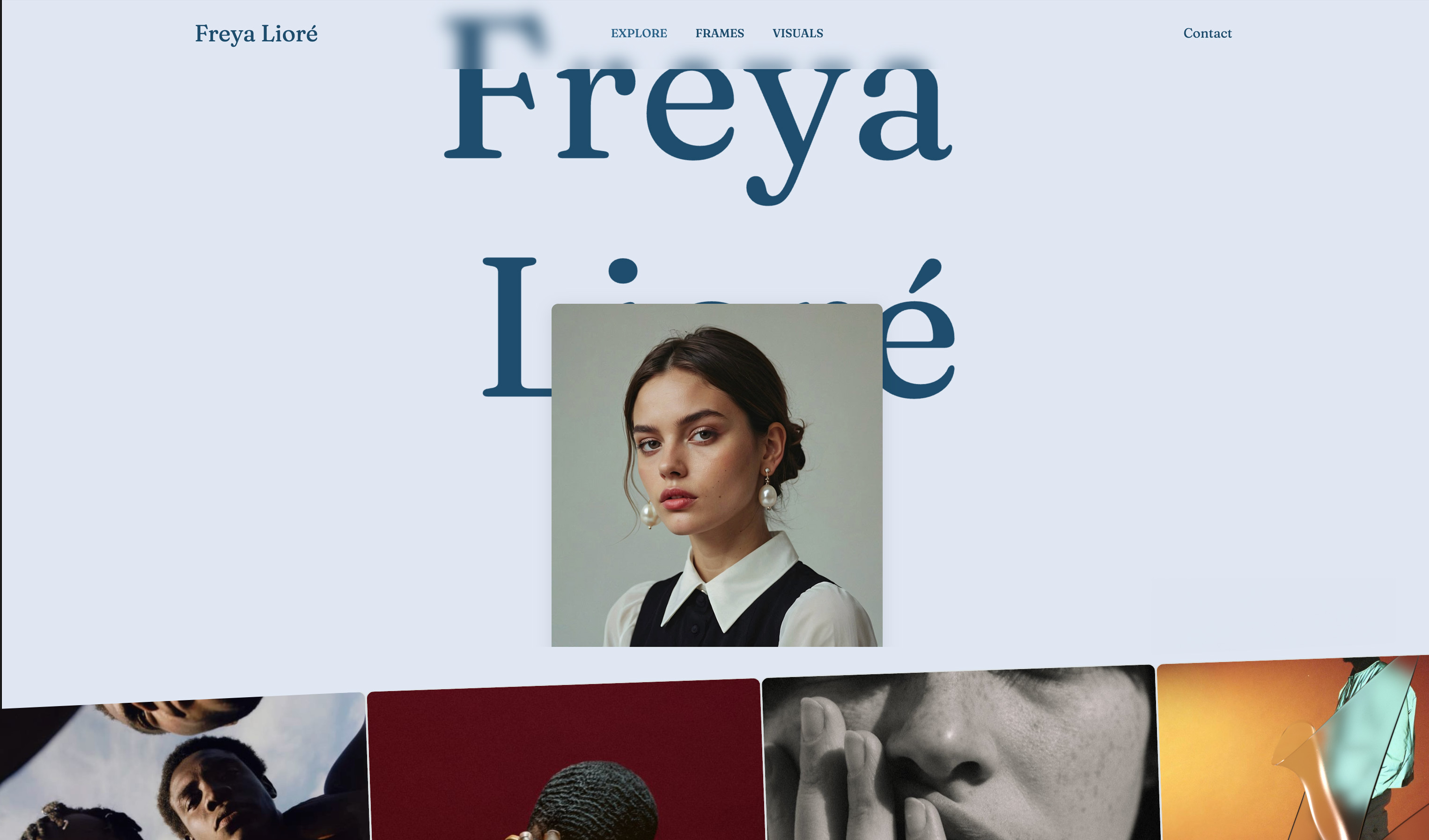
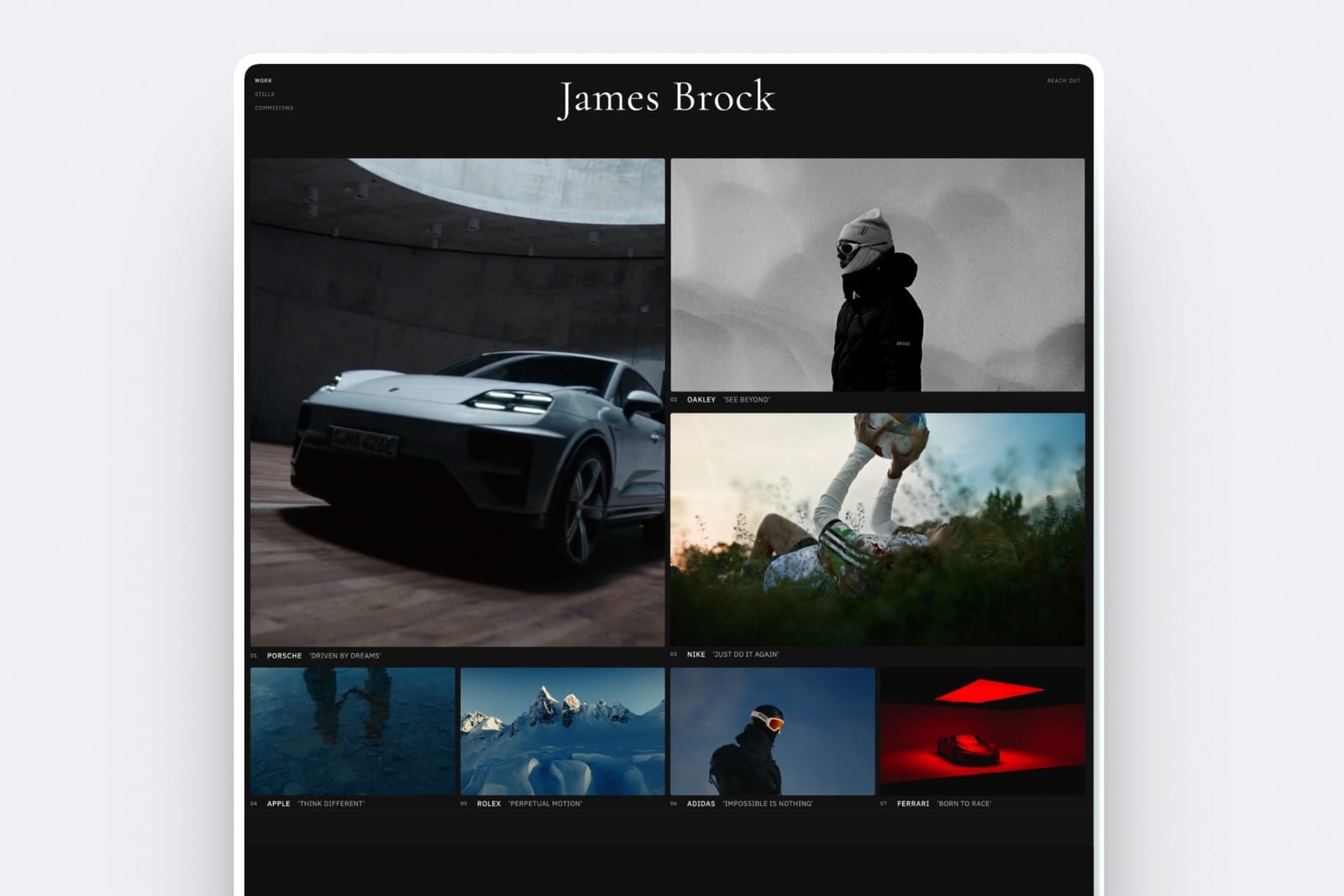
Framekit is where we work on the destination, and it is our own product, so weigh this accordingly. It is not a clipping tool and it does not appear in the rankings above.
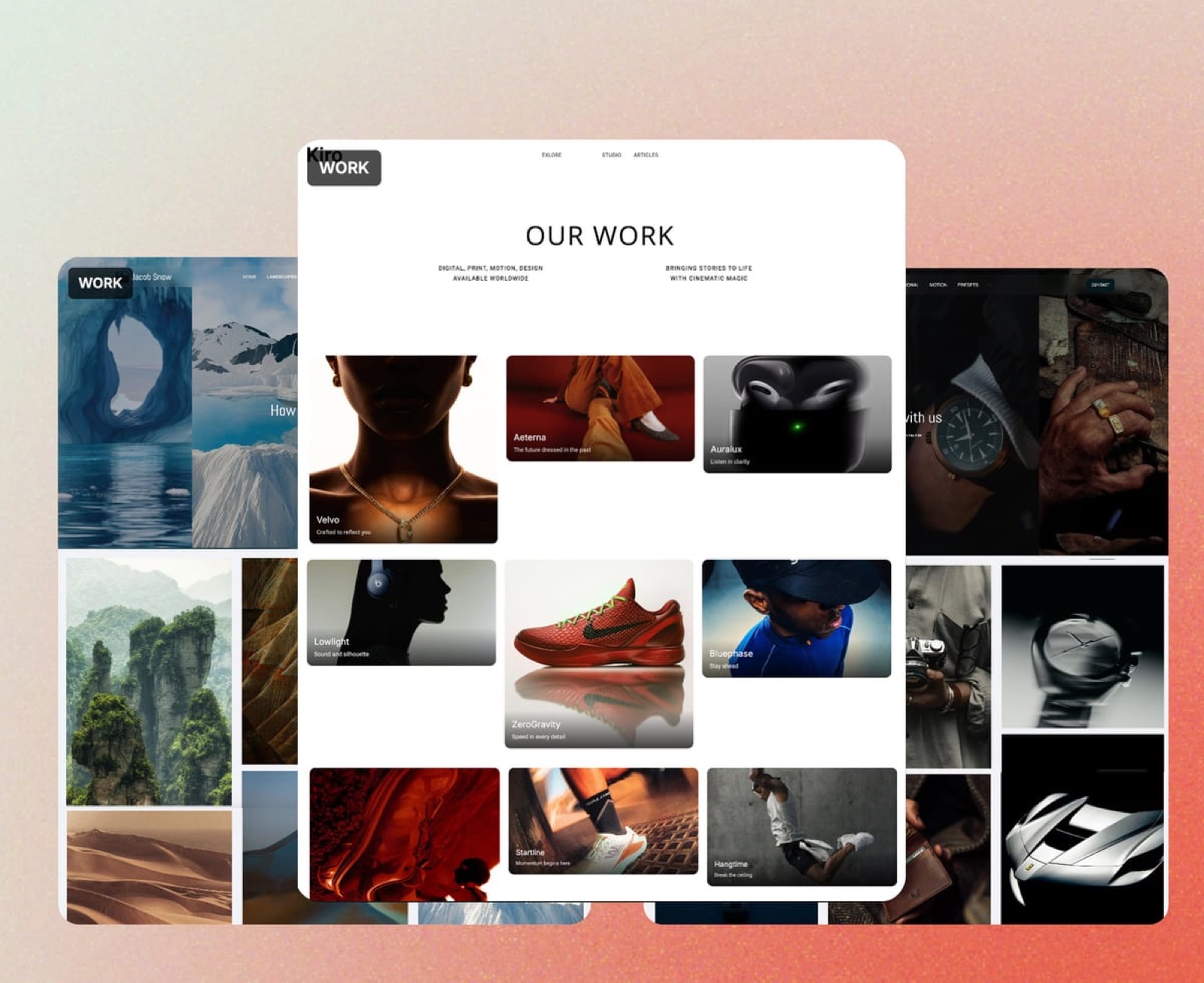
Framekit is an AI website builder for photographers, filmmakers, designers, and illustrators, producing the portfolio and store the clips should be driving people toward, plus client galleries for delivering work, on a domain you own from the $9 Starter plan.
The specific connection to this article is that short-form attention is brief and unqualified, so the landing page has to do more work than a page reached through search.
It needs to establish who you are in a few seconds, show the work rather than describe it, and offer one obvious next step.
Framekit plans start at $0 with a 5 percent fee on product sales, Pro is $19 a month with a 3 percent fee, and Business is $39 a month with no transaction fee, with Stripe processing on top on every plan, which matters when a clip that performs sends real volume at a product.
If your clips are working and nothing is coming of them, the clipping tool is not the constraint.
Frequently Asked Questions
What is the best AI video clipping tool in 2026?
OpusClip is our pick for the hardest part, which is choosing which moments are worth publishing, because its clipping is built around spoken-word boundaries and its free plan lets you judge its choices on your own recording before paying.
It has a free plan that imports local video up to 10GB with watermarked output, with Starter at $15 a month and Pro at $29. For captions specifically, Submagic is the specialist, and running both is a reasonable setup.
Do AI clipping tools actually pick good moments?
AI clipping tools do not pick good moments reliably enough to publish unchecked, in our view.
They can work from signals that correlate loosely with interest, such as question-and-answer structure and emphatic delivery, but selection is an audience judgement and the tool has no information about your audience.
Try one on a recording where you already know the best moment, then use them to shortlist and choose yourself.
Which clipping tool has the best captions?
Submagic is our pick, because captions are its core product, with clipping sold as an add-on, and its plans are priced around captioned videos.
Starter is $19 per member per month or $12 billed annually covering 15 videos of up to 2 minutes, Pro is $39 or $23 annually for 40 videos up to 5 minutes, and Business and API is $69 or $41 annually for 100 videos up to 30 minutes.
The free tier gives 3 videos a month up to 90 seconds with a watermark.
Can I use these tools free?
You can evaluate free and rarely publish free, because four of the six watermark their free output.
The two exceptions are Vizard, which gives 60 minutes a month at 720p without a watermark, and Descript, which gives 60 minutes of media a month with local exports capped at 720p.
Kapwing allows unlimited free exports up to one minute at 720p but adds a watermark. For judging output quality rather than style, Vizard and Descript are the right pair.
Why do my AI clips end mid-sentence?
Because the tool is cutting on duration rather than on speech boundaries.
OpusClip documents clipping on spoken-word boundaries, which is meant to make clips end where a thought ends and is a large part of why it ranks first here even though captions are not its speciality.
If your current tool produces amputated clips and offers no boundary setting, the fix is either to change tools or to correct the in and out points in an editor, which is fastest in Descript because the edit is text.
Is CapCut still the cheap option?
No. CapCut Pro is reported to have moved to $19.99 a month and $179.99 a year, up from roughly $9.99 a month and $77.99 a year, with existing annual subscribers rolled onto the new rate around February 2026.
We could not verify these figures at CapCut's own source because its pricing pages block automated checks, but they are consistent across independent trackers.
That makes it the most expensive option in this comparison, and its free tier remains substantial.
Should I use one tool or two?
Two, for many creators, and it is worth saying plainly rather than pretending a single product wins.
No tool here is built as a specialist at both finding moments, OpusClip's focus, and captioning them, Submagic's, so a sensible setup is one clipper and one captioner.
At $180 and $144 a year respectively that is $324, which is more than any single subscription and, in our view, worth it if captions carry your brand.
Do these tools work on podcasts and interviews specifically?
They work best on exactly that material, because conversational long-form is what they are built to segment and because it contains the most waste to remove.
Metering matters here: tools that meter by video count, such as Submagic at 3 free videos a month, penalise a podcaster with one long recording, while tools that meter by minutes, such as Vizard at 60 minutes a month, suit that shape far better.
Match the metering to your source.
What resolution should I export short clips at?
Match what the destination platform accepts rather than exporting at the maximum available, since re-encoding on upload discards the difference anyway.
The practical constraint in this comparison is that free tiers cap at 720p on Vizard, Descript, and Kapwing, which is acceptable for a phone-viewed vertical clip and visibly soft if the clip is later reused anywhere larger.
If the clip has a second life on a website or a showreel, export from a paid tier.
Are AI captions accurate enough for client work?
On clear speech in a well-recorded interview, yes, with a read-through. Transcription of clear speech is a standard feature across all six, but none of them knows how your client spells their name.
Accuracy degrades on overlapping speech, strong accents the tool has not seen, technical vocabulary, and proper nouns, which are exactly the words a client will notice.
Read every caption before publishing anything with a client's name or product in it.
How much time do these tools actually save?
The reliable saving is in transcription, reframing, captioning, and boundary detection, which on a sixty-minute source is most of an afternoon.
The saving does not extend to selection, which still takes your own judgement over the tool's shortlist.
Our estimate for three published clips is roughly twenty-five to thirty minutes rather than the two minutes the marketing implies, still a large improvement over doing it by hand; time your own first run to get your real figure.
Final Verdict
OpusClip is the best AI video clipping tool in 2026 in our ranking, and the reason is that it is the tool most clearly built for the only part of this job that is genuinely hard.
It documents clipping on spoken-word boundaries, so its output is meant to end where a thought ends rather than where a timer does. Its free tier lets you judge that properly before spending $180 a year.
Where OpusClip loses is worth being clear about. Captioning is not its speciality, and captions are what your viewer actually experiences, which means many creators will end up running Submagic alongside it at a combined $324 a year.
It watermarks free output, so the free tier evaluates rather than publishes. And its credit allowances are not published per plan, which makes it harder to budget than it should be.
The honest summary: no tool in this category can know which moment matters to your audience, and every tool is built for the boring half.
Use one to shortlist twenty candidates, pick five yourself, and caption them in whichever tool does that best. That workflow captures nearly all the time saving and none of the risk of publishing something because software liked it.
And point the clips somewhere that works.
Short-form attention is brief and unqualified, which puts more weight on the landing page than a search visitor ever would, and a portfolio that shows the work in seconds is what turns a view into an enquiry.
Captions are the other half of a clip, and they are priced by video count with a hidden length cap: the best video captioning tools does that arithmetic.
The thumbnail is the other half again, and the best YouTube thumbnail makers explains why the most useful tool there is free inside YouTube.
Related readingThe best video editing software tools, transcription tools for video editors, and social media schedulers for creatives.
Also in this seriesAI video generators, podcast editing software, and AI video translation tools.