Framekit templates
Start from a designer-made template
 Use template
 Use template
 Use template
 Use template
 Use template
 Use template
 Use template
 Use template
You built the deck in Keynote because Keynote is genuinely lovely. Magic Move does in one click what takes six keyframes anywhere else, the type renders properly, and the default theme has never once embarrassed you.
Then a client asks you to send the editable file, and the whole thing falls apart at the handover.
That handover is why most people start looking for Keynote alternatives, and it is a different search from wanting a nicer presentation app. They are on Windows. Or they are on a Mac but have never opened Keynote.
Or they open your exported .pptx and the transition you spent an hour on has become a hard cut, the custom font has become Calibri, and your carefully kerned title is now on two lines.
Keynote is the best presentation app that almost nobody else can open.
A Keynote alternative is a presentation tool that produces the same finished artefact - a sequence of designed slides you present, send, or embed - without tying the editable file to Apple hardware, so collaborators on any operating system can open, edit, and comment on the same deck.
The best Keynote alternative in 2026 for creative work is Framekit Slides, because it keeps what you liked about Keynote (a deck that looks designed, your own fonts, full-bleed images) while running in any browser on any operating system, sending as a link, and exporting a PDF on the free plan, with the deck living in the same account as your website.
The honest trade-off: there is no live multi-cursor co-editing and the PowerPoint export is picture-based, so if a client must edit your file, Google Slides is the better pick.
Canva is the pick for design without a designer, Figma Slides if you already live in Figma, and Pitch if you need to know who opened the deck.
Full disclosure: Framekit is our own product and it is ranked first, so weigh that. We compared the nine other tools on their published features and pricing, reviewed Framekit the same way, link to every one, and score Framekit 5 out of 10 on collaboration, below every tool but Storydoc; Google Slides beats us on handover, PowerPoint on editable exports, Pitch on analytics.
Framekit's own plan prices were re-verified on 19 September 2026, when Slides was added to this ranking; the competitor prices below are as checked in August 2026.
On 12 October 2026 we re-verified how Framekit handles a studio team and corrected its three-person cost, because its team members administer the website and cannot open a deck.
The same pass removed rebuild timings and export tests we had described but cannot document, re-read Beautiful.ai's pricing page, which prices Pro at $174 a year and its Team plan two different ways, and moved Gamma's link analytics to the Pro plan its help centre names.
Microsoft's consumer page, re-read the same day, prices Office Home 2024 at $179.99 and sells Family as a household plan, which the three-person row now says.
How We Compared These Keynote Alternatives
We judged nine tools, and Framekit Slides alongside them, against one real Keynote deck, using each vendor's documented features, export behaviour and published plans rather than rebuilding it in each.
The deck is an eighteen-slide studio capabilities presentation: a full-bleed cover, four image-led case study spreads, a services grid, a two-column pricing table, a Magic Move sequence between two logo layouts, three slides using a licensed display font, and a closing contact slide.
That deck is the carried example through this whole guide.
Portability. What happens when the file leaves the app: what each tool documents about .pptx and PDF export, font embedding, and how the file behaves on Windows.
Collaboration. Can two people edit at once, and can a client comment without paying or installing anything? This is the specific thing Keynote is worst at, so it carries a quarter of the score.
Design ceiling. How close each tool gets to the Keynote-quality version of the same slide, particularly type control, image cropping, and full-bleed layouts.
Motion. Keynote users are usually Magic Move users, so we rated how close each tool's documented transitions come to that one sequence.
Cost over a year, for one person and for a three-person studio, because per-seat pricing is where several of these get expensive quietly.
Two kinds of finding, kept apart so you can weigh them.
Verified from published sources: every price, seat rule and export behaviour below, checked against each vendor's own pricing and help pages during August 2026 and linked inline where the number carries real weight.
Reported as sentiment rather than our result: recurring reviewer complaints, which are labelled as such wherever they appear.
What Comparing Nine Alternatives Showed
Setting the same eighteen slides against nine tools' documentation produces a short list of facts that no feature table tells you. Every tool here claims PowerPoint export. Only some of them mean it.
- Most of the nine export to .pptx in some form; only PowerPoint writes the native format with no conversion step, and Storydoc has no slide-format export at all.
- 0 of 9 has an exact Magic Move equivalent; PowerPoint's Morph and Canva's Match and Move are the two closest.
- 6 of 9 let an outside reviewer comment on a link without creating an account.
- 3 of 9 tell you who opened the deck and how far they got.
- Few tools embed a licensed display font in a .pptx; PowerPoint can when the licence allows, and elsewhere the type substitutes silently or has to be outlined.
- Framekit Slides, from its published features: .pptx export on Pro and up as picture slides (so the text is not editable), PDF export and link sharing on the free plan, no per-recipient analytics, and no live co-editing.
- Annual cost for one person ranged from $0 to $432. For a three-person studio it ranged from $0 to $1,440, and the ordering changed completely between those two columns.
Keynote Alternatives Compared
Weighting, stated up front so you can disagree with it: collaboration 25%, portability 25%, design ceiling 25%, cost 15%, motion and media 10%.
Collaboration and portability together carry half, because those are the two reasons people leave Keynote in the first place.
Design ceiling carries a full quarter because the readers of this blog are studios and creatives, for whom the deck is itself a sample of the work; if yours is not, re-weight and Google Slides moves to the top.
That weighting is why Framekit leads at 9.0 while scoring 5 out of 10 on collaboration, its worst score here and five points behind Google Slides, which scores 10 on collaboration and 5 on design ceiling. No tool scored 9 or more on both.
| Tool | Free plan | Paid from | Real-time co-editing | Guest comments | Link analytics | Our rating |
|---|---|---|---|---|---|---|
| Framekit Slides | Yes, unlimited decks | $7/mo yearly (Starter) | No | No | No | 9.0/10 |
| Google Slides | Yes, full | $7/user/mo (Workspace) | Yes | Yes | No | 8.8/10 |
| Canva | Yes, limited | $18/mo or $144/yr | Yes | Yes | Basic | 8.6/10 |
| Figma Slides | Yes, limited | $3/mo Collab seat | Yes | Yes | No | 8.3/10 |
| PowerPoint | Web only | $99.99/yr (M365 Personal) | Yes | Yes | No | 8.1/10 |
| Pitch | Yes, 1-5 seats | EUR 10/seat/mo | Yes | Yes | Yes, on Team | 8.0/10 |
| Gamma | Yes, credit-limited | $108/yr | Yes | Yes | Full on Pro; limited on Plus | 7.6/10 |
| Beautiful.ai | No | $174/yr | Team plan only | Yes | On Team; Pro listed both ways | 7.3/10 |
| Storydoc | Trial only | $237.60/yr | No | Yes | Yes | 7.0/10 |
| Prezi | Yes, public only | $84/yr | Yes | Limited | Yes | 6.6/10 |
Framekit's paid price is the Starter plan billed yearly ($9 month to month), per its published pricing. PDF export and link sharing are on the free plan; PowerPoint export starts on Pro at $19 a month.
1. Framekit Slides: Best Keynote Alternative for Creative Decks

Best forstudios, filmmakers, photographers and designers whose Keynote decks were part of the pitch, and who mostly present or send the deck rather than hand over an editable file.
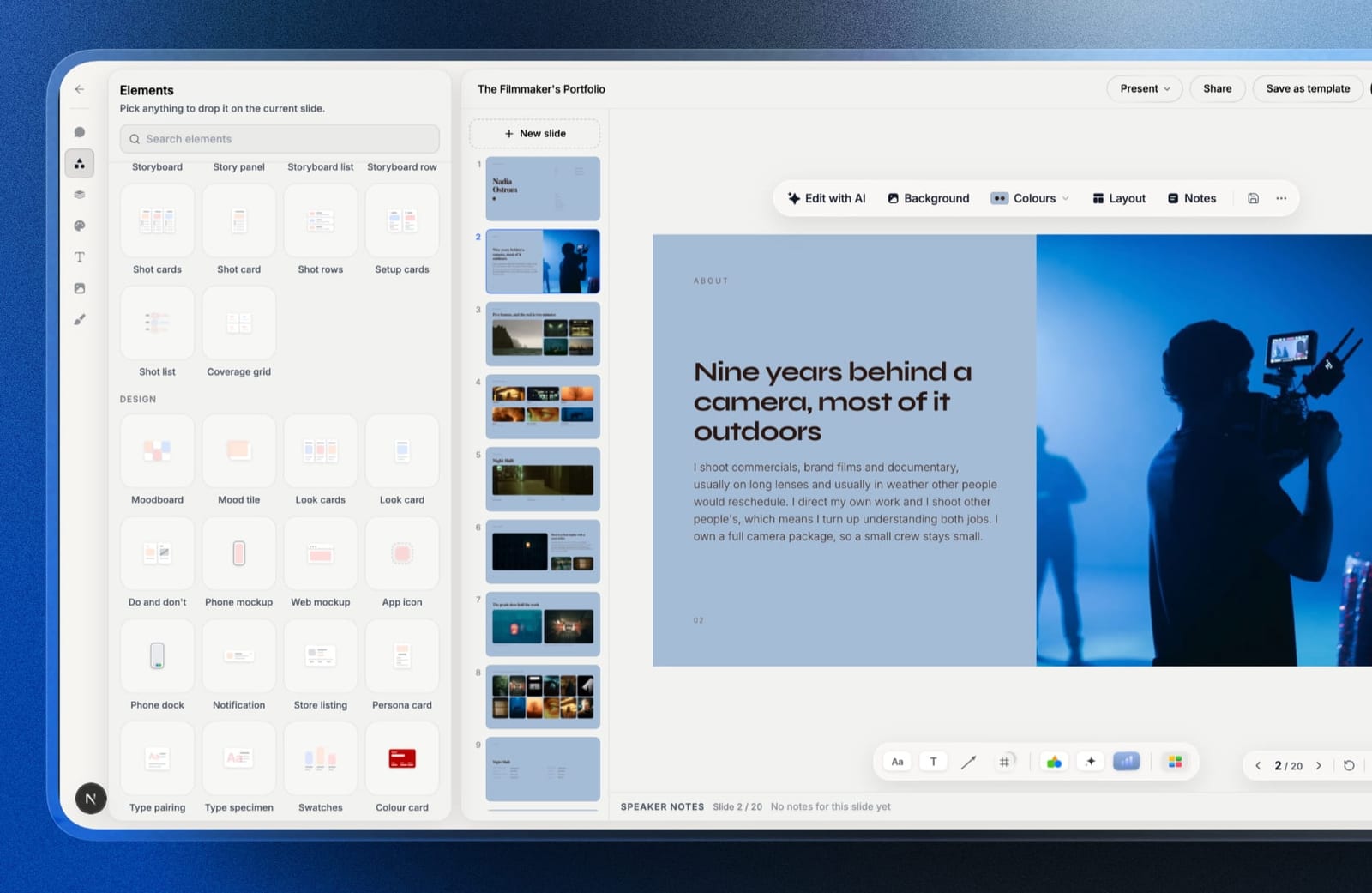
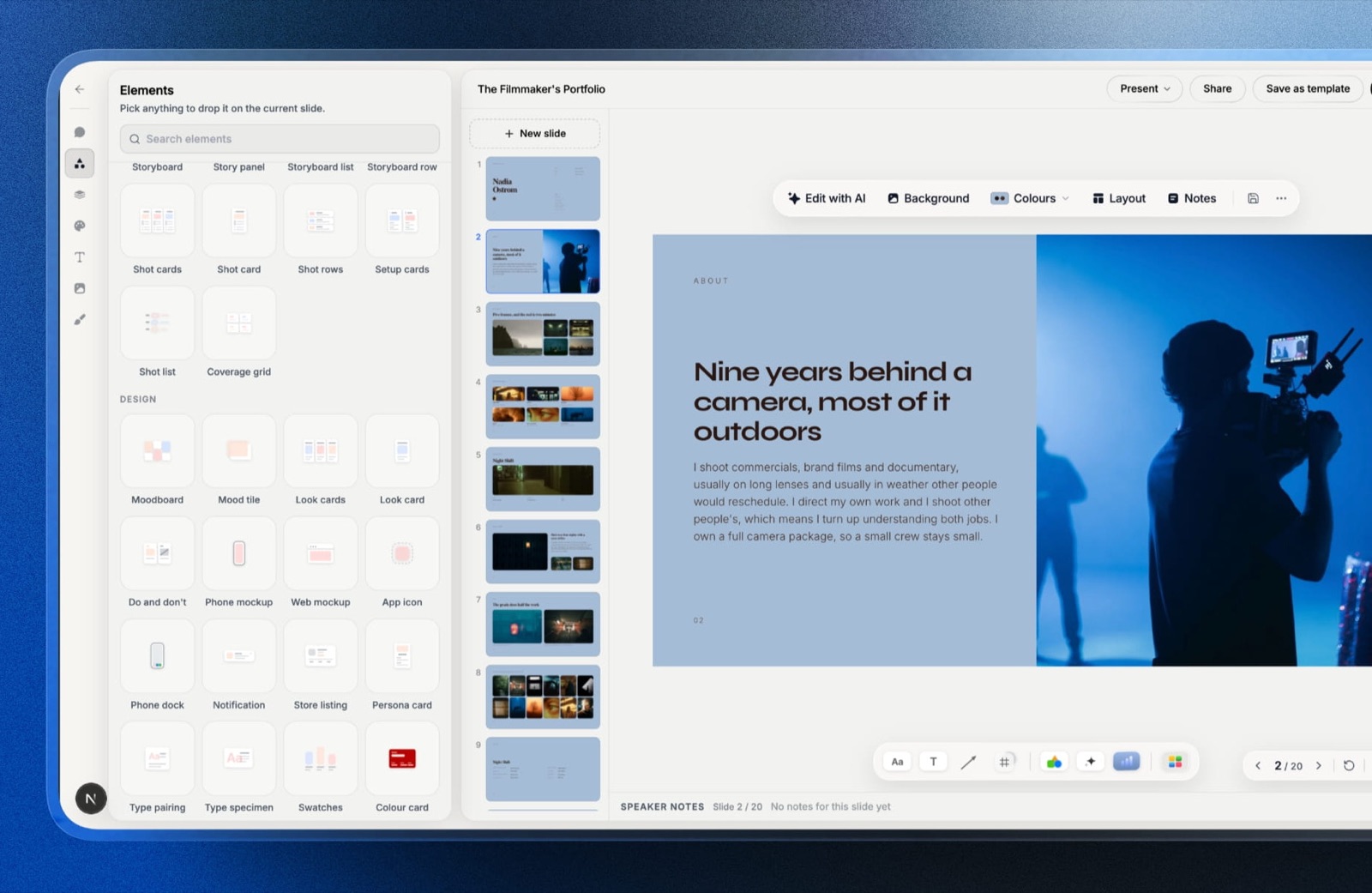
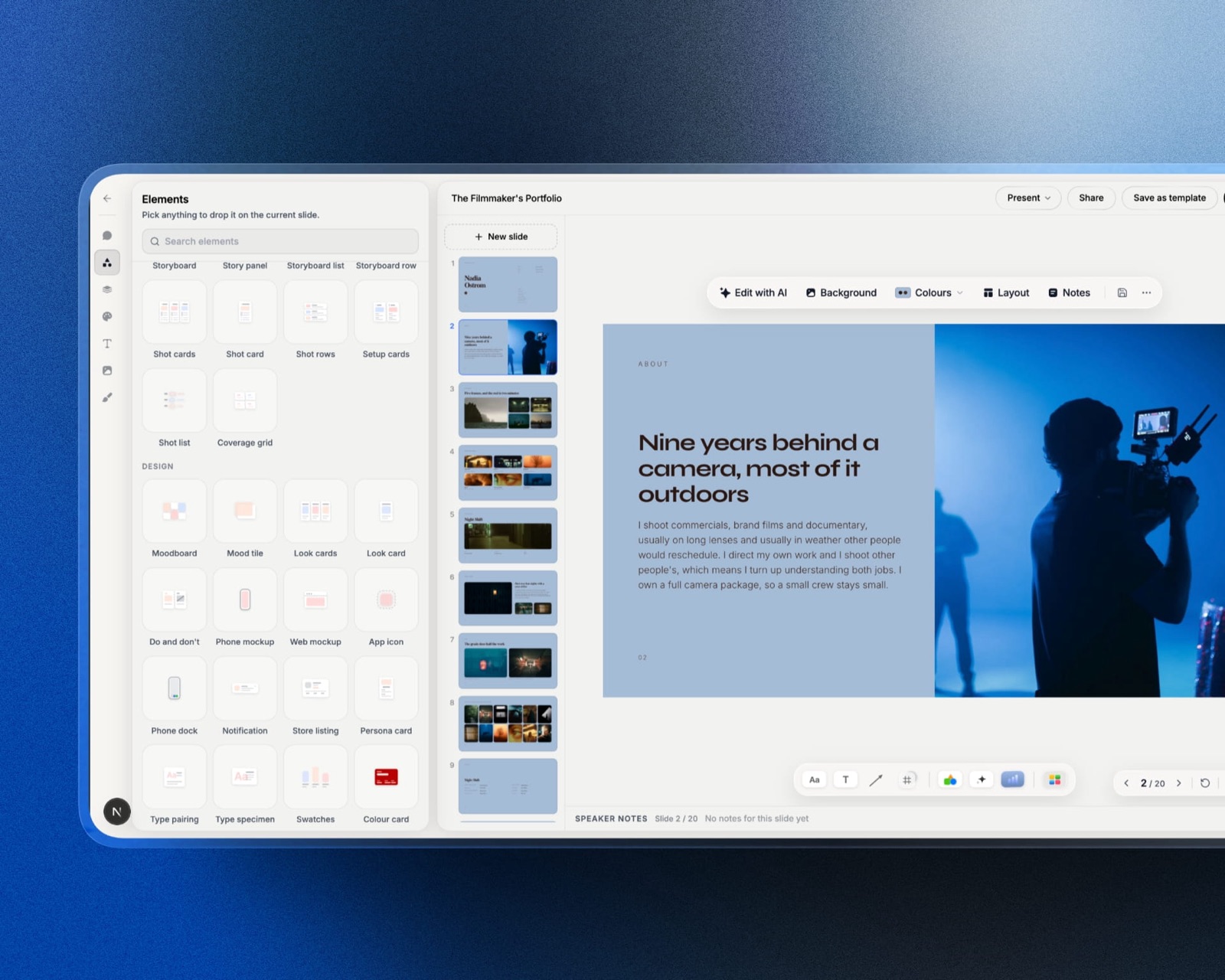
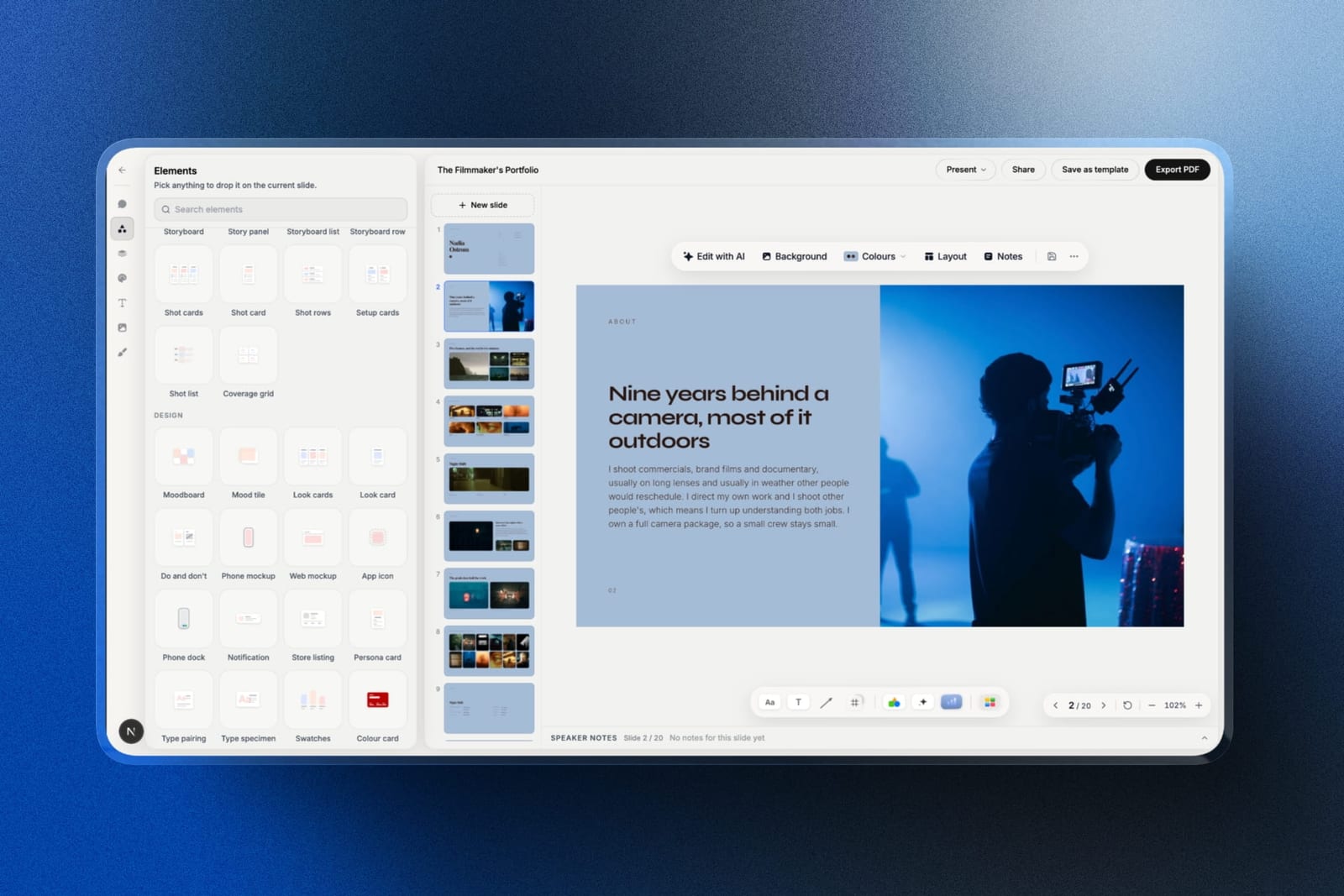
Framekit is an AI website builder that now ships Slides, a deck editor inside the same account as your site, client galleries, video review and store.
That last part is the reason it tops a Keynote list on a creative blog: the capabilities deck, the treatment, and the portfolio page all sit next to each other, share one set of fonts and colours, and send as links from the same place.
Its defaults assume the deck should look designed, which is what Keynote users are used to.
The templates are treatments, lookbooks, portfolio and campaign decks rather than quarterly-review layouts, your own uploaded fonts and colours apply across every slide, and the AI drafts a whole deck from your brief or writes and lays out a single slide from a sentence, then you edit everything by hand.
Speaker notes sit on every slide and you present full screen from the browser, on a Mac or a Windows machine alike.
The real number$0. The free plan has unlimited decks, the AI slide writer, full-screen presenting, a share link and PDF export, which covers most of a capabilities deck.
The template library, custom fonts and removing the small Made with Framekit credit arrive on Starter at $9 a month, and Pro's three team members are website admins rather than deck editors, so a three-person studio where everyone builds decks needs three accounts, $252 a year on Starter, with no deck shared between them.
The standout detaila YouTube or Vimeo clip dropped onto a slide plays inside the deck, both in full-screen present mode and on the shared link.
For a studio whose case studies are moving pictures, that replaces the Keynote habit of a still frame with a link under it. There are also ready-made shot lists, storyboard rows, moodboards and swatch cards for creative decks.
The gotchatwo of them, and both matter for a Keynote leaver. There is no live multi-cursor co-editing, so two people cannot work on the same slide at once.
And the .pptx export, available from Pro, turns every slide into a picture with your speaker notes attached, so the look survives on Windows but a client cannot retype a headline; decks themselves cap at 40 slides.
Skip it ifthe deck's next owner is a client who will edit it in PowerPoint, if you need per-recipient open tracking, or if you want a password on the deck link, which Slides does not offer.
Verdict: the best Keynote replacement for creatives who present and send, and the wrong one for anyone whose deck is really a file to be handed over. If handover is the problem, Google Slides at number two solves it for free. Start a deck on the free plan at framekit.ai/slides.
2. Google Slides: Best Keynote Alternative for Handing Over the File
Best foranyone whose reason for leaving Keynote is that other people cannot open the file.
Slides has no opinion about type. Where Keynote nudges you toward a decent hierarchy, Slides hands you a text box and lets you make it 44pt Arial if you want to. A deck rebuilt there looks correct, and nothing looks considered until you do the considering yourself.
What it does that nothing else here matches is disappear as a barrier: a reviewer on any laptop opens the link in a browser tab with nothing to install, and comments as soon as you share it with comment access.
The real numberfor one person Google Slides costs nothing at all, forever, with no watermark, no export limit, and no slide cap.
The $7 per user per month in the table is Google Workspace Business Starter, which you only need if you want the deck on a company domain with admin controls. Most solo users never need it.
The standout detailversion history in Slides is per-slide-edit and named. You can scrub back to the state of the deck before a client's late notes and restore just that, which is a feature Keynote users tend to miss once they have had it.
The gotchamotion is where Slides loses. There is no morph transition, so a Magic Move sequence has to be approximated by duplicating the slide and animating each element, and it looks like an approximation.
If your deck's charm is motion, this is a real downgrade and you should read the Canva and Figma entries instead.
Skip it ifyou present to rooms where the deck itself is the pitch - brand studios, architecture practices, anyone selling taste. Slides will make your work look more ordinary than it is.
What reviewers say elsewhereGoogle Slides holds a 4.6 out of 5 across more than 42,000 reviews on G2, consistently praised for collaboration and criticised for design limits, which matches its published feature set.
Verdict: the correct default. It solves the file-portability problem completely and costs nothing, and you pay for that in visual ceiling. If you left Keynote because of the handover rather than the design, stop reading here.
Already sending decks that get rebuilt in Slides by someone else? Our PowerPoint versus Google Slides comparison covers which one survives the round trip better.
3. Canva: Best for Design Without a Designer
Best forKeynote users whose decks looked good because Keynote made them look good.
Canva is the tool here most likely to make an image-led deck look better than its Keynote original, because its crop and focal-point handling is more forgiving than Keynote's when you drop a portrait photo into a landscape frame.
Motion is the surprise. Canva's Match and Move preset is built on the same idea as Magic Move and, with PowerPoint's Morph, is the closest thing to it on this page.
The real numberCanva Pro is $18 per month or $144 a year for one person.
For our three-person studio the correct plan is Canva Teams at $25 per user per month, which is $900 a year, and that jump is the moment a lot of small studios decide the free plan is fine.
It usually is, until you need brand kit lock or background removal.
The standout detailCanva's Present-and-record produces a shareable link with your talking head in the corner and the slides playing behind it. For a capabilities deck that gets forwarded to people who were not in the room, that is more useful than any transition.
The gotchathe .pptx export is good, not perfect. A licensed display font substitutes silently on a machine that does not have it installed.
The fix is to outline the type before export, which means the client can no longer edit the words, which is exactly the problem you left Keynote to solve.
Skip it ifyour brand depends on a very specific typographic system. Canva is generous with fonts and stingy with control over them.
What reviewers say elsewhereCanva sits at 4.7 out of 5 from over 6,000 reviews on Capterra, with template quality the most cited strength.
Verdict: the best pure replacement for what Keynote was doing for you visually, at a real cost once a second person needs a seat. For one designer working alone, it is the strongest pick on this page.
4. Figma Slides: Best for Designers Already in Figma
Best forpeople who were fighting Keynote's layout engine and already have a Figma file open.
For a Figma user it is the most pleasant way to build this deck, and still not the one to recommend to most people reading.
Auto-layout does to slide construction what it did to interface design: a two-column pricing table snaps into place, and changing the row height propagates instead of requiring nine manual nudges.
If you know Figma, this is Keynote with real constraints.
If you do not know Figma, it is a professional design tool wearing a presentation hat, and the learning curve is steeper than the problem you are trying to solve.
The real numberhere is the fact almost nobody writes down. Figma Slides is included with a Collab seat, which is $3 per month billed annually, not the $16 Full seat.
A Collab seat gives full editing in FigJam and Slides with no design-file editing. For a studio where one person needs Figma proper and two need to co-edit decks, that is $192 plus $72, not three times $192.
The standout detailyou can embed a live prototype in a slide and click through it while presenting. For anyone pitching product or interface work, that removes an entire category of awkward screen-sharing.
The gotchathe .pptx export flattens most of what makes it good. Auto-layout becomes static groups, embedded prototypes become still images, and the deck arrives as a competent but inert file. Figma Slides is a tool for presenting from Figma, not for producing a portable document.
Skip it ifthe person who has to edit this deck next quarter is not a designer.
Verdict: the highest ceiling here for people who already pay the learning cost, and a strange recommendation for anyone else. Worth it almost entirely for the $3 Collab seat, which is the cheapest real co-editing on this page.
5. Microsoft PowerPoint: Best for Corporate Compatibility
Best foranyone whose decks end up inside a company that runs on Microsoft.
There is a version of the Keynote-alternative question where the answer is simply "the file format everyone else uses", and this is it.
A deck built there is unremarkable and that is the point: the file is the format everyone already opens, licensed fonts can be embedded when the licence allows, and nothing needs explaining to the recipient.
The Morph transition is also the closest true analogue to Magic Move on this page. Same idea, same one-click execution, slightly less refined easing.
The real numberMicrosoft 365 Personal is $99.99 a year and includes PowerPoint on every device plus 1TB of storage.
Office Home 2024 is a one-off purchase at $179.99 with no upgrade path to the next release, which usually makes it the worse deal for anyone who keeps a machine longer than three years.
PowerPoint for the web is free with a Microsoft account and handles a deck like this one, minus Morph.
The standout detailthe free web version is genuinely usable and almost never mentioned in comparisons like this one. If your only reason for leaving Keynote is compatibility, you may not need to pay anything.
The gotchareal-time co-editing works properly only when the file lives in OneDrive or SharePoint. Emailing a .pptx around recreates the exact versioning mess you had with Keynote, with more people involved.
Skip it ifyou are a solo creative whose clients are other creatives. You will pay a hundred dollars a year for compatibility with an ecosystem none of you are in.
What reviewers say elsewherePowerPoint holds a 4.6 out of 5 from over 30,000 reviews on G2, with the most common complaint being cost rather than capability.
Verdict: boring and correct if your decks go to corporates. The Morph transition alone makes it the most direct feature-for-feature Keynote replacement, and the yearly cost is the price of never explaining a file format again.
6. Pitch: Best for Teams That Send Decks
Best forstudios and startups where the deck gets forwarded to people you will never meet.
Pitch is built around a fact Keynote ignores completely: most decks are read, not presented. The template system is the best-organised here, and the shared component library means changing the studio logo once updates it on all eighteen slides.
The reason to choose it is analytics. Send an advanced link and you see who opened it, how long they spent on each slide, and whether they forwarded it.
Learning that a recipient spent four minutes on the pricing table and seconds on everything else is the kind of thing you would pay to know before a follow-up call.
The real numberPitch is priced per seat, not per workspace. Plus is EUR 10 per seat per month, Team is EUR 15, Business is EUR 20.
Free covers one to five seats with basic sharing links but no advanced links, which means no analytics, which means you are missing the reason to be here. For our three-person studio on Team that is EUR 540 a year.
The standout detailadvanced links can be revoked and expired individually. Sending a pricing deck to a prospect who then goes quiet, and being able to kill that link without killing the version you sent to three other people, is a small thing that matters more than it sounds.
The gotchathe free plan's analytics gap is not signposted well. Several reviewers report signing up expecting tracking and finding it behind the paid tier, and Pitch's own plan page confirms basic links carry no per-recipient data.
Skip it ifyou present live in a room and nobody ever reads the deck alone. You would be paying for a telemetry feature you never open.
Verdict: the right answer for a specific job. If your deck's real life happens in someone else's inbox, Pitch is the only tool here that tells you what happened to it, and per-seat pricing is the price of that.
Already comparing this against the design-first route? Our Pitch versus Canva breakdown puts the two side by side on exactly that trade.
7. Gamma: Best for a Fast First Draft
Best forthe deck you have not started and need to have started.
Gamma turns a paragraph of prompt into a full skeleton deck in one pass. Expect parts of it to be generic in the way AI output is generic: correct nouns, no point of view. Fixing that is slower than a blank page for an experienced designer, and much faster for someone stuck.
The output is web-native by default. A Gamma deck is a scrolling page that can also be presented, which is a genuinely different artefact from a Keynote file and better suited to being sent.
The real numberGamma Plus runs $108 a year. The free plan is credit-limited rather than feature-limited, so you can evaluate the real product without paying, which is unusually honest for this category.
The gotchaGamma's card-based layout does not map onto slide geometry, so .pptx exports have to convert it, and users report text overflowing frames and cards split awkwardly across pages. Treat Gamma as a destination, not a stopover.
Skip it ifthe deck has to end up as a file in a data room or a board pack.
Verdict: the fastest way from nothing to something on this page, and a bad choice if the finished thing must be portable. Use it to break the blank page, then decide where the deck actually lives.
8. Beautiful.ai: Best for On-Brand Consistency
Best forteams where slide quality varies wildly depending on who made the slide.
Beautiful.ai enforces layout rather than suggesting it. Add a fifth item to a four-item row and the row re-balances itself instead of letting you squash the type.
The result is constrained in a way that is occasionally annoying and consistently protective, and a two-column pricing table comes out cleaner than most hand-built ones.
The real numberPro is $14.50 a month billed annually, $174 a year for one person, or $45 for a single month billed monthly, per Beautiful.ai's pricing page re-read on 12 October 2026.
Team is priced two ways on that page: $40 a month including three users on its plan card, or $480 a year for a three-person studio, and $40 per user a month annually, or $50 monthly, for 2 to 20 seats in its FAQ, which is $1,440 a year for three.
On the per-user reading that is about a 5.5x jump from one seat to two, the single steepest seat cliff in this comparison. There is no one-time project plan.
The standout detailthe month-by-month Pro price is rare at this tier and genuinely useful. If you are leaving Keynote for a single high-stakes deck, $45 for one month billed monthly, with no annual commitment, is a defensible spend.
The gotchathe same constraint that protects you blocks you.
On a Smart Slide there is no way to place an element at an arbitrary position, so a slide built around a deliberately off-grid image has to become a conventional layout or be rebuilt as a blank Classic Slide, which allows free layout but drops the automatic spacing you came for.
Skip it ifyou are a designer. You will spend the whole time trying to override a system that exists to stop you overriding it.
Verdict: excellent for non-designers who must not produce ugly slides, and quietly expensive the moment a second person needs an account. A single $45 month of Pro is the underrated way in.
9. Storydoc: Best for Decks Read Like Web Pages
Best forproposals and sales decks that live entirely as links.
Storydoc treats a deck as a responsive web document rather than a stack of slides, and a deck like this one shows the difference immediately: case study spreads become scrolling sections with embedded video, and a pricing table becomes an interactive table that reflows on a phone.
If more than half your recipients open on mobile, this is a real advantage that slide tools cannot match.
The real numberStarter is $19 a month, or $237.60 billed annually. Pro is $36 a month, or $432 a year. That is the most expensive entry point on this page, and there is no free tier, only a trial.
The gotchathere is no slide-format export. None. Your deck cannot become a .pptx, a .key, or a properly paginated PDF, because it was never a stack of slides. Whatever you build here stays here, which is a serious consideration for anything that needs archiving.
Skip it ifanyone downstream needs the file rather than the link.
Verdict: the strongest option on this page for decks that are read on a phone by someone who was not in the meeting, and the weakest on portability by a wide margin. Buy it knowing that trade, not despite it.
10. Prezi: Best for Non-Linear Presenting
Best fortalks where the structure is a map rather than a sequence.
Prezi is the only tool here that is not trying to be Keynote, which is refreshing in this list.
The capabilities deck becomes a single canvas with the four case studies as regions you zoom into, which suits that content better than eighteen sequential slides, and would suit a linear investor deck considerably worse.
The real numberPrezi Standard is $84 a year. The free plan publishes everything publicly and is searchable, which makes it unusable for client work.
The gotchathe zoom motion causes motion sickness in some viewers, which is a documented accessibility concern rather than a stylistic quibble. If you present to large audiences, some percentage of the room will not enjoy it, and you will not know which percentage.
Skip it ifthe deck will be read rather than presented. Non-linear structure is confusing without a narrator.
Verdict: genuinely different rather than differently mediocre, and correct for a narrow set of talks. If your Keynote decks were already unconventional, this is the one to try.
What Actually Breaks When a Keynote File Leaves the Mac
Four specific things break, and knowing which ones matter to you determines which alternative you should pick. This is the section we wished existed when we started, because every comparison lists features and none of them list failure modes.
Transitions collapse first. Magic Move, Cinematic, and Object Revolve have no equivalent in the .pptx specification. Exporting converts them to a hard cut or a generic dissolve.
PowerPoint's Morph and Canva's Match and Move are the only two things here that replace them properly.
Fonts substitute silently. Keynote does not embed fonts in a .pptx export. If the recipient does not have your licensed display face installed, their machine picks something and does not tell either of you.
A deck that arrives on Windows in Calibri can look, at a glance, fine, which is worse than looking broken.
Builds become one slide. A Keynote slide with six sequential builds exports as a single static slide with all six elements visible at once, which turns a paced reveal into a wall.
Comments do not travel at all. Keynote comments are not carried into a .pptx or PDF export. If a client has annotated your deck, that feedback exists only in the .key file.
In one lineif your deck relies on motion or a licensed typeface, no export path preserves it, and the only real fix is to stop treating the file as the deliverable and start sending a link that renders identically for everyone.
What Leaving Keynote Actually Costs Over a Year
Keynote is free, so every alternative is a new line item. Here is what the same eighteen-slide deck costs to maintain in each tool for one person and for a three-person studio, using annual billing where it is offered.
| Tool | One person / year | Three people / year | What the jump buys |
|---|---|---|---|
| Google Slides | $0 | $0 | Nothing changes; seats are free |
| Framekit Slides (Starter) | $84 | $252, as three separate accounts | Three logins that cannot share a deck; Pro adds .pptx export at $180 an account |
| PowerPoint (M365 Personal) | $99.99 | $129.99 on Family only if all three share a household; a studio prices Business seats | Family is a home plan for up to six people |
| Figma Slides (Collab seats) | $36 | $108 | Co-editing at $3/seat/mo |
| Prezi Standard | $84 | $252 | Per-seat, no team discount |
| Gamma Plus | $108 | $324 | Per-seat AI credits |
| Canva Pro to Teams | $144 | $900 | Brand kit lock and shared folders |
| Beautiful.ai Pro to Team | $174 | $480 on the plan card, $1,440 on the FAQ's per-user price | Shared slide library, co-editing and analytics |
| Storydoc Starter | $237.60 | $712.80 | Per-seat analytics and CRM sync |
| Pitch Team | ~EUR 180 | ~EUR 540 | Advanced links with per-recipient data |
Run this on your own numbers. Count the people who need to edit a deck, not the people who need to read one. Multiply by the per-seat annual price.
Then ask what the free tier actually blocks you from doing, because for solo work the answer is usually "a watermark and a font", and both have workarounds. The seat count, not the feature list, is what decides the bill.
Which Keynote Alternative Should You Choose?
Work down these questions in order and stop at the first yes, because the first question you answer yes to is the constraint that will decide whether you are happy with the tool six months from now.
1. Does the person receiving this deck need to edit it, on a machine you do not control? If yes, go to Google Slides. Every other consideration is secondary to the file opening.
2. Is the deck creative work you present or send as a link, such as a capabilities deck, treatment, lookbook or portfolio? If yes, Framekit Slides.
It is free to start, keeps your fonts and full-bleed images, plays reel clips inside the slide, and lives next to your website, as long as nobody needs to co-edit it live.
3. Was Keynote's design what made your decks good, and do several people need to edit? If yes, Canva. It is the tool here most likely to raise the visual quality of a Keynote deck rather than lower it, with real-time co-editing on top.
4. Do you already use Figma daily? If yes, Figma Slides on a $3 Collab seat, which is the cheapest real co-editing on this page.
5. Do your decks end up inside large companies? If yes, PowerPoint. The compatibility is the product, and Morph is the closest thing to Magic Move.
6. Do you send decks and then wonder what happened to them? If yes, Pitch, on a paid tier, because the free plan's basic links carry no analytics.
7. Is the deck read on phones more than it is presented? If yes, Storydoc, accepting that nothing you build there leaves as a file.
8. Do you need something on the screen in the next ten minutes? If yes, Gamma, then move the finished thing somewhere portable.
9. Is this a talk with a map-shaped structure rather than a sequence? If yes, Prezi.
Frequently Asked Questions
What is the best Keynote alternative in 2026?
The best Keynote alternative in 2026 for creative work is Framekit Slides, which runs in any browser, keeps your own fonts and full-bleed image layouts, plays YouTube and Vimeo clips inside the slide, and shares decks as a link or PDF on its free plan.
If the reason you are leaving Keynote is that a client must edit your file, Google Slides is the better choice, because Framekit has no live co-editing and its PowerPoint export is picture-based.
What is the best free Keynote alternative in 2026?
The best free Keynote alternative is Google Slides, which is free permanently with no watermark, no slide limit, and no export restriction, and which opens in any browser on any operating system.
PowerPoint for the web is a close second and is also free with a Microsoft account, but it drops the Morph transition in the browser version, which is the feature most Keynote users are looking for.
Can Keynote files be opened on Windows?
Keynote files cannot be opened natively on Windows, but any Windows user can open and edit a Keynote document at iCloud.com in a browser using a free Apple Account.
The web version drops some transitions and font handling compared to the Mac app, so it is a viewing and light-editing route rather than a full replacement.
Does exporting Keynote to PowerPoint preserve animations?
Exporting Keynote to PowerPoint does not preserve Magic Move, Cinematic, or Object Revolve transitions, which convert to a hard cut or a generic dissolve.
Sequential builds on a single slide also flatten, so a paced six-step reveal exports as one slide with all six elements visible. Plan on rebuilding motion rather than exporting it.
Which Keynote alternative is closest to Magic Move?
PowerPoint's Morph transition is the closest equivalent to Keynote's Magic Move, using the same underlying idea of matching objects between two slides and interpolating the difference.
Canva's Match and Move preset is a close second and is free to use, while Google Slides has no morph transition at all and requires manual per-element animation.
Is Canva better than Keynote?
Canva is better than Keynote for collaboration, template quality, and getting a deck to look designed without a designer, and worse than Keynote for precise typographic control.
An image-led deck tends to gain in Canva, while one relying on a licensed display font loses, because the font substitutes on export unless it is outlined.
Google Slides vs PowerPoint: which is the better Keynote replacement?
Google Slides is the better Keynote replacement if your problem is that collaborators cannot open your files, because it is free, browser-based, and lets outside reviewers comment without an account.
PowerPoint is better if your decks end up inside companies that standardise on Microsoft, because the file format is the lingua franca there and Morph replaces Magic Move directly.
How much does it cost to replace Keynote for a three-person studio?
Replacing Keynote for three people costs between $0 and $1,440 a year depending on the tool.
Google Slides is free at any seat count, Figma Slides costs $108 a year on three Collab seats, Framekit costs $252 a year as three Starter accounts, because its team members are website admins and each deck belongs to the account that made it, Canva Teams costs $900, and Beautiful.ai Team costs $1,440 on its FAQ's per-user price, though its plan card reads $480 for three users.
The per-seat model, not the feature set, is what produces that spread.
Which presentation tools tell you who opened your deck?
Pitch on its Team tier, Storydoc, and Gamma on its Pro plan report link analytics, including which slides were viewed and for how long, and Beautiful.ai lists viewer and slide analytics on Team.
Pitch's free plan's basic sharing links carry no tracking data at all, and Gamma's analytics help article gives Free and Plus limited or no access.
Google Slides, PowerPoint, Keynote, Figma Slides, and Framekit Slides do not offer per-recipient analytics.
Will my licensed fonts survive when I move off Keynote?
Licensed fonts usually do not survive a Keynote export, because Keynote does not embed fonts in .pptx files and the recipient's machine substitutes silently.
PowerPoint can embed fonts when the licence permits it, Canva substitutes unless you outline the type first, and any web-native tool such as Framekit Slides, Gamma or Storydoc serves the font with the deck link so it renders correctly everywhere.
Framekit's PowerPoint export keeps the font's look by turning each slide into a picture, which means the text is no longer editable.
Should I move my capabilities deck to a website instead?
Moving a capabilities deck to a website makes sense when the deck is a document you re-send rather than a talk you give, because a page stays current for everyone holding the link and can be found in search, while a slide file goes stale in a downloads folder.
Keep slides for anything with a live presenter and a fixed running order. Framekit holds both in one account, so the deck and the page can share fonts, colours and images.
Can two people edit a Framekit deck at the same time?
No.
There is no live multi-cursor co-editing and no deck sharing between accounts: a deck belongs to the person who made it and Framekit's team members are website admins, so a second person cannot open it to edit, even in turns, the way they can in Google Slides or Figma Slides.
For a studio where one person builds the decks this rarely matters, and for one that writes decks together it is disqualifying.
The second thing worth knowing before you move off Keynote: the .pptx export, available from Pro, turns each slide into a picture with your speaker notes attached, so the design survives on a client's Windows machine but they cannot retype a headline in it.
Final Verdict
Framekit Slides is our pick for the creatives this blog is written for, and the reason is specific: a studio's deck is part of the pitch, and Slides keeps Keynote's design ceiling while fixing the Apple lock-in, free to start, with the deck living beside the website, galleries and reviews it points to.
It earns the top spot on design, media and cost, not on collaboration.
For everyone else, Google Slides is the right answer, and the reason is unglamorous: the handover problem is the actual problem, and Slides solves it completely for nothing.
If Keynote's design was carrying your work and a team edits together, Canva is the pick and the tool here most likely to improve the deck. If you already pay for Figma, the $3 Collab seat is the best-value co-editing on this page.
If you send decks and want to know what happened next, Pitch earns its per-seat price.
Where Framekit losesFramekit Slides is not for teams who co-edit decks live, and it will not hand a client an editable PowerPoint file, because its .pptx export (Pro and up, from decks of up to 40 slides) is picture-based.
It does not track who opened a deck and has no password on deck links. If any of those is the job, Google Slides, PowerPoint or Pitch is the better fit.
The broader point is that "Keynote alternative" is really two questions wearing one coat. One is about the file and who can open it. The other is about whether the artefact should have been a file at all.
Related reading: our roundup of the best presentation software, the best free presentation software, the best PowerPoint alternatives, and the best Google Slides alternatives for the reverse move.
Every competitor plan price in this guide was checked against each vendor's own published pricing page during August 2026, and Framekit's in September 2026. Seat rules in particular change often, so confirm the current figure before committing a team to one.