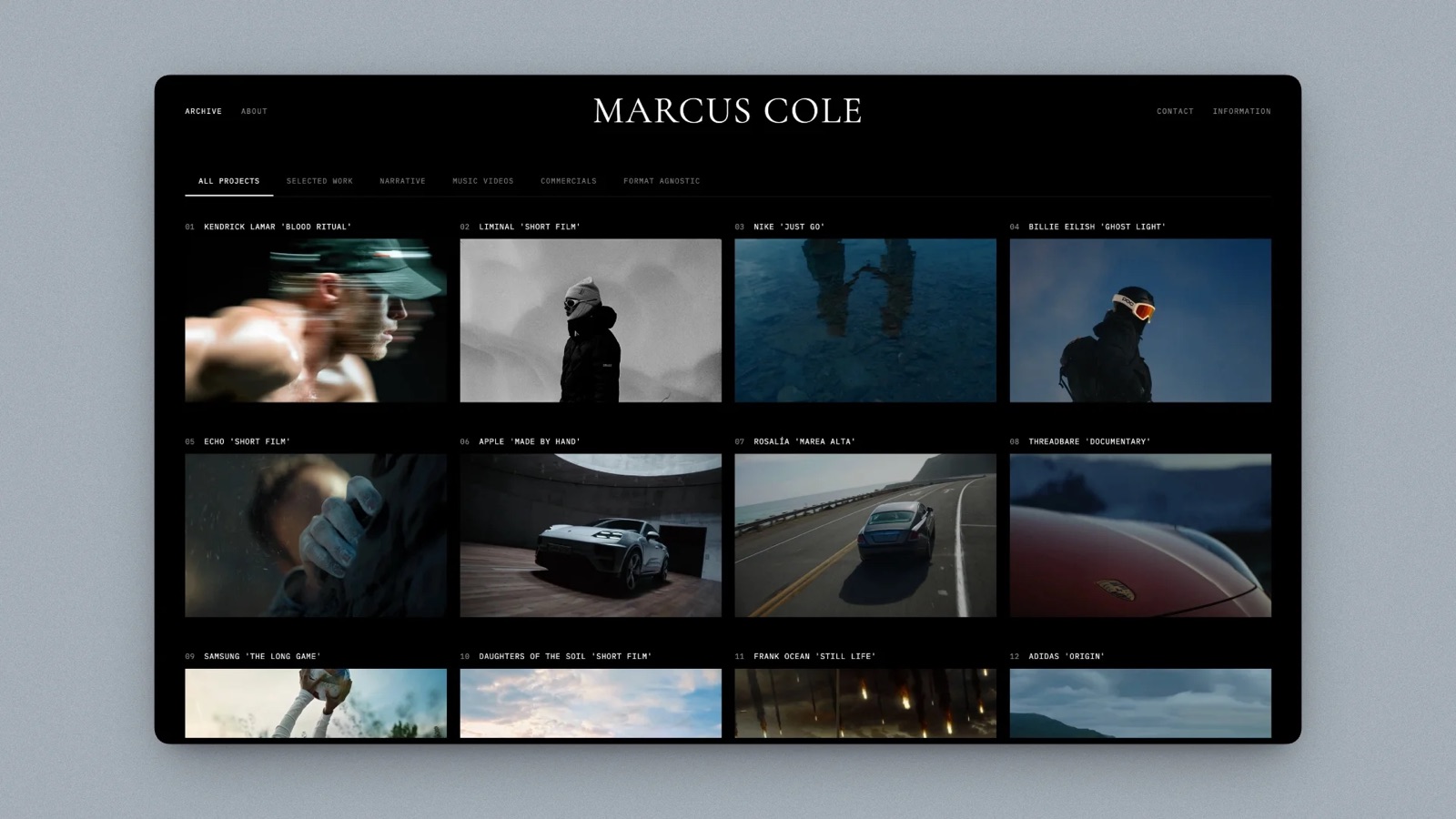
Framekit templates
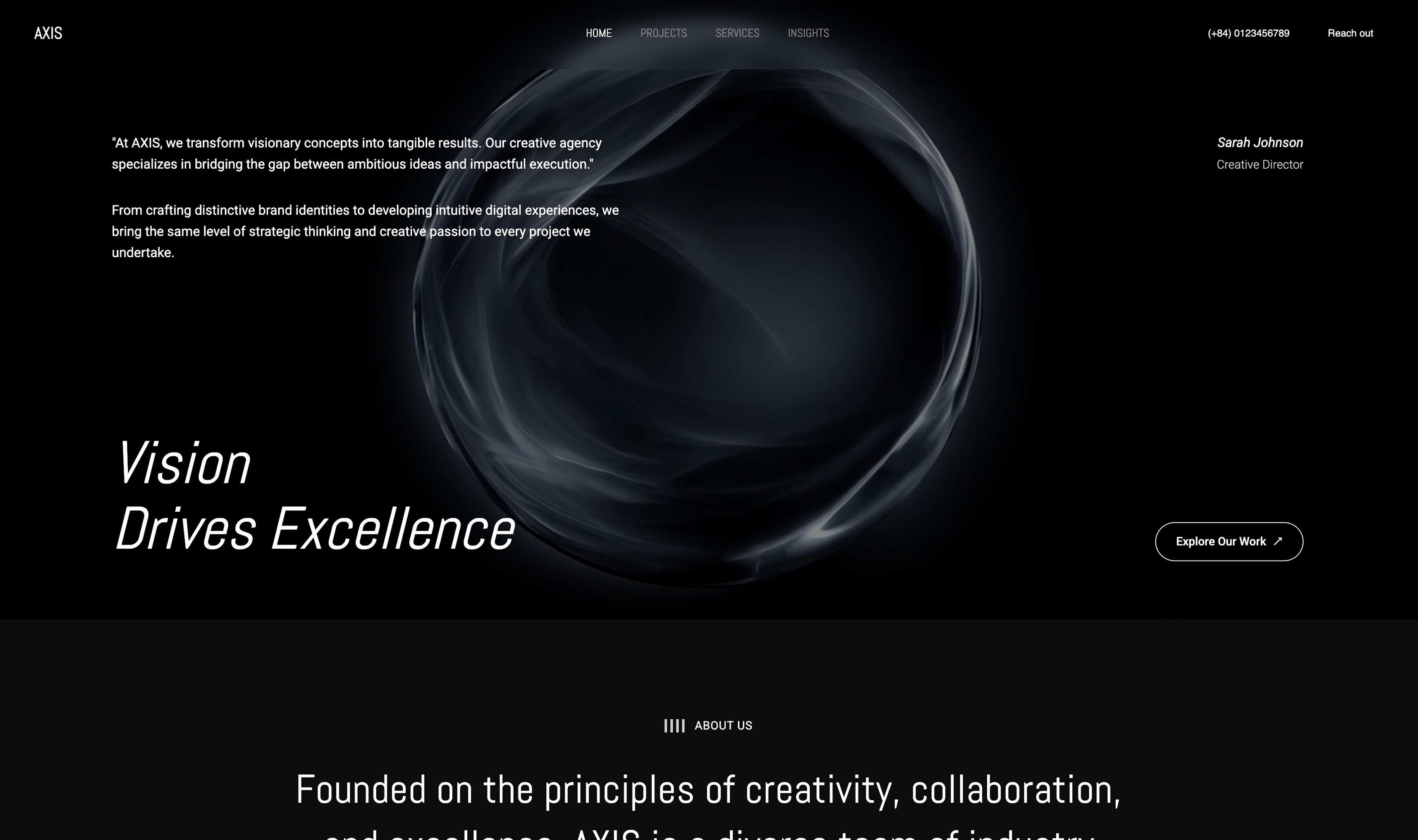
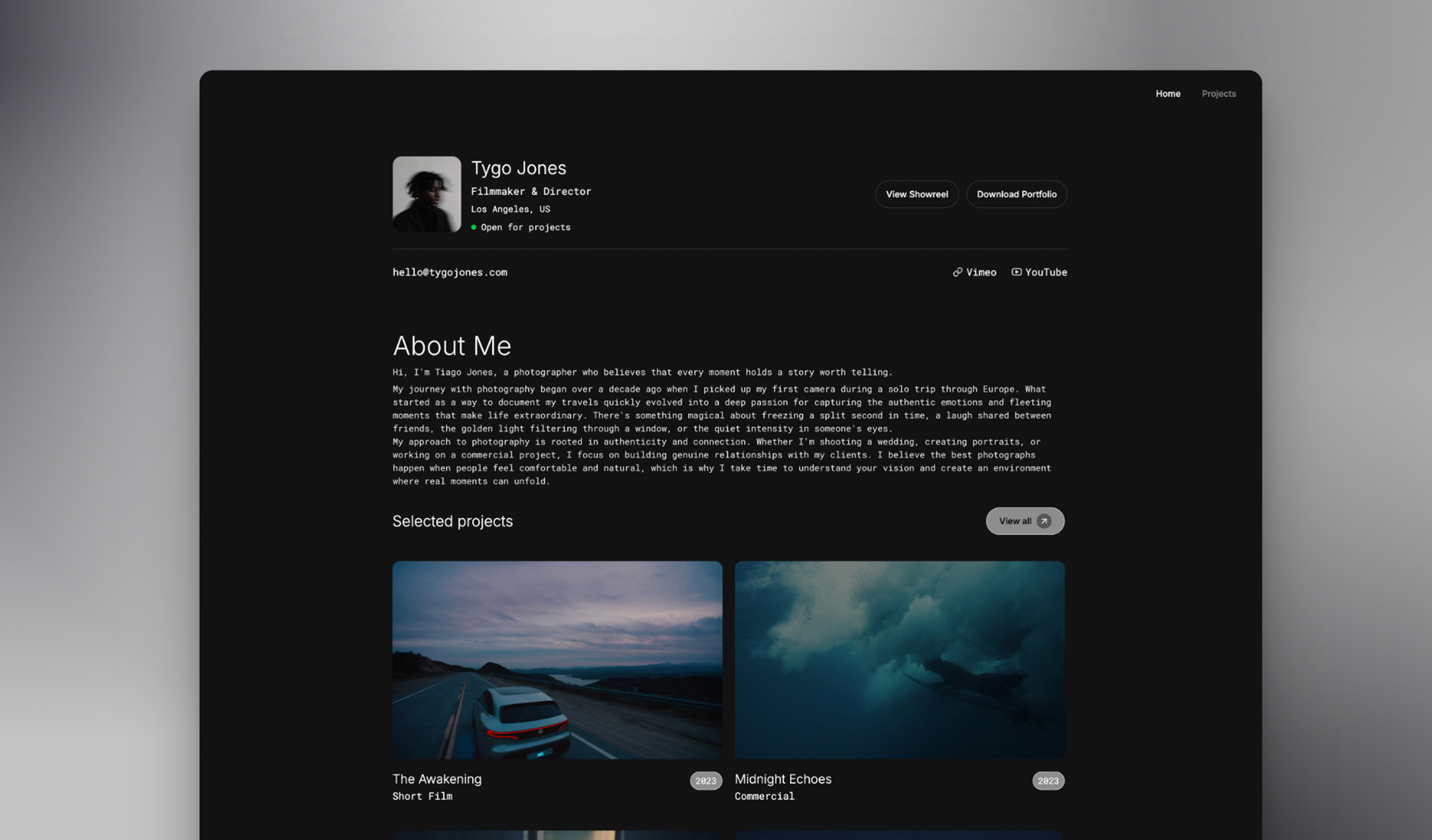
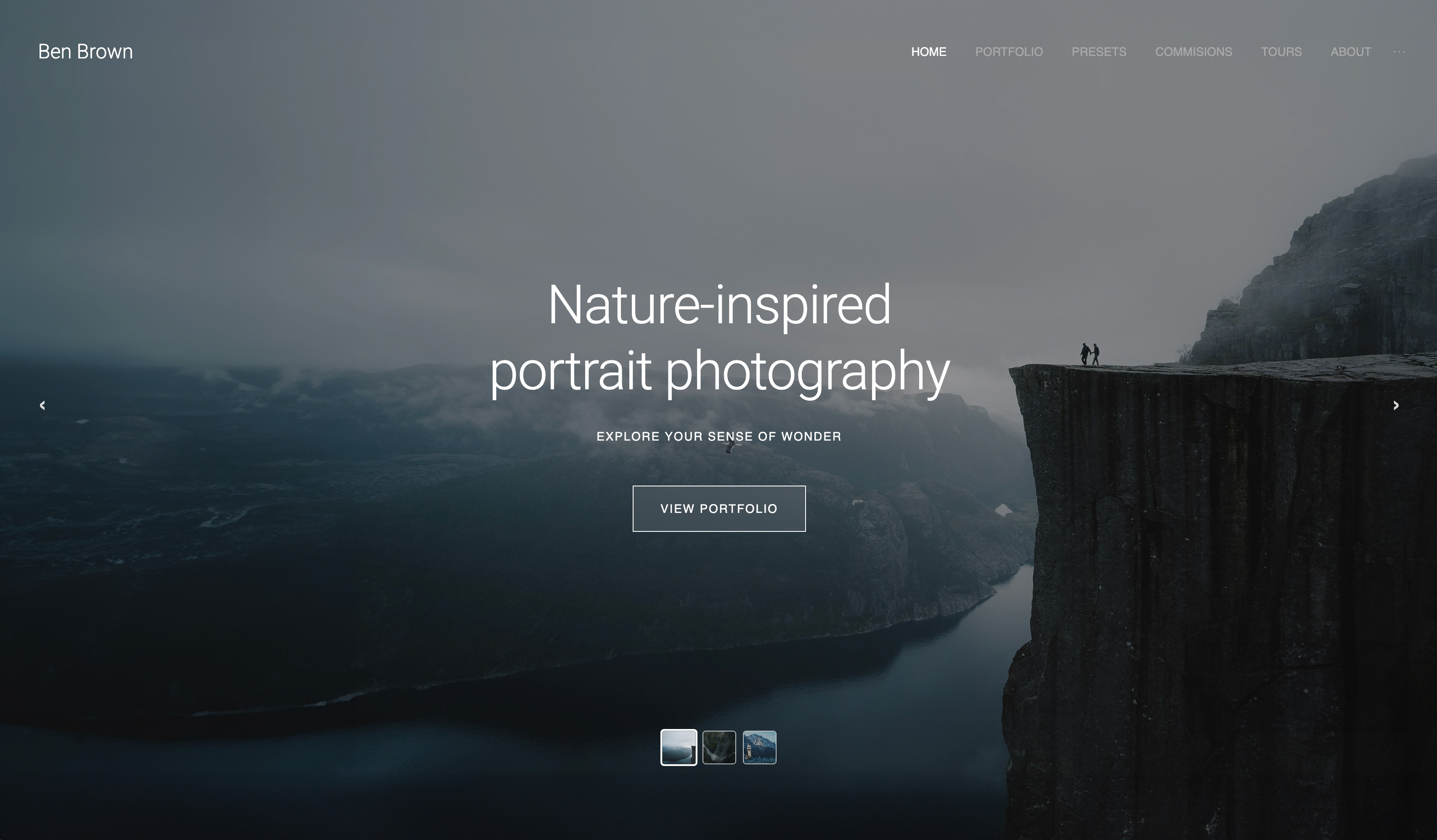
Start from a designer-made template
 Use template
 Use template
 Use template
 Use template
 Use template
 Use template
 Use template
 Use template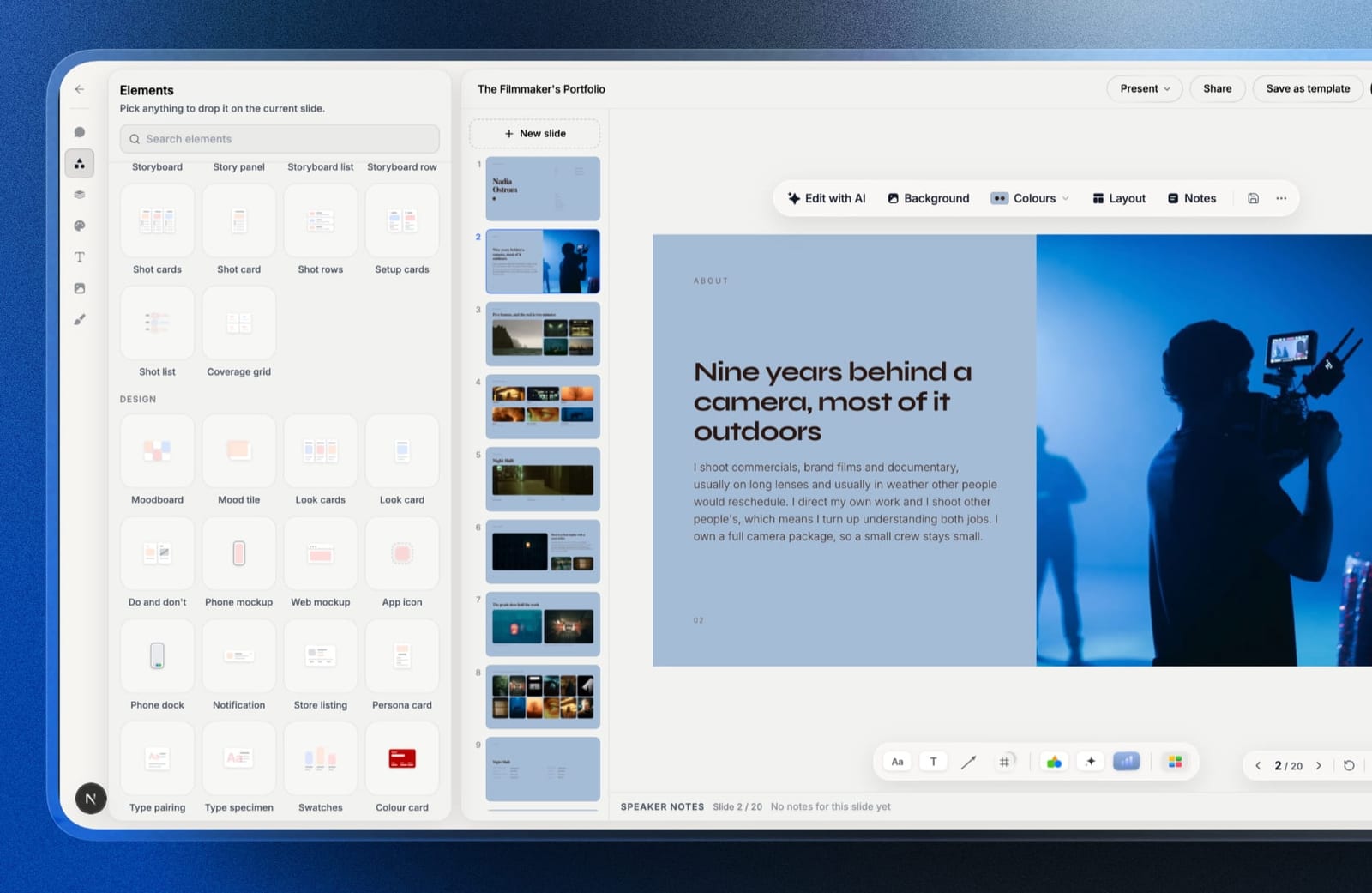
Choosing presentation software for a Mac used to be a two-item list. It is not any more, and the interesting differences are no longer about which app has the nicer templates.
They are about things that only show up on Apple hardware: how your images shift colour between the screen you designed on and the screen everyone else uses, whether the app survives being plugged into a venue projector at nine in the morning, and whether the file you send opens for a colleague on Windows.
We compared eight presentation apps on a Mac, including the two failure modes that ruin a talk and are almost never written about.
In September 2026 we re-verified Framekit's plans against its live pricing page and added Framekit Slides, our own deck tool, as a ninth entry described from its published features; competitor prices are as checked in August 2026.
In October 2026 we took out projector, colour and handover test results we could not document, and replaced them with what the vendors publish and checks you can run yourself.
Microsoft 365 Family now carries the $129.99 a year its plan page lists.
A presentation app for Mac is software that builds and delivers slide decks on macOS, either as a native application taking advantage of Apple hardware and system features, or as a browser-based tool that happens to run there.
For photographers, filmmakers and designers, the best presentation software on a Mac in 2026 is Framekit Slides, because it is built for the treatments, lookbooks and portfolio decks creatives send, with shot lists, storyboards and moodboards as ready-made elements, and the deck lives in the same account as your site, galleries and video review.
The trade-off is real: it runs in a browser, has no presenter view with notes and no Magic Move, so for a live talk in a strange room Keynote is still the best native app and free with every Mac.
PowerPoint for Mac is the pick when a colleague must edit the file, and Figma Slides gives designers the most layout control at $36 a year.
Framekit is an AI website builder that also holds Slides, client galleries, video review and a digital-download store in one account, and decks, the AI writer, the share link and PDF export are on its free plan.
Disclosure: Framekit is our product and it is ranked first here for creative decks only; its entry, like every other here, states product facts rather than test results, we link to every rival, and Keynote, PowerPoint and Figma each beat us on a criterion named in their own reviews.
How We Compared Presentation Software on a Mac
We judged every application against the same eighteen-slide deck on an Apple Silicon MacBook, as a scenario rather than a test build: a full-bleed cover using a wide-gamut photograph, four image spreads, a two-column table, a six-step build slide, an object-morph logo sequence, and three slides in a licensed display face.
Then we looked at the things that are specific to using a Mac.
Colour. What happens to a wide-gamut image when a deck built on a Mac's display is viewed on a standard sRGB monitor or a projector.
The projector question. Whether the app is native with its own presenter display for a second screen, or runs in a browser that leaves display handling to you.
Handover. What a colleague on Windows without your fonts receives from each app's export, going by its documented font handling.
Apple integration. Continuity, iCloud sync, using an iPad as a second display, and whether the app runs natively on Apple Silicon.
Two kinds of finding, kept apart. Verified from published sources: every price, plus native Apple Silicon support, presenter displays and font embedding, linked where it matters.
We did not run builds, colour comparisons, projector runs or Windows opens, so nothing below is a test result, and Framekit, added in September 2026, is described from documented product behaviour like the rest.
Reported as sentiment: recurring complaints in public reviews, labelled as such rather than as our own result.
What Eight Mac Presentation Apps Share
Two Mac-specific facts matter far more than any feature comparison, and neither appears on a product page. The counts below cover the eight apps compared before Framekit was added.
- 8 of 8 share the same colour gap: a Mac's wide-gamut display can show more saturated reds and deep blues than an sRGB screen or a projector reproduces, whichever app built the deck.
- 3 of 8 are native Mac apps with their own presenter display for a second screen: Keynote, PowerPoint for Mac and Deckset. Browser-based tools leave full-screening on the right display to you.
- 5 of 8 run as native Apple Silicon applications. The rest are browser tabs, with the battery cost that implies during a long session.
- 2 of 8 embed fonts on export so a Windows colleague sees your typeface. Keynote is not one of them.
- Annual cost ranged from $0 to $192, which is a narrower spread than the capability differences justify.
- 2 of 8 are free, native, and require no account of any kind.
Presentation Software for Mac Compared
The weighting: presenting reliability 25%, design output 25%, handover 20%, Apple integration 15%, cost 15%.
Presenting reliability carries the most because the failure mode is public and unrecoverable, and it is the criterion that almost no comparison of this category looks at.
Framekit leads for creative decks on design output and handover, and it scores below Keynote, PowerPoint and Deckset on both presenting reliability and Apple integration, which the table shows plainly.
| Tool | Native on Apple Silicon | Second display handling | Font embedding on export | Cost per year |
|---|---|---|---|---|
| Framekit Slides | No, browser | Browser full-screen, no presenter view | Typeface kept in PDF and picture-based .pptx | $0 to $228 |
| Keynote | Yes | Native presenter display | No | $0 |
| PowerPoint for Mac | Yes | Native Presenter View | Yes | $99.99 |
| Canva | No, browser | Windows you arrange yourself | No | $144 |
| Figma Slides | No, browser and app | Windows you arrange yourself | No | $36 to $192 |
| Google Slides | No, browser | Windows you arrange yourself | No | $0 |
| Deckset | Yes | Native presenter display | Not applicable | One-time purchase |
| Gamma | No, browser | Windows you arrange yourself | No | $108 |
| Affinity Publisher | Yes | Not applicable, PDF | Yes, in PDF | $0 |
1. Framekit: Best for Creative Decks on a Mac

Best forphotographers, filmmakers and designers on a Mac whose deck is a treatment, lookbook, portfolio or pitch that gets sent at least as often as it gets presented.
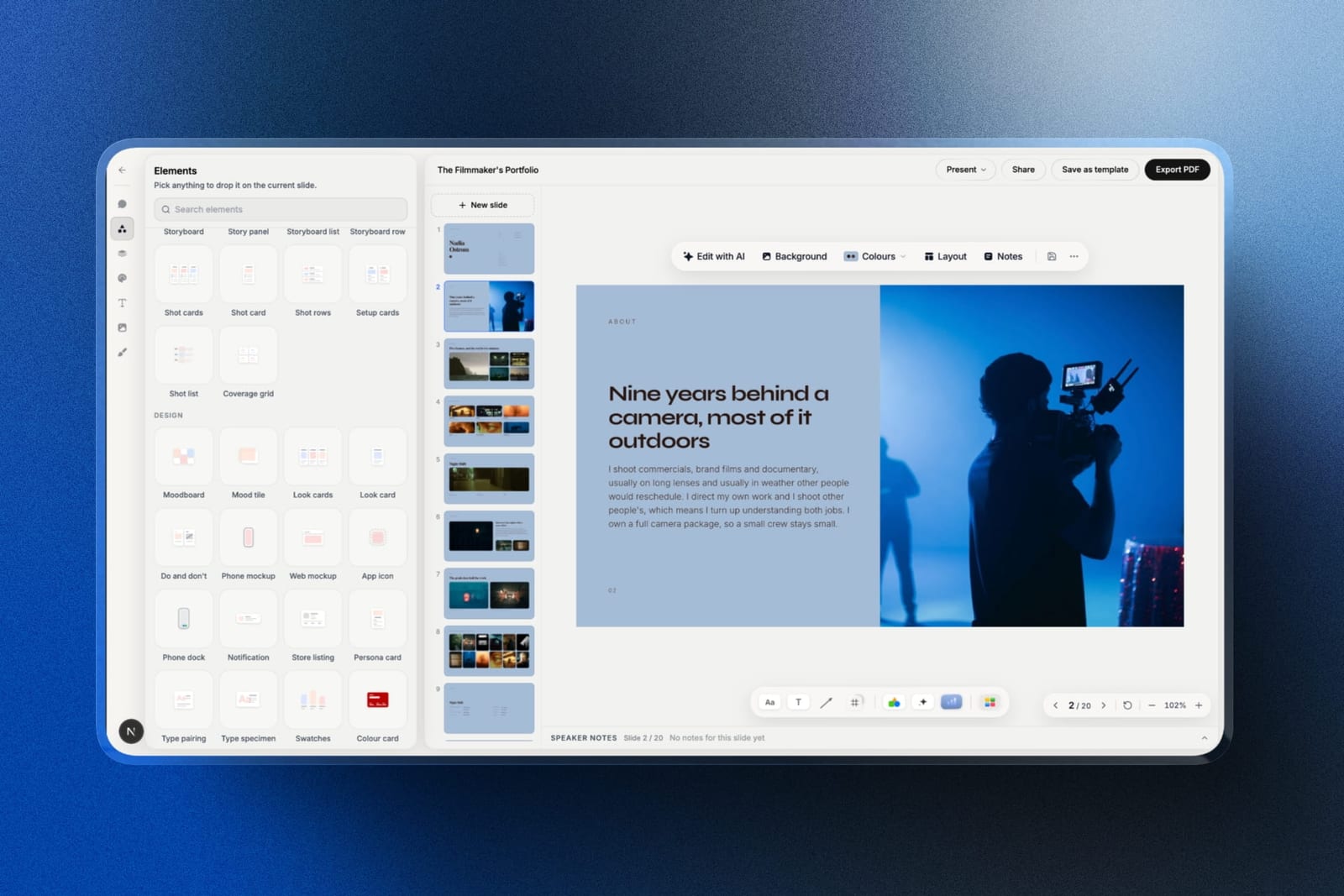
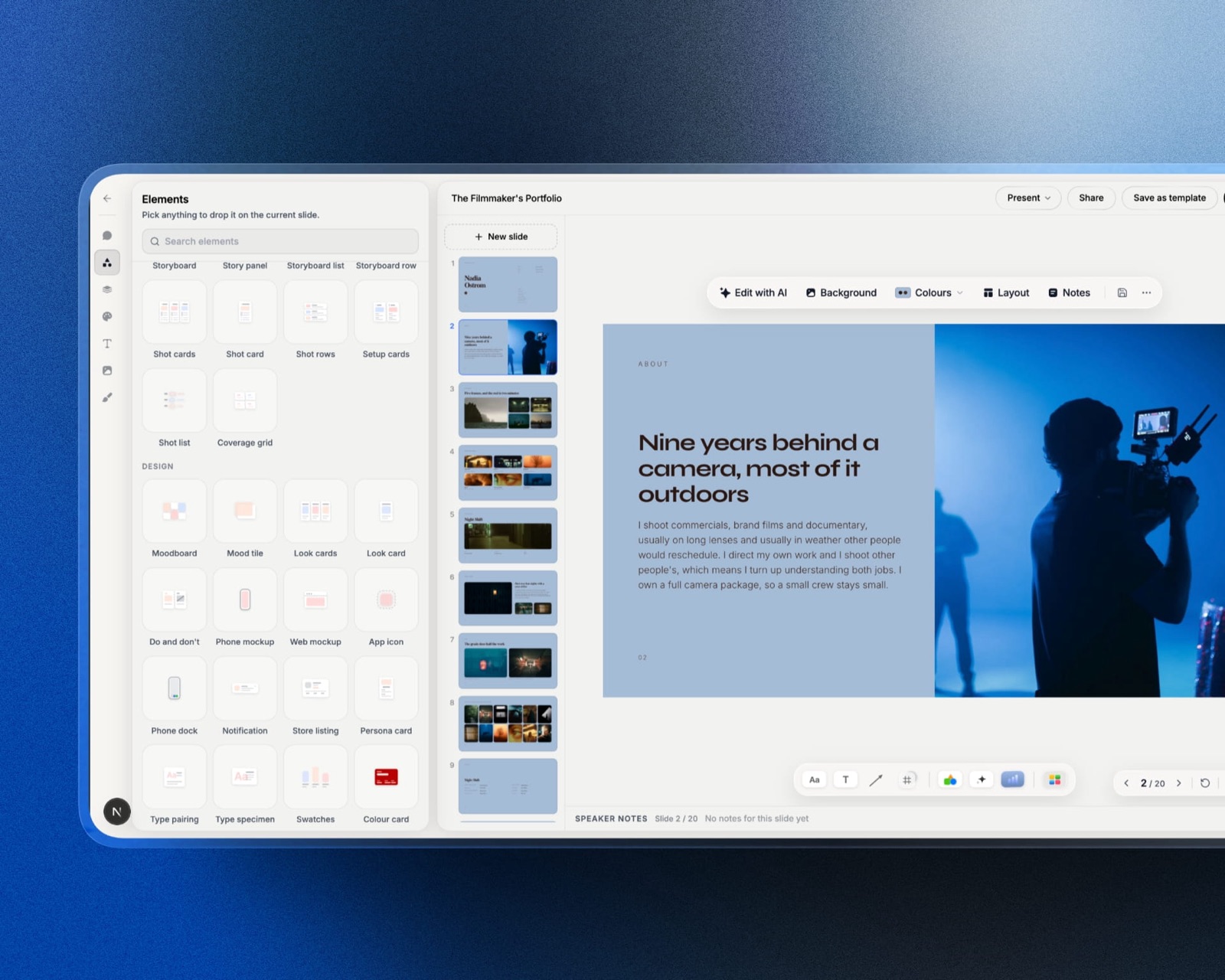
Framekit Slides is the deck tool inside Framekit, and its templates are laid out for the decks creative people actually send: treatments, lookbooks, portfolio and campaign decks.
You describe a slide and the AI writes and lays it out, and every element it makes stays editable by hand, so a first draft is a starting point rather than a take-it-or-leave-it render.
The difference from Keynote is on the production slides: a shot list, a storyboard row, a moodboard and a colour swatch strip are ready-made elements you drop in, where in Keynote each one is an afternoon of rectangles and text boxes.
The real numberdecks, the AI writer, full-screen presenting, the share link and PDF export are all on the free plan, with unlimited decks.
The full template library and your own uploaded fonts start on Starter at $9 a month, and .pptx export starts on Pro at $19 a month, which is the $228 top of our cost column.
The standout detailthe .pptx export is picture-based. Each slide is rendered by Chrome and placed as one full-bleed image, and your speaker notes come across as real PowerPoint notes.
So a Windows colleague sees your licensed typeface exactly, because it is part of the picture, and nobody can quietly edit your copy. Publishing changes updates the deck at the same link, and you can reset the link to kill the old address.
The gotchait runs in a browser, so plan to full-screen it on the projector yourself, as with any browser tool.
There are no slide transitions to rival Magic Move, present mode shows the slide without a presenter view of your notes, and that picture-based .pptx means a client who wants to edit gets nothing editable.
Skip it ifyou give live talks in rooms you do not control, or a colleague must edit the file. Keynote and PowerPoint are the right answers there, and they rank second and third for exactly those reasons.
Verdict: the best presentation software on a Mac for creative work that is sent rather than performed, because the deck sits in one account with your portfolio site, client galleries and video review. For a talk on a stage, build here if you like and present from Keynote or a PDF.
2. Keynote: The Best Native Presentation App for Mac
Best foranyone presenting from a Mac who does not have to hand the editable file to someone else.
Keynote is strongest on the two things that matter most on a Mac. It is a native app with its own presenter display, built to keep your notes on the laptop and the slides on the projector, and its typographic defaults are, in our judgement, the best of the eight.
Magic Move remains the best object-matched transition available on any platform, and a logo sequence like the one in our scenario is exactly what it was made for.
The real numberfree with every Mac, iPad, and iPhone, and free in a browser at iCloud.com for anyone with an Apple Account, including Windows users.
The standout detailyou can use an iPhone as a remote with a live preview of the next slide and your notes, and it works over the local network rather than depending on venue wifi.
For anyone who presents standing away from the laptop, this is the most reliable remote in this comparison and it costs nothing.
The gotchathe handover. A .key file opens properly nowhere else, and exporting to .pptx cannot carry Magic Move or every build, and Keynote does not embed fonts, so a colleague without your typeface gets a substitute that can look plausible and wrong.
Skip it ifa client or colleague edits your decks. That single requirement rules Keynote out and there is no workaround.
What reviewers say elsewhereKeynote holds a 4.6 out of 5 across more than 200 reviews on G2, where ease of use and design quality are the dominant themes.
Verdict: the correct default on a Mac and free, provided the file never has to be edited by someone else. Present in it, then send a PDF.
3. Microsoft PowerPoint for Mac: Best for Compatibility
Best forMac users whose decks are opened and edited by people who are not on Macs.
PowerPoint for Mac is a proper native application, runs on Apple Silicon, and is far better than its reputation among Mac users, most of whom last used it in 2015.
It has a full Presenter View for a second display, and it is one of only two applications here that embed fonts on export.
That font embedding is the specific reason to pay for it: an embedded typeface travels inside the .pptx, so a Windows machine that has never seen it can still render it, provided the font's licence allows embedding, which neither Keynote, Canva, nor Google Slides offers.
The real numberMicrosoft 365 Personal is $99.99 a year and Family covers up to six people in one household for $129.99.
PowerPoint for the web is free with a Microsoft account and works fine in Safari.
The gotchathe Mac version trails the Windows version on a handful of features and add-ins, and co-authoring only behaves when the file lives in OneDrive. Emailing a .pptx around recreates version chaos, and nothing in the product prevents it.
Skip it ifyou present live and share PDFs. You would be paying for compatibility you never use.
Verdict: the pragmatic choice on a Mac when the file travels, and the only paid option here that solves the font problem. Less enjoyable than Keynote and much less likely to break at handover.
4. Canva: The Best Browser-Based Option
Best forMac users who want better templates than Keynote and better handover than Keynote.
Canva runs in a browser rather than natively, and for most decks that is invisible. Its image handling is more forgiving than Keynote's, its template range is far larger, and the shared link plays video inline for recipients on any platform.
The real numberCanva Pro is $18 a month or $144 a year, with a genuinely usable free tier that exports without a watermark.
The gotchaa browser presentation leaves the external display to you: you full-screen it on the correct display manually or use Canva's desktop app, and on a cold start at a venue this is exactly the kind of small friction that becomes a two-minute delay while a room watches.
Skip it ifyou present frequently in unfamiliar rooms. Native applications handle displays more predictably.
Verdict: the best design output of any browser-based option and a small but real risk when presenting live. Build in it, and consider exporting to PDF for the room.
5. Figma Slides: Best for Designers on a Mac
Best forMac users who already work in Figma and want real layout control.
Figma gives you the precision that every other tool here lacks, with real grids, components, and auto-layout.
For a designer this is Keynote with constraints that behave, and the desktop application on Apple Silicon is fast enough that the browser-versus-native distinction stops mattering.
The real numbera Collab seat is $3 a month billed annually, which is $36 a year, and includes full Figma Slides and FigJam editing. A Full seat with design-file editing is $16 a month, or $192.
The gotchathe export flattens components into static groups and embedded prototypes into screenshots, so nothing structural leaves.
Skip it ifyou are not already a Figma user. The learning curve exceeds the problem.
Verdict: the highest ceiling on a Mac for people who already pay the learning cost, at the cheapest paid price on this page.
6. Google Slides: Best Free Cross-Platform Option
Best forMac users collaborating with people on every other platform.
Google Slides on a Mac is exactly Google Slides everywhere else, which is the point. It costs nothing, opens for everyone, and lets outside reviewers comment without an account, which neither Keynote nor PowerPoint allows.
The real numberfree at any team size, with Google Workspace Business Starter at $7 per user a month as an optional add for a company domain.
The gotchaoffline requires enabling Chrome offline access in advance and marking the file, and it does not work in Safari. On a Mac, where Safari is the default and the battery-efficient choice, that is a real practical constraint.
Skip it ifyou work offline, or you refuse to run Chrome.
Verdict: the free cross-platform answer with a Safari-shaped hole in its offline story. Fine for collaboration, weak for presenting from an unfamiliar venue.
7. Deckset: Best for Markdown-Based Decks
Best forMac users who write their talks rather than design them.
Deckset is a genuinely Mac-native application that turns a Markdown file into a presentation. You write the talk in a text editor, Deckset renders it into a themed deck, and the two stay in sync.
For anyone who has ever spent an hour choosing a layout instead of writing the argument, this is a different and clarifying way to work.
The real numberDeckset is a Mac-only application sold as a one-time purchase and also available through subscription bundles rather than as a recurring licence of its own. Check the current price on their site, since it is not a standard per-month plan.
The standout detailbecause the source is a plain text file, a talk lives in version control alongside your notes and diffs properly. Nothing else on this page does that.
The gotchayou get themes rather than layout control. If you want a specific element in a specific place, that is not what this tool is for, and no amount of Markdown will produce it.
Skip it ifthe visual design of the deck is part of what you are being judged on.
Verdict: the best writing-first tool on a Mac, and a bad fit for image-led work. Genuinely worth a look for conference speakers and technical talks.
8. Gamma: Best for a Fast First Draft
Best forthe deck you need to exist before you can improve it.
Gamma runs in a browser and drafts a structurally credible deck from a single paragraph of prompt. On a Mac it behaves like every other web application, and its card-based output reads better on a phone than any fixed-ratio slide tool here.
The real numberGamma Plus is $108 a year, with a credit-limited free plan that lets you evaluate the real product without paying.
The gotchathe export is the weakest of the eight, because card layouts do not map onto fixed slides, so expect text to need refitting in .pptx. Like every browser-based tool, it also leaves the projector to you.
Skip it ifthe deck must become a file or be presented from an unfamiliar machine.
Verdict: the fastest route from nothing to something and the least reliable at delivery. A drafting tool rather than a presenting one.
9. Affinity Publisher: Best for Decks That Must Be Print-Grade PDFs
Best forMac users whose deck is really a document that will be printed or archived.
This is the entry most people do not expect, and it is now free. Affinity's applications are free following Canva's acquisition of Serif, which puts a professional Mac-native page-layout application with master pages, real typographic control, CMYK, and controlled PDF export at zero cost.
For a deck that will be printed as a leave-behind, submitted to a festival, or archived at full image quality, this is the only tool here that lets you decide what happens to your images on export rather than having a web tool decide for you.
The real numberfree, with no subscription and no account requirement.
The gotchait is not a presentation application. There is no presenter mode, no transitions, no speaker notes, and no way to run a slideshow, so it produces a document you then present as a PDF.
Skip it ifyou need presenter view or any motion at all.
Verdict: the best free Mac-native page-layout tool available and a deliberate step outside the category. Correct when the deck is a document wearing slide clothes.
The Colour Shift Nobody Warns Mac Users About
This is the fact we most wish someone had told us, and it applies to every application on this page.
Modern Macs have wide-gamut displays. Your photographs, your brand reds, and your deep blues render across a broader colour space than a standard sRGB monitor or a venue projector can reproduce.
So a deck can look more saturated on the Mac than the same images do on an sRGB screen, and the drop shows most in saturated reds and deep blues, exactly where designers care most.
What that means in practice. The deck you approved looks flatter to the client. The brand red you matched by eye is not the brand red on their machine. And on a projector, which is usually further from sRGB than a monitor is, the gap widens again.
What to do about it. Prepare images in sRGB rather than a wide-gamut profile before placing them, check the finished deck on a second non-Apple display or a phone before sending, and do not colour-match by eye on a Mac display for anything that will be viewed elsewhere.
In one linea Mac shows you a better version of your deck than your audience will ever see, and the fix is to check it somewhere ordinary before you send it.
The Projector Problem, and Why Native Apps Have the Edge
The second Mac-specific failure is the one that happens in front of people, when a laptop meets a venue projector through a USB-C adapter from a cold start.
Keynote, PowerPoint for Mac, and Deckset are native apps with their own presenter displays, designed to put the slides on the second screen and your notes on the laptop.
Browser-based tools leave it to you: full-screening the presentation onto the correct display, rearranging displays in System Settings, or dealing with a resolution change.
Each step is small, a minute in front of an audience is a long time, and the fix is to rehearse once with the real adapter before the day.
The practical rule. If you present regularly in rooms you do not control, build wherever you like and present from a native application, or from a PDF, which is the most reliable presentation format ever made and has no display logic to get wrong.
When the Deck Should Be a Link
Much of what creative Mac users build in Keynote is not a talk at all.
A treatment, a lookbook, a capabilities deck, a portfolio sent to a new client each month: these are documents you maintain and re-send, and a .key file is the worst possible container for them, because it opens properly nowhere else and ages in a downloads folder.
This is the job we built Framekit Slides for, so treat it as a disclosed interest.
A deck shared as a link opens on any device without an app, publishing a change updates the same address, and a reset kills the old link if it was forwarded somewhere it should not be.
What a link will not give you is a password or a record of who opened it, since Framekit offers neither on decks, so a confidential pitch still belongs in a tracked-link tool.
The rule we would apply: if the deck will be presented once, use a native app; if it will be sent ten times, it deserves a URL.
Which Presentation Software Should a Mac User Choose?
The answer depends mostly on whether the file leaves your hands and whether you present in rooms you do not control, so work down these questions in order and stop at the first yes.
1. Is it a treatment, lookbook or portfolio deck you will send more often than present? Framekit Slides, free to start, with shot lists, storyboards and moodboards built in and a share link that updates in place.
2. Does someone else need to edit the file? PowerPoint for Mac. It is the only paid option here that embeds fonts and opens natively everywhere.
3. Do you present live from your own Mac and share PDFs afterwards? Keynote, free, with the best motion and a native presenter display.
4. Do you already use Figma? Figma Slides on a $3 Collab seat, which is the cheapest paid option on this page.
5. Do you need templates and image handling more than precision? Canva, and export a PDF for presenting.
6. Do you write your talks rather than design them? Deckset, which keeps the source as Markdown in version control.
7. Is the deck really a printed leave-behind or an archived document? Affinity Publisher, free, with controlled export.
8. Do you collaborate with people on Windows and Linux? Google Slides, accepting that offline needs Chrome.
9. Do you need a first draft from one prompt? Gamma, then move it somewhere reliable.
Frequently Asked Questions
What is the best presentation software for Mac in 2026?
Framekit Slides is the best presentation software on a Mac for photographers, filmmakers and designers building treatments, lookbooks and portfolio decks, because it ships shot lists, storyboards and moodboards as ready-made elements and shares the deck as a link from the same account as your site and galleries.
Keynote is the best native Mac app for live talks, free with every Apple device and native, with its own presenter display for a projector, but .key files open properly almost nowhere else.
Is Framekit Slides better than Keynote on a Mac?
Framekit Slides is better than Keynote for creative decks you send, because a link opens on any device, the AI drafts and lays out slides, and production elements like shot lists are built in.
Keynote is better for presenting live, with Magic Move and a native presenter view with notes, and it costs nothing, so for a stage talk build in Framekit and present from its PDF, or from the .pptx export in PowerPoint's presenter view with your notes.
Is Keynote better than PowerPoint on a Mac?
Keynote is better than PowerPoint on a Mac for design defaults, motion, and price, since it is free.
PowerPoint for Mac is better whenever the file leaves your hands, because it embeds fonts so your typeface survives on machines that lack it and .pptx is the format other people can edit.
Does PowerPoint work well on Apple Silicon?
PowerPoint for Mac runs natively on Apple Silicon and has a full Presenter View for a second display. It trails the Windows version on a small number of features and add-ins, and co-authoring behaves properly only when the file is stored in OneDrive.
Why do my slides look different after I send them from a Mac?
Slides look different after leaving a Mac because Mac displays are wide-gamut and most recipient screens and projectors are closer to sRGB, so saturated reds and deep blues render flatter elsewhere.
Prepare images in sRGB before placing them and check the finished deck on a non-Apple display or a phone before sending.
What is the best free presentation software for Mac?
Keynote is the best free presentation software for Mac, included with every Apple device with no account, subscription, or watermark.
Google Slides is the best free option for cross-platform collaboration, and Affinity Publisher is now free and is the best choice when the deck needs to be a print-grade PDF.
Can Mac users open and edit PowerPoint files?
Mac users can open and edit .pptx files in Keynote, in PowerPoint for Mac, or in PowerPoint for the web for free with a Microsoft account.
Opening a .pptx in Keynote cannot keep Morph transitions or live SmartArt, which Keynote does not support, so round-tripping a file between the two applications degrades it each time.
Which presentation apps run natively on a Mac rather than in a browser?
Keynote, PowerPoint for Mac, Deckset, and Affinity Publisher are all native Mac applications, and Figma offers a desktop application alongside its browser version.
Canva, Google Slides, and Gamma are browser-based, which leaves arranging an external display to you on a cold start, and Framekit Slides also runs in a browser.
How do you present reliably from a MacBook to a projector?
Present from a native application or from a PDF, connect and test the adapter before the room fills, and check that presenter view is on the laptop rather than the projector.
Native applications have their own presenter displays, while browser-based tools leave the full-screen and display arrangement to you.
Is Deckset worth using for presentations?
Deckset is worth using if you write your talks rather than design them, since it turns a Markdown file into a themed deck and keeps the source as plain text that can live in version control.
It gives you themes rather than layout control, so it is the wrong tool for image-led or precisely designed presentations.
Should a Mac user send a .key file to a client?
A Mac user should never send a .key file to a client, because it opens natively only on Apple devices and requires the recipient to use iCloud in a browser otherwise.
Send a PDF for reading, or build in PowerPoint if the client needs to edit, since a Keynote export to .pptx loses transitions, builds, and fonts.
Final Verdict
For creative work on a Mac, Framekit Slides is our pick: treatments, lookbooks and portfolio decks with production elements built in, sent as a link that updates in place, in the same account as your site, galleries and reviews, and free to start.
For a talk you deliver live, Keynote is the right native default and free, and the moment a client or colleague needs the editable deck, PowerPoint for Mac earns its $99.99 a year purely on font embedding, which is the failure that costs you the most and announces itself the least.
The two Mac-specific findings are worth more than the ranking. Your deck is more saturated on your screen than on anyone else's, so check it somewhere ordinary before sending.
And browser-based tools leave the projector to you on a cold start, which is why the safest thing to present from is a native application or a PDF.
Where Framekit losesFramekit is not the right tool for a stage talk or an editable handover.
It has no presenter view with notes, no transitions to match Magic Move, no native Apple Silicon app, and its .pptx export (Pro and up, up to 60 slides) is pictures rather than editable text.
If you present conference talks, Keynote is the better fit; if a client edits your decks, use PowerPoint for Mac.
Related reading: our Keynote versus PowerPoint comparison, the best Keynote alternatives, the best presentation software, and the best free presentation software.
Competitor prices here were read from published vendor pricing in August 2026 and Framekit's were re-verified in September 2026, and Deckset is sold as a one-time purchase rather than a subscription so its figure should be checked directly.
No device testing is claimed; native support, presenter displays and font embedding come from what each vendor publishes.