Framekit templates
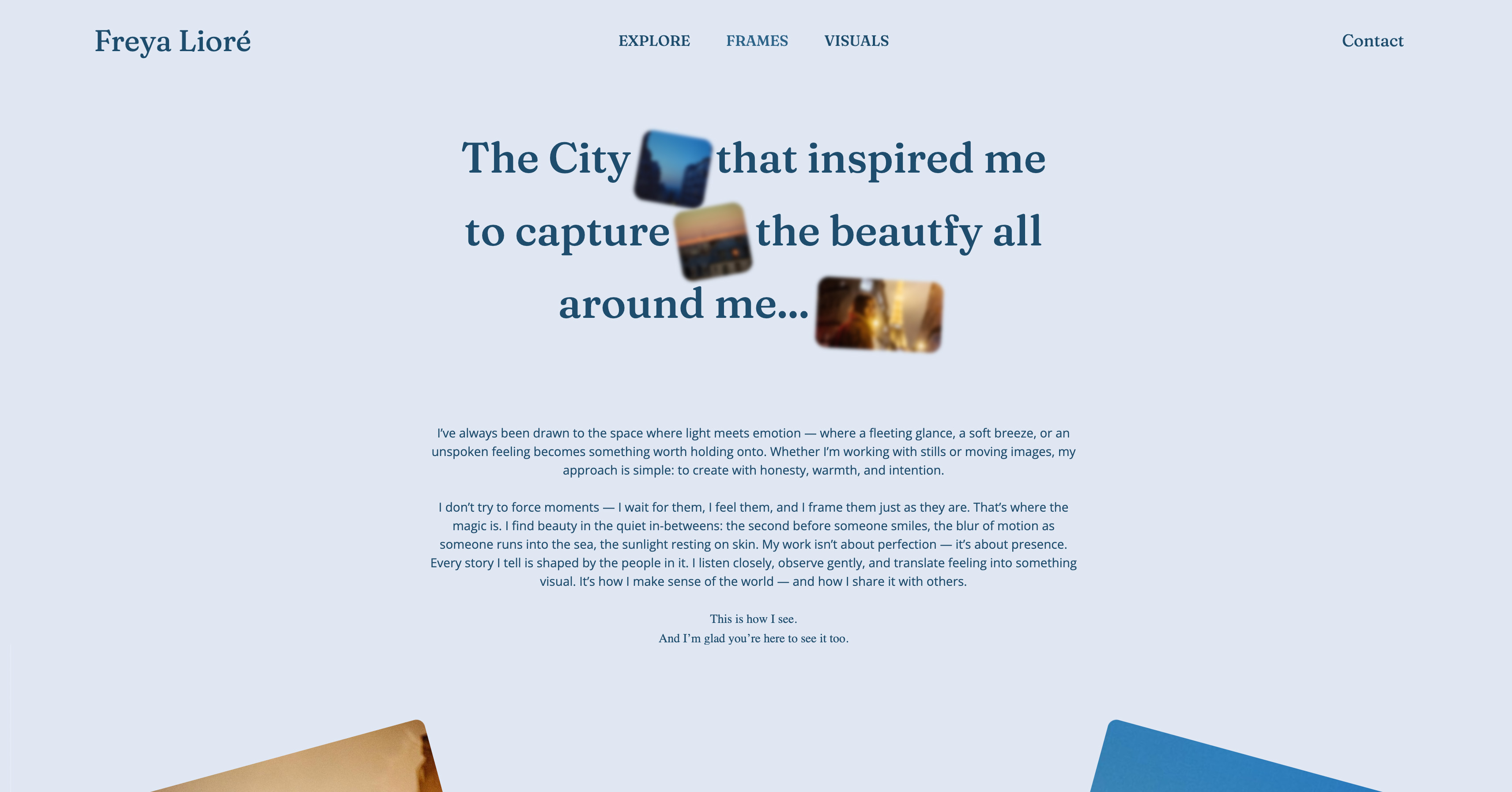
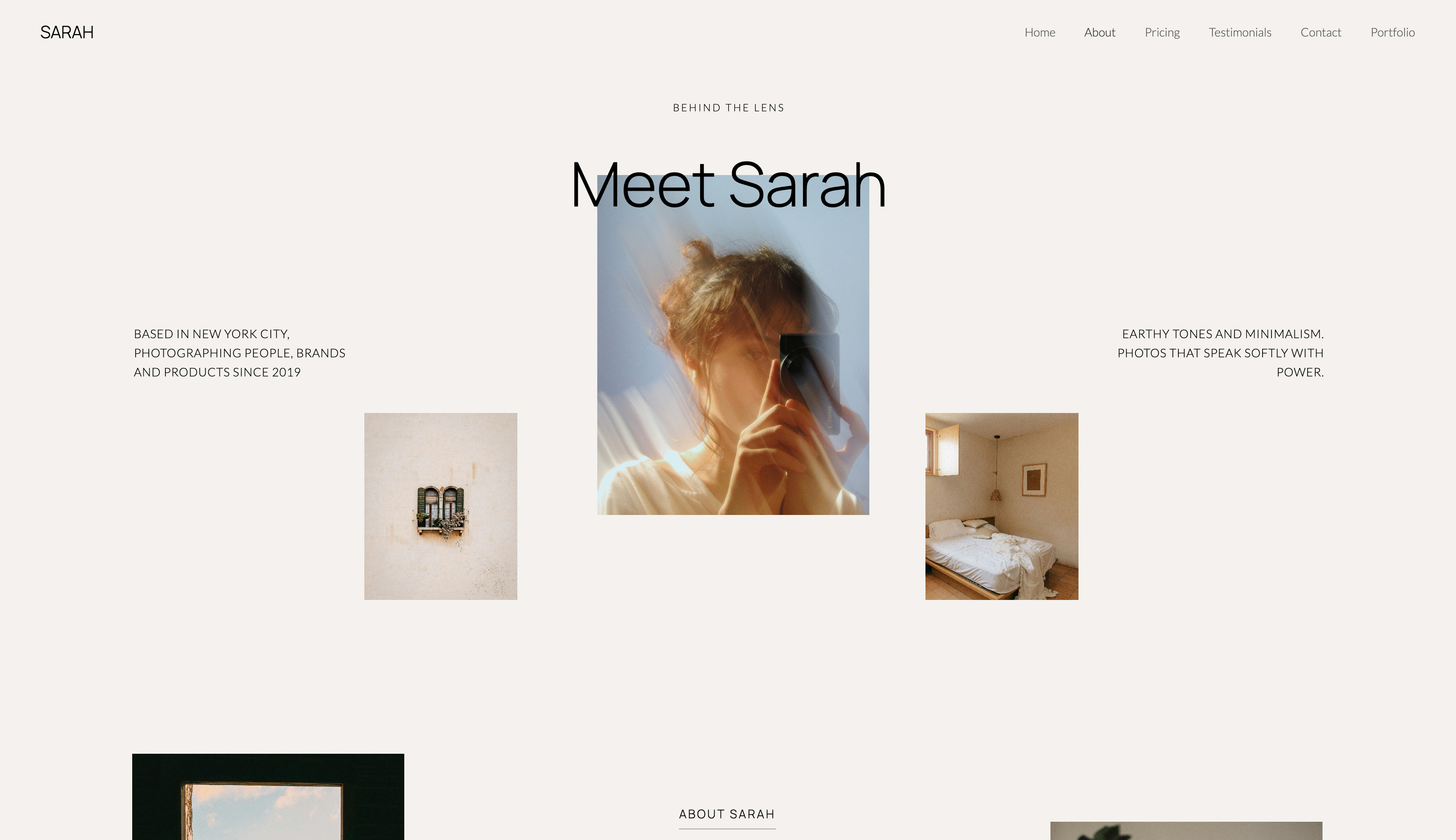
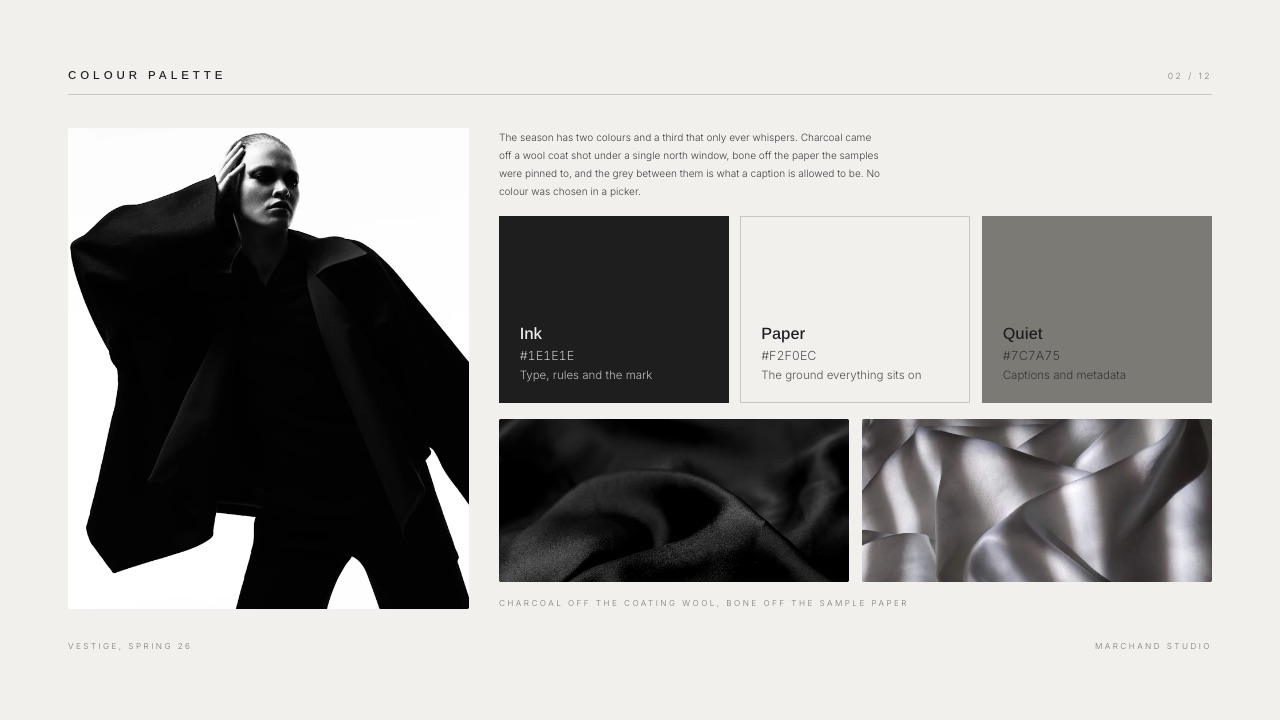
Start from a designer-made template
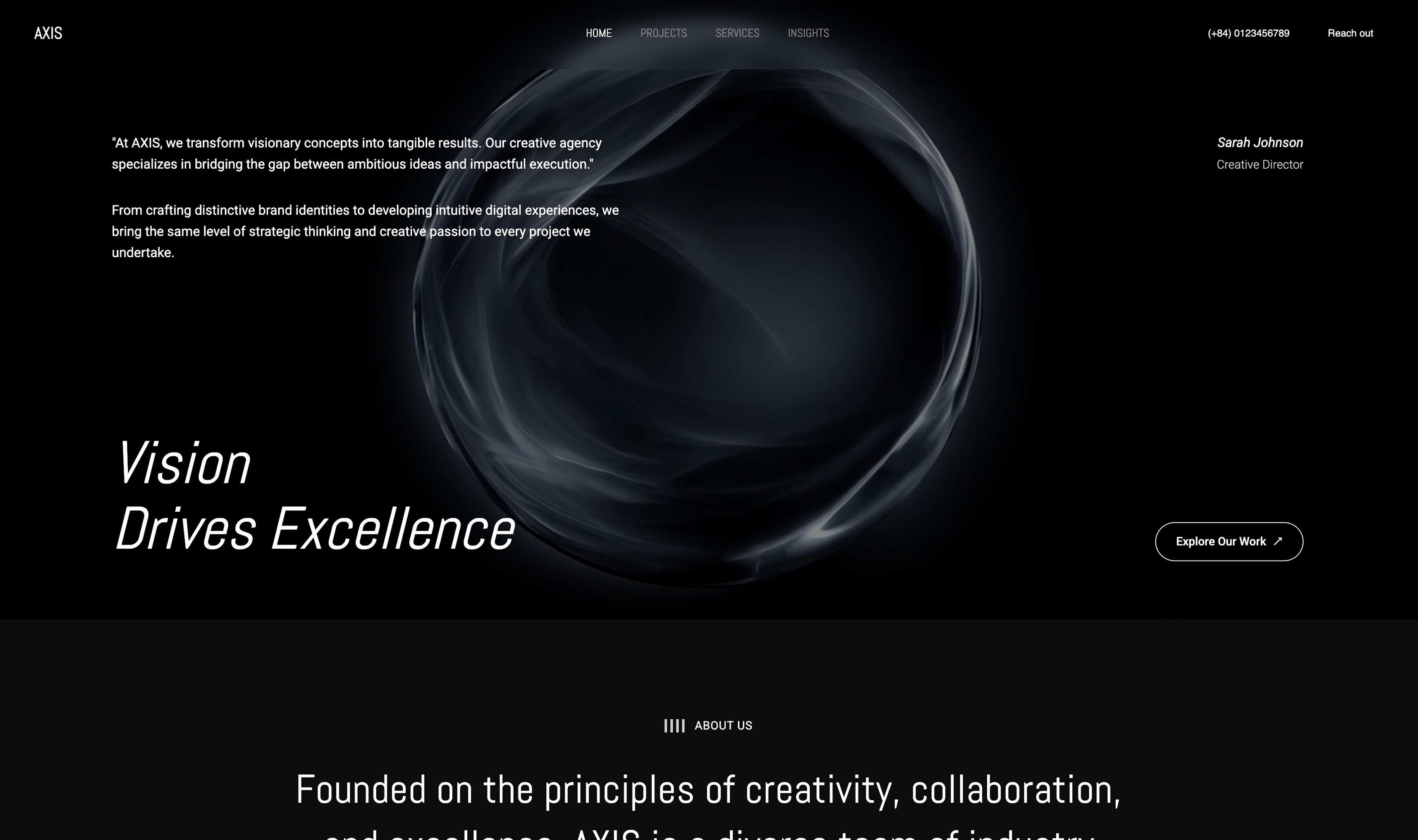 Use template
 Use template
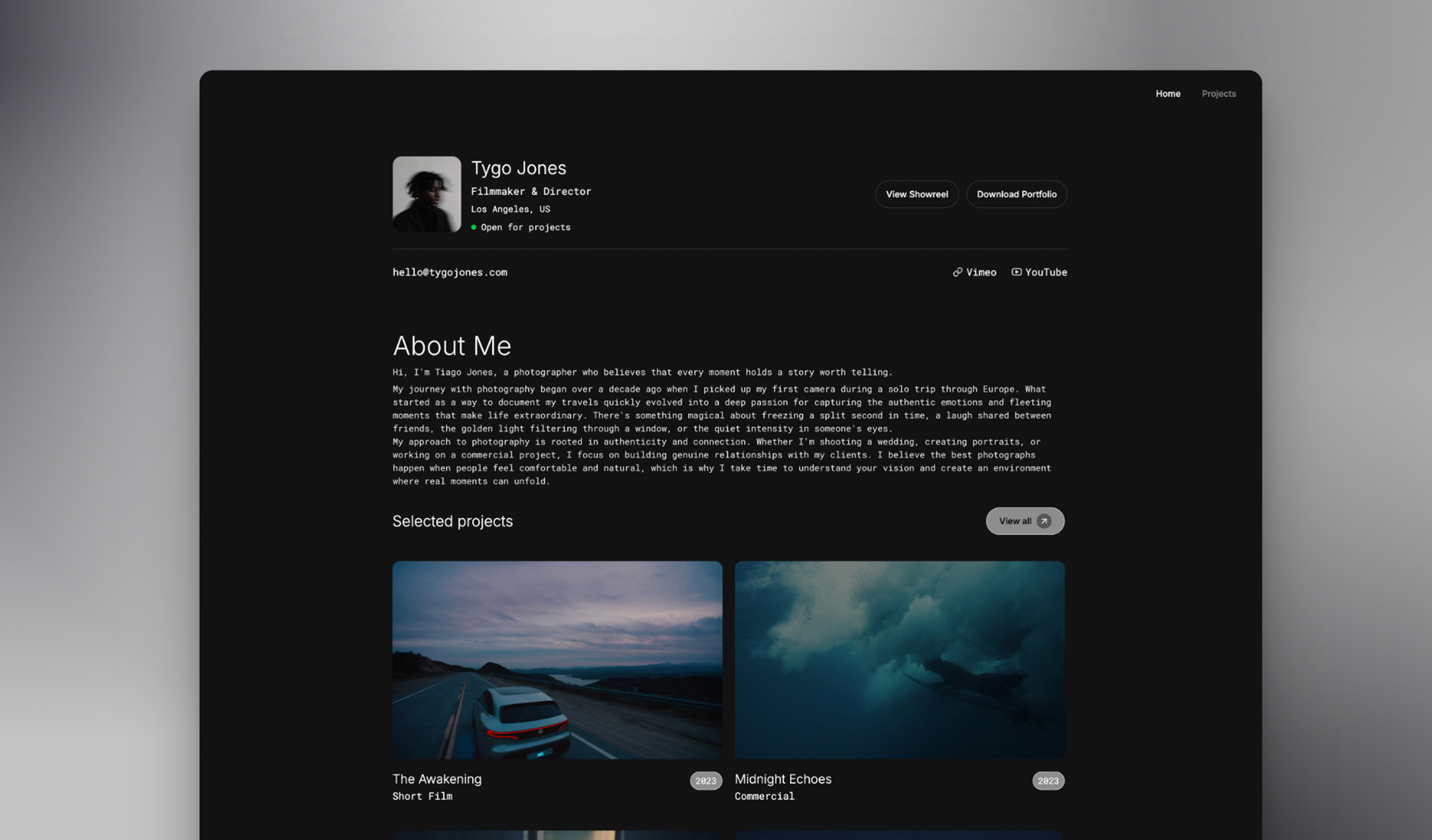 Use template
 Use template
 Use template
 Use template
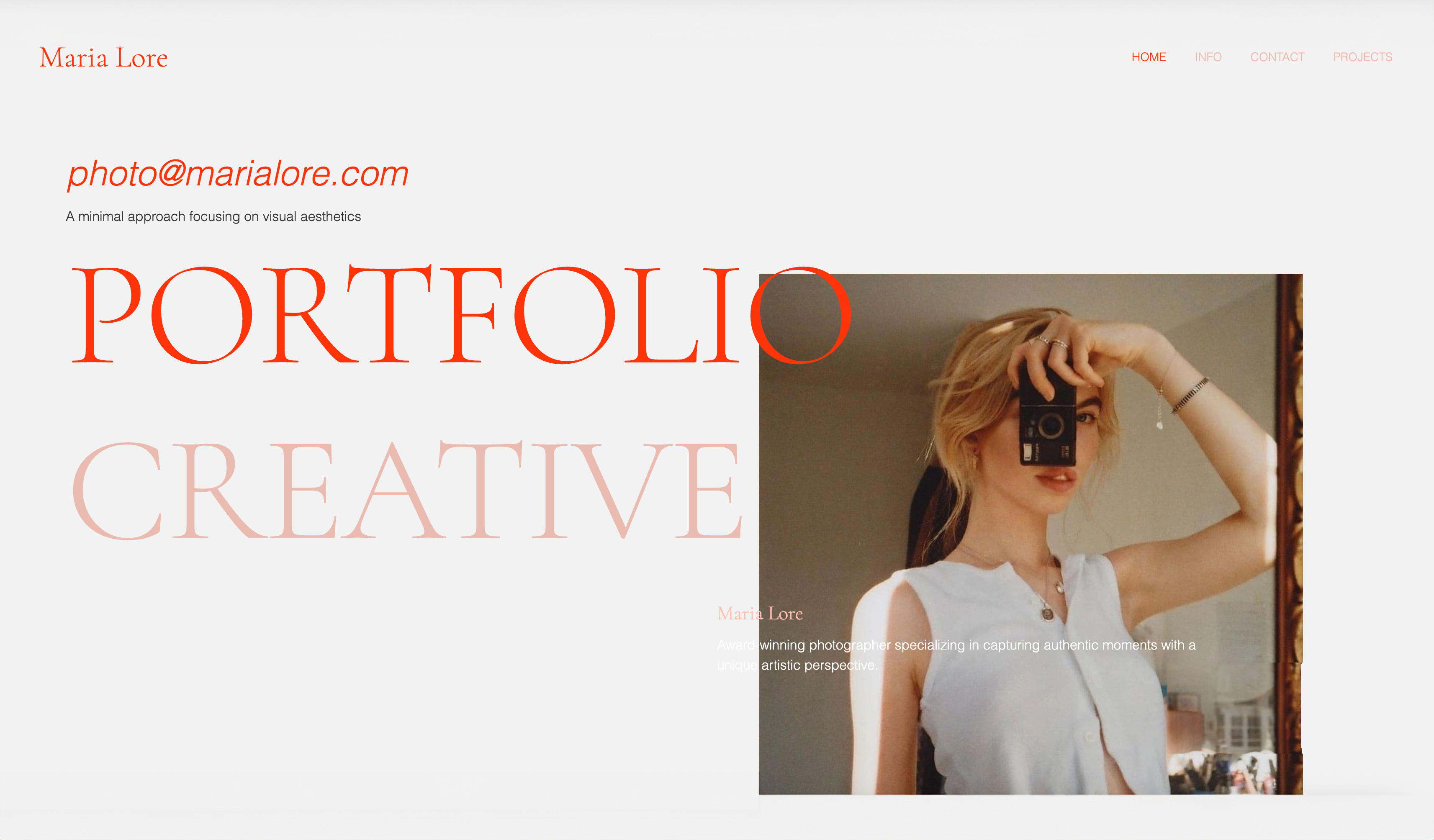 Use template
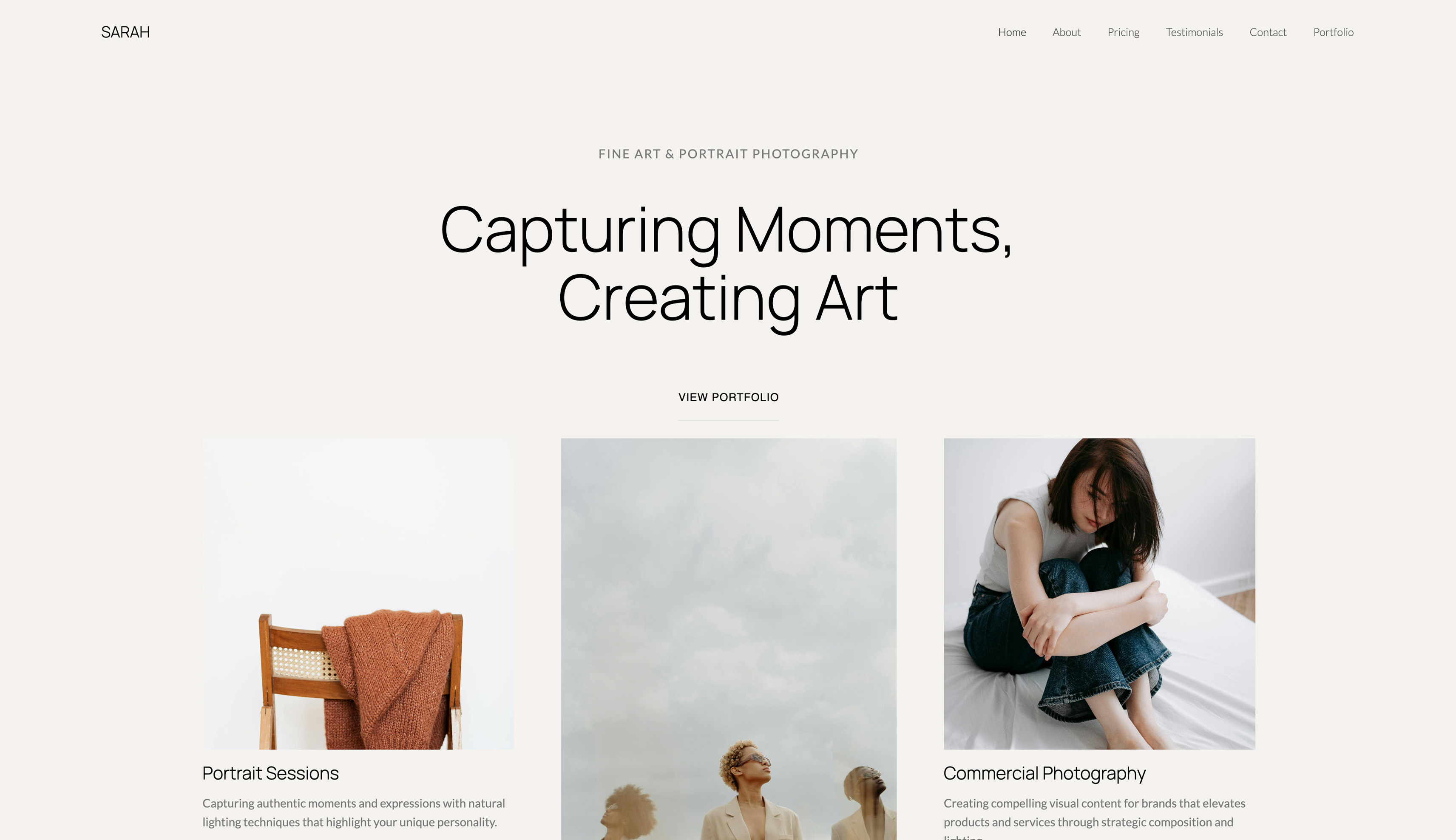 Use template
It is eleven at night and four people are finishing a proposal deck for a ten o'clock meeting. Two are rewriting the scope slides, one is fixing the numbers, one is chasing a client logo. In Google Slides that is an ordinary evening.
In Canva it is also possible, and the deck will look better in the morning, but the person who has to edit it next month on a client's laptop may not thank you.
That is the real Canva vs Google Slides decision. Not which tool is better, but which failure you can live with: a deck that looks like a document, or a deck that looks designed and behaves less predictably once it leaves the tool.
A presentation tool is software for writing, designing, sharing and presenting slide decks, and the two most-used free ones in 2026 sit at opposite ends of that job: Google Slides is a browser-based editor in Google Workspace built around many people writing at once, and Canva is a design platform whose presentation module starts from the largest template library in the category.
Framekit is an AI website builder whose Slides tool makes treatments, lookbooks and portfolio decks beside a portfolio site and client galleries, and it appears below as a labelled third option for that kind of deck only.
We re-verified this comparison on 12 October 2026: Google's Workspace pricing and Slides pages were read that day, Canva's pricing page refused automated reads so its figures carry the date and region they were read in, and the build times and three-editor test an earlier version reported have been removed because we could not back them.
Use Google Slides when several people write the deck or someone else will edit it after you, because it is free with any Google Account, edits live with comments, works offline and opens PowerPoint files directly.
Use Canva when the deck goes to a client or investor who will judge it on how it looks, because its 3.6 million templates, image tools and brand kits raise the design floor far above Slides, and Canva Free covers most decks.
Canva Pro at $144 a year is mainly worth it for brand fonts and premium assets. Framekit Slides is a third option only for treatments, lookbooks and portfolio decks one person builds next to a portfolio site.
Full disclosure: Framekit is our own product, and it is not scored against Canva or Google Slides here. It loses to Google Slides on collaboration and editable handover and to Canva on template depth, and the Framekit section says so. Everything about Canva and Google Slides on this page comes from the vendors' own pricing and help pages, linked where it matters; no timed builds or test scores appear.
How This Canva vs Google Slides Comparison Was Put Together
This comparison is built from what Google and Canva publish about their own plans, limits and features, plus worked arithmetic on those figures, because the decision is about collaboration, handover and money, and those are documented rather than matters of taste.
Read at the source. For Google Slides: the Google Slides product page, Google's help article on presenting slides and the Workspace pricing page, all read on 12 October 2026, when the pricing page served euro figures.
For Canva: Canva's pricing page as read from Europe on 12 October 2026 for our Framekit vs Canva comparison, where Pro showed at EUR 110 a year and Business at EUR 170 a person a year, plus the US prices Canva showed in September 2026: Pro at $144 a year or $18 a month and Business at $25 a person a month.
Calculated. A year of cost at three levels of use, from a solo freelancer on free plans to a five-person team that needs brand controls or a company domain.
Removed. An earlier version reported an eighteen-slide deck built in both tools, three people editing simultaneously and a set of export defects counted by hand.
We could not back those sessions, so the timings and counts are gone. Where this page describes export behaviour, it quotes what each vendor documents.
Canva vs Google Slides by the Numbers
These are the figures that settle most Canva vs Google Slides decisions, each read from the vendor's own page in September or October 2026 or calculated from it, and each one comes back in a table further down with the reasoning beside it.
- $0. What Google Slides costs anyone with a Google Account. Canva Free is also $0, with up to 20 AI uses a month.
- 3.6 million. Templates on Canva's paid plans, 1.6 million on Free. Google Slides offers a small set of pre-designed themes.
- 0 font uploads. Google Slides takes its fonts from the Google Fonts library and has no way to upload a licensed brand typeface. Canva takes brand fonts in a brand kit on Pro.
- $144 a year. Canva Pro for one person in the US (EUR 110 read from Europe). Only one person can use a Pro account.
- EUR 6.80. Google Workspace Business Starter per user a month on a yearly commitment, as served in October 2026, which buys a company domain and admin controls rather than deck features.
- EUR 850 vs EUR 408. Five people for a year on Canva Business against five on Workspace Business Starter.
- 1 extra monitor. What Google says you need to run Slides' presenter view on a second screen from Chrome.
Canva vs Google Slides at a Glance
This table sets Canva and Google Slides side by side on the twelve rows readers actually decide on, and the first four rows settle it most of the time, because they are the places where one tool is plainly better rather than slightly different.
| Google Slides | Canva | |
|---|---|---|
| Live co-editing and comments | Yes, including external contacts | Yes, every plan |
| Templates and stock | A small set of themes | 1.6 million Free, 3.6 million paid; 141 million stock items on paid |
| Brand fonts | Google Fonts only, no uploads | Uploaded brand fonts on Pro |
| Opening a client's PowerPoint | Converts it, or edits the .pptx directly | Imports it as a Canva design |
| Downloading PowerPoint | Yes | Yes; may look different, no animations or embedded video |
| Offline editing | Yes | Not confirmed on Canva's own pages |
| Presenter view with notes | Yes, on a second monitor from Chrome; audience Q&A | Presenter view and Present and record |
| Revision history | Yes, revert to earlier versions | Not compared plan by plan here |
| AI | Gemini in Slides on Workspace Standard and Plus | Up to 20 uses a month Free, 200 Premium uses on Pro |
| Read data on a shared deck | None | Design insights, basic on every plan, advanced from Pro |
| Price, one person | $0 | $0, or $144 a year on Pro |
| Everything else | Docs, Sheets, Gmail, Meet in Workspace | Social, print, video, websites, whiteboards |
In one lineGoogle Slides is the better place to write a deck with other people and hand it on, Canva is the better place to make one look finished, and most teams that care about both end up using each for the half it is good at.
Where Canva Wins
Canva wins on everything that happens inside the slide, and on a client-facing deck where the presentation carries part of the argument, that is the largest single difference between these two tools and the reason Canva usually wins the first impression.
Templates and assets. Canva's 1.6 million free templates and 3.6 million on paid plans, with 141 million stock photos, graphics, videos and audio tracks on paid plans, mean a non-designer starts somewhere respectable.
The same person starting from a Google Slides theme starts from a layout that looks like every other internal update.
Image handling. Canva treats photographs as content, with frames, cropping, masking and a background remover on Pro. A team slide with five headshots taken in five different rooms, or a client logo wall from mismatched files, is where that shows.
Brand consistency across a team. Brand kits hold fonts, colours and logos in one place: one kit on Free, five on Pro, 100 on Business, with element locking and, on Business, brand controls and approvals.
In Google Slides, consistency is a theme file plus everyone remembering, which in practice means three typefaces in the deck by Friday.
Brand fonts. Canva Pro lets you upload a licensed brand typeface. Google Slides has no upload path at any plan, which is the single most common reason a brand-led team leaves it.
One subscription for every format. Social graphics, print, video, websites up to 45 pages, whiteboards and docs live in the same editor, so a deck's social cut-downs and one-pager come from the same brand kit.

The real numberCanva Pro is $144 a year or $18 a month for one person in the US, per Canva's pricing page as shown in September 2026, and EUR 110 a year read from Europe in October.
Canva's pricing FAQ says only one person can use a Pro account; teams go to Business at $25 a person a month.
If Canva is the tool you already have and its seat price is the problem, the best Canva alternatives for presentations covers the field.
Where Google Slides Wins
Google Slides wins on everything that happens around the deck rather than inside it, which is why it remains the default wherever decks are written by several people at once and then handed to someone else to keep editing.
Writing together. Google's Slides product page describes live editing and comments, including with external contacts, inside the same tool most clients already use for documents.
Canva collaborates in real time on every plan too; the difference is that a Slides link drops a client into a format they already know.
PowerPoint in both directions. Google says Slides can convert a PowerPoint file into Slides format or edit the .pptx directly without making a copy, and it downloads PowerPoint and PDF.
When a client sends their master template and asks for slides back in it, that is the shortest route of any free tool.
Offline editing. Google's product page says you can access, create and edit Slides without an internet connection, once offline access is set up. That matters on a train, a plane or in a venue whose Wi-Fi was a rumour.
Presenting properly. Google's presenting help article describes a presenter view with speaker notes, audience questions taken while you present, and presenter view on an extra monitor from Chrome.
Canva offers a presenter view too; Slides' audience Q&A is the extra.
Price at any headcount. Slides is free with any Google Account.
Workspace Business Starter, at EUR 6.80 a user a month on a yearly commitment as served in October 2026, buys a company domain, 30GB of pooled storage per user and admin controls rather than deck features, and Google's pricing page lists Gemini in Slides only from Standard upward.
Revision history. Google's FAQ says revision history lets you revert to earlier versions, so a slide someone deleted last week is recoverable without hunting through exports.
Already sending decks that clients rebuild in PowerPoint? PowerPoint vs Google Slides covers which one survives the round trip better, and the best Google Slides alternatives is the read if Slides is the tool you are leaving.
The Brand Font Problem
If your brand uses a licensed typeface, the honest difference between these two tools is a $144 subscription against a flat no, because Google Slides cannot upload a font at any plan and Canva can upload one on Pro.
Google Slides draws its fonts from the Google Fonts library, which is large and free and does not include your brand's licensed face. A Google answer on its own help community states plainly that Slides cannot upload fonts.
If your typeface is not in that library, your deck is not on brand, and no Workspace plan changes that.
Canva Pro lets you upload the font into a brand kit, and from then on it is one click on every slide. That single feature is the most common reason a Canva user upgrades, so know that it is what you are buying.
The workaround both share. Set headlines as images exported from a design tool, keep body copy in a supported font, and accept that text in images is not searchable or editable. It is ugly, it works, and a surprising number of studios do it.
If fonts are non-negotiable and the file must travel, PowerPoint on the desktop can embed fonts the licence allows, so the deck renders correctly on a machine that never installed them; Microsoft's font embedding article covers Windows and Mac.
Our Canva vs PowerPoint comparison goes into that trade.
Exports and the Handover
The export step is where this comparison is usually decided, because most decks leave the tool they were made in, and the two tools handle that exit differently enough to matter on any deck a client will open in their own software.
PDF. Both produce PDFs, and for a deck that is read rather than edited, a PDF from either tool is the safest handover. If you only ever send PDFs, Canva's export caveats below never reach anyone and you should choose on design.
PowerPoint from Canva. Canva's help centre on download file types warns that a design may look different in PowerPoint and that animations and embedded videos are not supported there.
In practice that means spacing, fonts and anything layered need checking slide by slide before the file is sent.
PowerPoint from Google Slides. Slides downloads PowerPoint and, more usefully, can open and edit a client's .pptx directly. Text stays text and tables stay tables, which is what the next editor needs.
Why this matters more than it sounds. If a client edits your deck, every revision you send repeats whatever repair the export needed. Across a six-week project with four revision rounds, that is four rounds of fixing the same slides.
Run it on your last five decks. Count how many were handed over as editable files and how many went out as PDFs or links.
If editable handovers are more than one in five, build in Google Slides and finish the client-facing version elsewhere; if they are none, Canva's export caveats are irrelevant to you.
AI in Canva and Google Slides
Both tools now put generative AI into the deck, but on different terms: Canva gives every plan a monthly allowance that resets, while Google puts Gemini in Slides behind specific Workspace plans, so the cheapest route to AI-assisted slides differs by which account you already pay for.
Canva. Canva's pricing FAQ splits AI in two. Standard AI tools such as Magic Write can be used abundantly on paid plans without counting.
Everything else draws on a monthly allowance that resets: up to 20 uses of Standard or Premium AI tools on Free, up to 200 Premium uses or 20 Ultra uses on Pro, and twice that on Business.
Google Slides. Google's Slides page describes Gemini generating images and summarising content, and the Workspace pricing page served in October 2026 lists Gemini in Slides on the Standard and Plus plans but not on Starter.
Standard showed at EUR 13.60 a user a month, with an introductory discount for new customers at the time of reading.
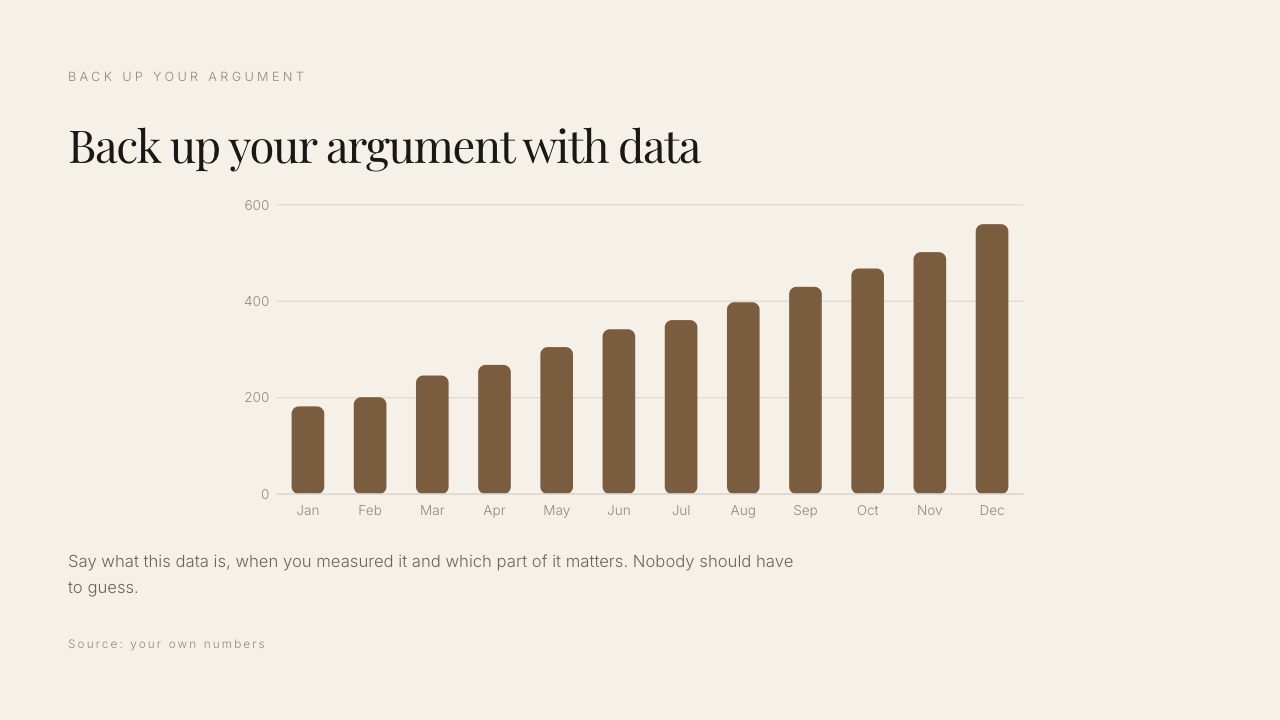
Charts. Google Slides charts can come from a Google Sheet, so a monthly report deck refreshes from the sheet the team already maintains. Canva builds charts from pasted data or an uploaded sheet and styles them better, but the data lives in the design.
In one linefor a solo user Canva Free's monthly allowance is the cheaper way to try AI on a deck, and for a company already on Workspace Standard, Gemini in Slides is already paid for.
What a Year Costs at Three Levels of Use
The honest cost difference between Canva and Google Slides is zero for most solo users and widens only when brand fonts or team controls become necessary, so here is a year priced at three realistic levels, using the euro figures both vendors served in October and Canva's US dollar prices for reference.
| Level of use | Google Slides | Canva | What decides it |
|---|---|---|---|
| Solo, a few decks a quarter | $0 | $0 on Free, up to 20 AI uses a month | Nothing; use both free |
| Solo, client decks weekly with a brand typeface | $0, but no brand font possible | EUR 110 on Pro ($144 in the US) | Whether the licensed font matters to the client |
| Five people on a company domain | EUR 408 on Business Starter; EUR 816 on Standard with Gemini in Slides | EUR 850 on Business (about $1,500 at $25 a person a month) | Whether you need Canva's brand controls or just shared editing |
Read the bottom row with care. Workspace pricing buys email, a domain, storage and admin controls for the whole company, so for a business already paying it, Slides costs nothing extra.
Canva Business buys the design suite, brand controls and approvals. Many five-person teams pay for both, and the useful question is whether all five need Canva or only the one person who finishes client decks.
Run this on yourself. Open the last five decks you sent and check two things: did anyone ask for an editable file, and did you substitute your brand typeface?
If nobody asked for a file and you did substitute the font, Canva Pro is the right $144. If someone asked for a file and the font never mattered, stay in Google Slides and keep the money.
Limits and Specs Side by Side
Most decisions between Canva and Google Slides get settled by a limit you meet in month two rather than a feature you see on day one, so this table puts the published limits, export formats and plan gates next to each other.
| Limit or feature | Google Slides | Canva |
|---|---|---|
| Who can use it free | Anyone with a Google Account | Anyone with a Canva account |
| Who a paid plan covers | Per user on Workspace | One person on Pro; per person on Business |
| Storage | 30GB per user pooled on Business Starter, 2TB on Standard | 5GB Free, 100GB Pro, 500GB Business |
| Fonts | Google Fonts library | Library plus uploaded brand fonts on Pro |
| PowerPoint import | Convert, or edit .pptx directly | Import as a design |
| PowerPoint export | Yes | Yes, with Canva's look-different caveat |
| PDF export | Yes | Yes |
| Offline | Yes, with offline access set up | Not confirmed on Canva's pages |
| Presenter view | Yes; second monitor from Chrome; audience Q&A | Yes; Present and record |
| Recording a presentation | Workspace plans | Present and record |
| AI | Gemini in Slides on Standard and Plus | Monthly allowance on every plan |
| Brand kits | Themes only | 1 Free, 5 Pro, 100 Business |
One caveat: Canva's pricing page refused our automated read in October, so a feature Canva added after September may be missing from its column. Check the plan page before you buy.
What Happens When You Hit the Edges
The situations that generate most regret in a Canva vs Google Slides decision are edge cases nobody checks before choosing, so here is what each tool does in six of them, using the vendors' documented behaviour rather than assumption.
The client sends their PowerPoint master and wants slides back in it. Google Slides edits the .pptx directly. Canva imports it as a Canva design and exports a new PowerPoint, with the caveat that it may look different.
Four people are writing the deck the night before. Both edit live. Slides keeps everyone in a format they already know and lets you revert any slide from revision history.
The deck must use your licensed brand typeface. Canva Pro uploads it. Google Slides cannot; set headlines as images or move the deck to PowerPoint.
You present somewhere without Wi-Fi. Google Slides works offline once offline access is set up. For Canva, download a PDF before you leave.
You run out of AI mid-deck. On Canva, Premium AI pauses until the monthly allowance resets and hand design continues. On Google Slides, Gemini is either in your Workspace plan or not there at all.
A second person joins a Canva Pro account. They cannot share it: Canva Pro is one person, so the move is to Canva Business, priced per person, or to Canva Free for the collaborator.
Using Both: Write in Slides, Finish in Canva
The workflow a lot of teams settle on without naming it is to write the deck where collaboration is free and reliable, then finish the client-facing version where design is strong, and send a PDF so Canva's export caveats never reach the client.
Draft the structure and copy in Google Slides with everyone in the file, comments resolved and numbers checked.
Download it as PowerPoint once the words are settled, import it into Canva, apply the brand kit, and rebuild the image-heavy slides there. Export the finished deck as PDF, or share the Canva link.
When one tool is enough. If decks are internal and written by several people, Google Slides alone. If you make a client deck a month and nobody edits it after you, Canva alone, probably on Free.
The two-tool workflow earns its keep for teams that write together and are judged on the result.
Framekit: A Third Option for Treatments, Lookbooks and Portfolio Decks

Framekit is not a contender for the Canva vs Google Slides question, because it has neither Slides' co-editing nor Canva's template depth, but it is the better fit for one kind of deck: a treatment, lookbook or portfolio deck that one person builds and sends next to a portfolio site and client deliveries.
Framekit is an AI website builder that also runs Slides, client galleries, video review and a digital-download store on one account, so a director's treatment, the showreel site it links to and the gallery that delivers the job share one login.
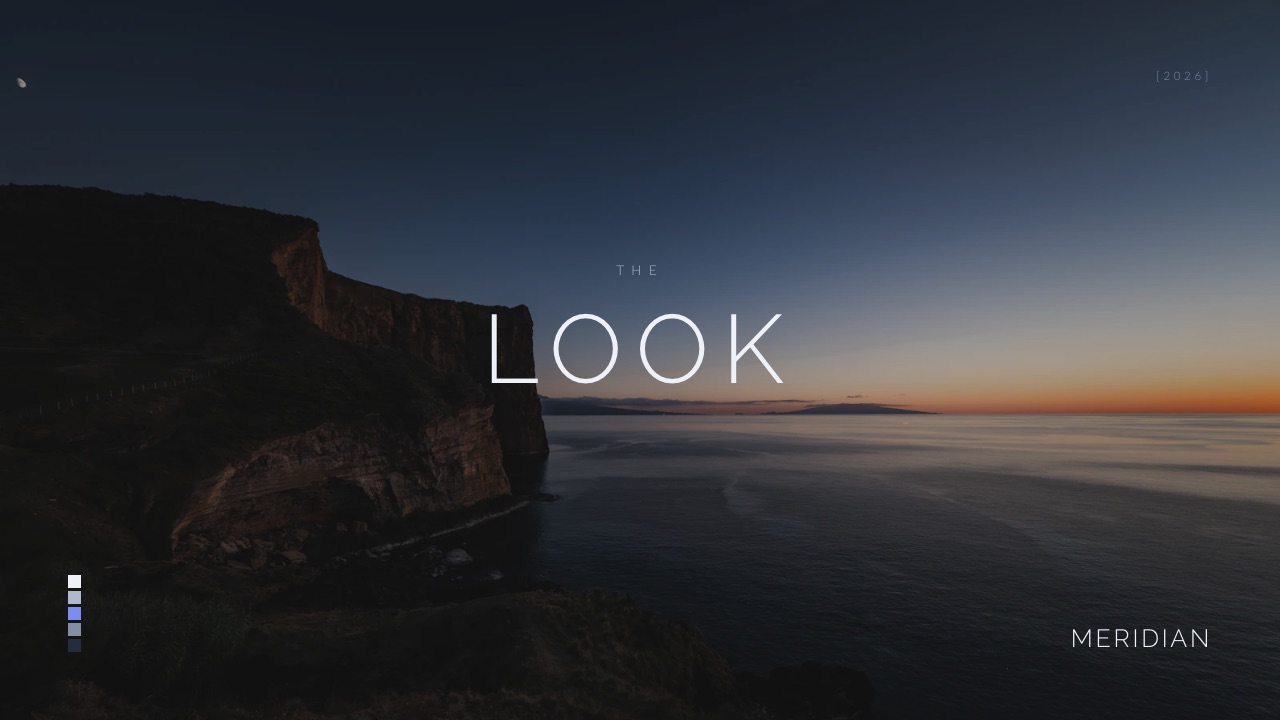
Its templates start from creative documents: a director's treatment for a commercial, a commercial treatment for an agency, a pitch deck and lookbook for a first feature, a photography portfolio book, a production company credentials deck.
Ready-made elements cover shot lists, storyboard rows, moodboards, look cards, swatches, type specimens and charts, and a pasted YouTube, Vimeo or Instagram link plays on the slide.
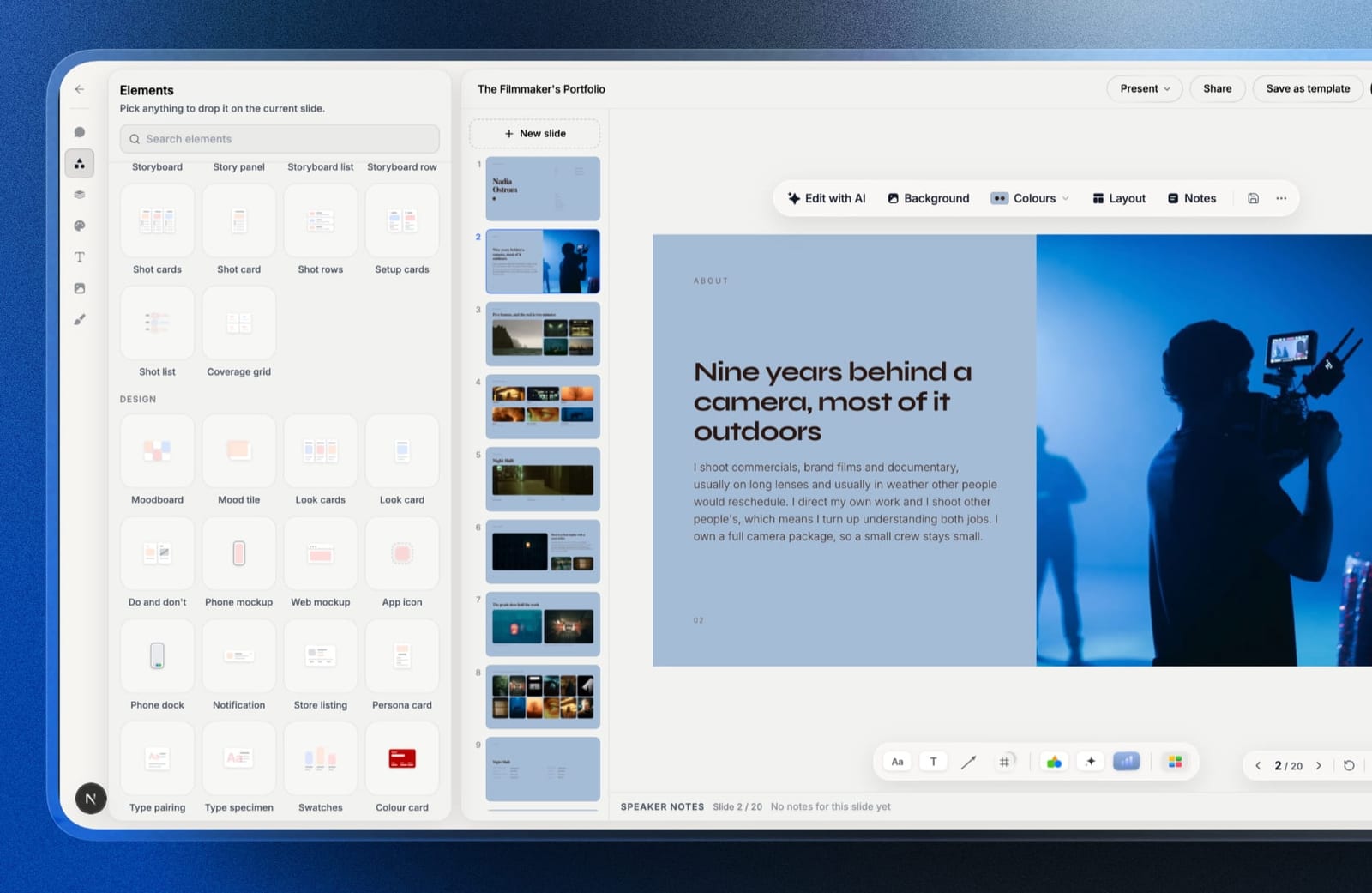
How its AI drafts a deck. Describe the deck and Framekit's AI asks up to three quick questions (how many slides, what should happen after the reader sees it, and whether it will be presented or read alone), picks a design style that fits, offers colour themes, and asks you to paste real facts such as a logline, credits or rates.
It then proposes a titled outline for your OK and builds the slides a few per turn with speaker notes, marking anything you did not supply as a placeholder rather than inventing it.
It is slower to a first full draft than a one-prompt generator; the trade is a deck built from your facts.
AI is metered: every plan, Free included, has a monthly AI allowance, deck AI draws on one pool, and editing by hand or building from a template spends nothing.
Where it loses to both. No live co-editing and no comments, which is Google Slides' whole strength.
Decks belong to the person who made them; team members on Pro or Business are website admins and cannot open or edit decks, so a team works with one deck builder and everyone else viewing by link or PDF.
No PowerPoint or Google Slides import. PowerPoint export starts on Pro and arrives as pictures, one full-bleed image per slide with notes kept, so nobody can retype a headline in it.
No presenter view with speaker notes on a second screen; you present full screen from the browser. A deck caps at 40 slides. Share links have no password and show only a total view count, with a reset that kills the old link.
What it costs. Free makes unlimited decks with PDF export and a share link carrying a Made with Framekit badge. Templates, custom fonts and badge removal start on Starter at $9 a month or $84 a year billed yearly; PowerPoint export on Pro at $19 a month.

Verdict: for team decks, client masters and anything edited after you, choose between Google Slides and Canva and ignore Framekit. For a treatment or lookbook that one person builds and sends with a link to the portfolio, Framekit Slides is the better fit. Templates worth seeing first: the commercial treatment template and the film pitch deck template.
The Page Your Deck Points At
Whichever tool makes the deck, the last slide usually ends with a link, and the page behind it does work neither Canva nor Google Slides was built for, because a forwarded deck reaches people who look you up before they decide anything.
Canva can publish a website of up to 45 pages, which handles a simple company page. Google Slides can be published to the web as a deck, which is not the same as a site.
For a filmmaker or photographer, the page usually needs project pages with video, a contact form and, once the job is won, somewhere to deliver the work.
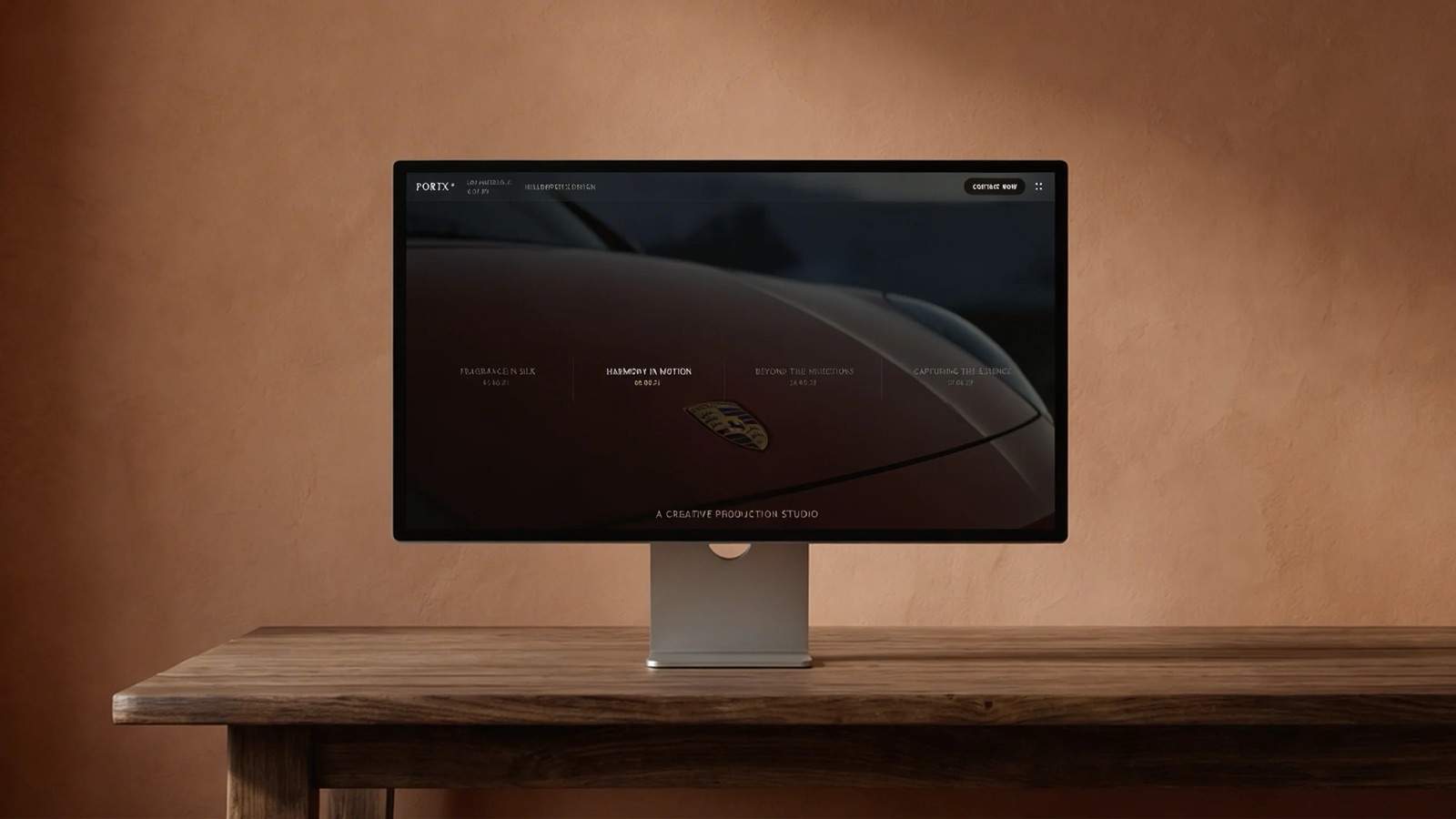
That is where Framekit's account shape matters more than its deck editor: the treatment, the portfolio site, the client gallery and the review link for the cut share one storage pool, from 10GB on Free to 2TB on Business.
Switching Between Canva and Google Slides: A Checklist
Moving decks between Canva and Google Slides runs through PowerPoint in both directions, so the work is mostly checking what the export changed, and doing the steps in this order saves most of the clean-up.
| Step | Canva to Google Slides | Google Slides to Canva | Why |
|---|---|---|---|
| 1. Archive | Download every Canva deck you keep as PDF | Download every Slides deck as PDF | Your archive stops depending on one account |
| 2. Note the brand | Write down fonts and colours; check which brand font has no Google Fonts match | Collect fonts, colours and logos for a Canva brand kit | Fonts are what breaks first |
| 3. Export | Download the presentation as PPTX | Download as PowerPoint | PowerPoint is the bridge both tools read |
| 4. Import | Open the PPTX in Slides (convert or edit directly) | Import the PPTX into Canva | Both accept PowerPoint |
| 5. Check every slide | Fonts, layered images, embedded video, charts | Spacing, charts, tables | Complex slides need repair either way |
| 6. Rebuild the brand | Set the theme and replace substituted fonts | Apply the brand kit in one pass | Most drift disappears here |
| 7. Re-share | Send the new Slides link with comment access | Share the Canva link or a PDF | Old links keep pointing at the old file |
If the destination is Framekit instead, there is no import at all: rebuild only the treatments and lookbooks you send repeatedly, starting from the closest template.
Which Should You Use? A Decision Tree
Answer these questions in order and stop at the first yes, because each one describes a constraint that only one of the two tools solves, which is why the order matters more than any feature list on this page.
1. Will several people write the deck at the same time, or will someone else edit it after you? Yes: Google Slides. No: go to question 2.
2. Does a client need the deck back inside their own PowerPoint master? Yes: Google Slides, which edits the .pptx directly. No: go to question 3.
3. Is the deck client-facing and currently unattractive? Yes: Canva, Free plan first. No: go to question 4.
4. Is your brand typeface licensed and non-negotiable? Yes: Canva Pro at $144 a year, or desktop PowerPoint if the file must travel with the font embedded. No: go to question 5.
5. Do you present somewhere without a connection? Yes: Google Slides with offline access set up, or a PDF from either. No: go to question 6.
6. Is the deck a treatment, lookbook or portfolio deck that one person builds and sends with a link to their site? Yes: look at Framekit Slides, accepting no co-editing and no editable PowerPoint. No: use Google Slides and spend the saved time on the content.
Frequently Asked Questions
Is Canva better than Google Slides?
Canva is better than Google Slides for design: 3.6 million templates on paid plans, stronger image tools and brand kits make a client-facing deck look finished faster.
Google Slides is better for collaboration, editable PowerPoint handover, offline work and price, since it is free with any Google Account.
For a deck several people write, choose Google Slides; for a deck judged on how it looks, choose Canva.
Is Google Slides really free?
Yes. Google Slides is free for anyone with a Google Account, with live editing, comments, offline editing, presenter view and PowerPoint import and export.
Workspace plans, from EUR 6.80 a user a month on a yearly commitment as Google served it in October 2026, add a company domain, more storage and admin controls, and Gemini in Slides starts on the Standard plan.
Can Google Slides use my brand's custom font?
No. Google Slides uses the Google Fonts library and has no way to upload a licensed font file at any plan level.
Your options are Canva Pro at $144 a year, which uploads brand fonts into a brand kit, desktop PowerPoint, which can embed fonts the licence permits, or setting headlines as images and accepting that the text is no longer editable.
Does Canva export properly to PowerPoint?
Canva exports presentations as editable PowerPoint files, but its own help centre warns that a design may look different in PowerPoint and that animations and embedded videos are not supported.
Check every slide before sending, especially fonts and layered images. If a client will keep editing the deck, Google Slides or PowerPoint is the safer place to build it; if you only send PDFs, it never matters.
Which is better for team collaboration, Canva or Google Slides?
Google Slides is the better choice for teams that write decks together, because live editing and comments, including with external contacts, sit inside the tool most clients already use, and revision history lets you revert any change.
Canva also collaborates in real time on every plan and adds brand kits, approvals and element locking on Business, which matters more when non-designers build client-facing slides.
Can I import a Canva deck into Google Slides?
Yes, through PowerPoint. Download the Canva presentation as PPTX, then open it in Google Slides, which can convert it or edit the .pptx directly.
Text and simple image slides move cleanly; layered designs, embedded video and anything in a brand font that is not in Google Fonts usually needs repair. Going from Slides to Canva is the same route in reverse.
Can a team share one Canva Pro account?
No. Canva's pricing FAQ says only one person can use a Canva Pro account, and the older Canva Teams plan is closed to new sign-ups.
A team goes to Canva Business, priced per person: $25 a month in the US, or EUR 170 a person a year as read from Europe in October 2026. Collaborators can also join on Canva Free.
Does Google Slides have AI like Canva?
Yes, on the right plan. Google's Workspace pricing page served in October 2026 lists Gemini in Slides on the Standard and Plus plans but not on Business Starter, and Google's Slides page describes it generating images and summaries.
Canva gives every plan a monthly AI allowance: up to 20 uses on Free and up to 200 Premium uses on Pro.
Does Canva or Google Slides work offline?
Google Slides does: Google's product page says you can access, create and edit Slides without an internet connection once offline access is set up.
We could not confirm offline editing for Canva on Canva's own pages, so for Canva the safe plan is to download a PDF before presenting somewhere without Wi-Fi.
Which has the better presenter view?
Google Slides has a presenter view with speaker notes that runs on a second monitor from Chrome, plus audience questions you can take while presenting, according to Google's help centre.
Canva offers a presenter view and Present and record, which captures you talking over the slides as a shareable link. Framekit Slides has neither a presenter view with notes on a second screen nor recording.
Which is cheaper for a team of five?
Google Slides is cheaper. On Google Workspace Business Starter, five people cost about EUR 408 a year at the October 2026 list price, or EUR 816 on Standard with Gemini in Slides, and Slides itself is free.
Five Canva Business seats cost EUR 850 a year at the euro rate, or about $1,500 at $25 a person a month in the US.
Can Canva or Google Slides tell me who opened my deck?
Not by named person. Google Slides reports nothing about viewers of a shared deck. Canva lists design insights, basic on every plan and advanced from Pro, which count visits to a shared or embedded design.
For per-recipient tracking with time per slide, look at Pitch Team; our Pitch vs Canva comparison covers it.
Is Canva or Google Slides better for a film treatment?
Canva is better than Google Slides for a film treatment because image layout carries the document, but neither is built for it.
Framekit Slides has treatment, lookbook and shot list templates with video references that play on the slide, though it has no password or co-editing.
Our guide on how to write a film treatment covers the sections.
Final Verdict
Use Google Slides to write the deck and Canva to finish it, which is what many teams already do without describing it that way.
Write where collaboration, offline work and PowerPoint handover are free and reliable, finish the client-facing version where the design ceiling is higher, and send a PDF so Canva's export caveats never reach anyone.
If you must pick one, pick Google Slides when several people touch your decks or anyone edits your files after you, and Canva when you send finished documents to people who judge you on how they look.
Canva Pro's $144 a year is worth it mainly for brand fonts and premium assets, so wait until one of those blocks you.
Where Framekit fits, and where it loses: Framekit Slides is the better fit only for treatments, lookbooks, portfolio and creative pitch decks that one person builds and sends beside a portfolio site and client deliveries.
It does not co-edit, does not let teammates open your decks, does not import PowerPoint and exports it as pictures, so it is not for team-written or client-edited decks.
Keep reading: the best free presentation software, Gamma vs Canva, Keynote vs PowerPoint and the best lookbook software.