Framekit templates
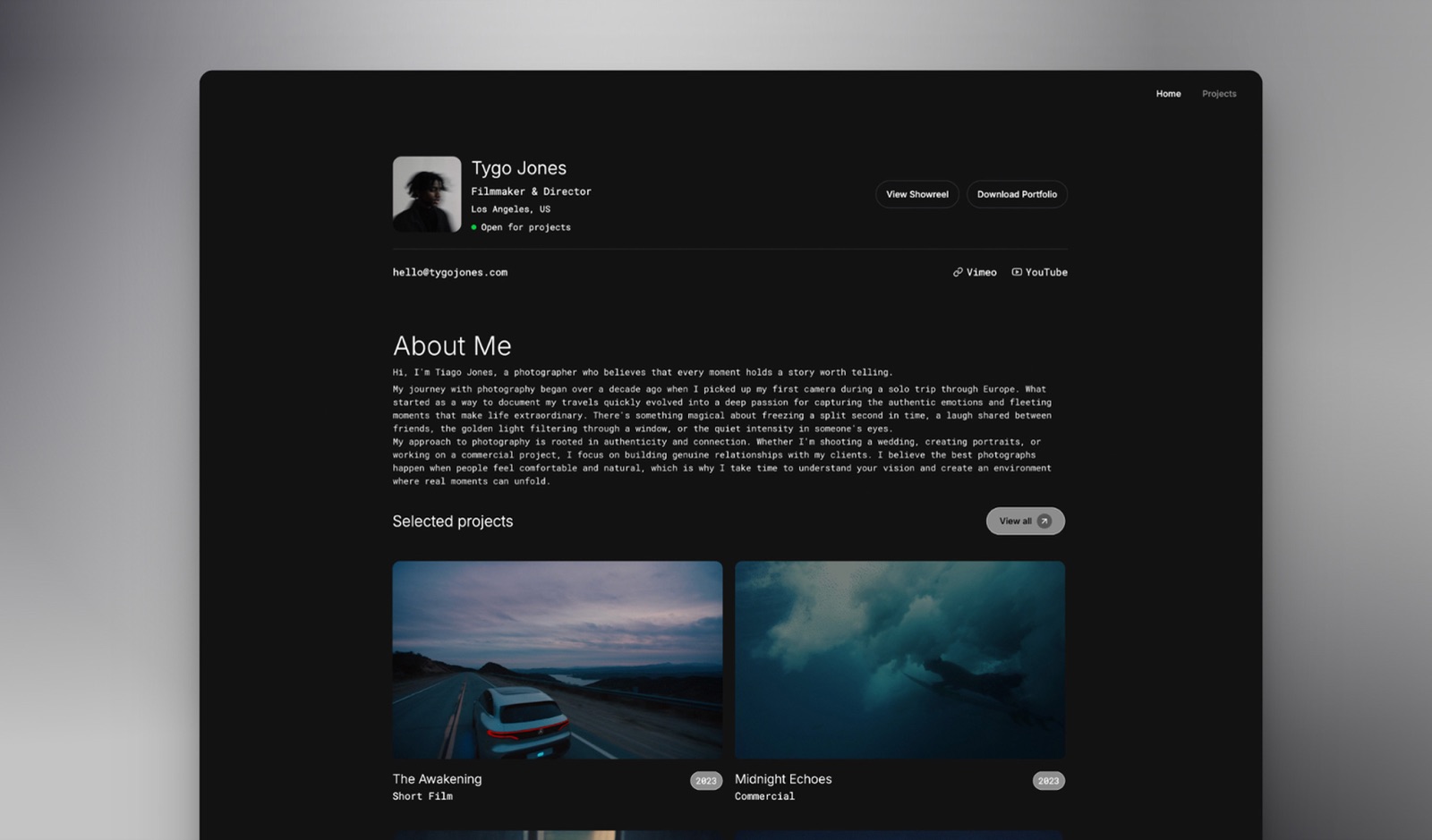
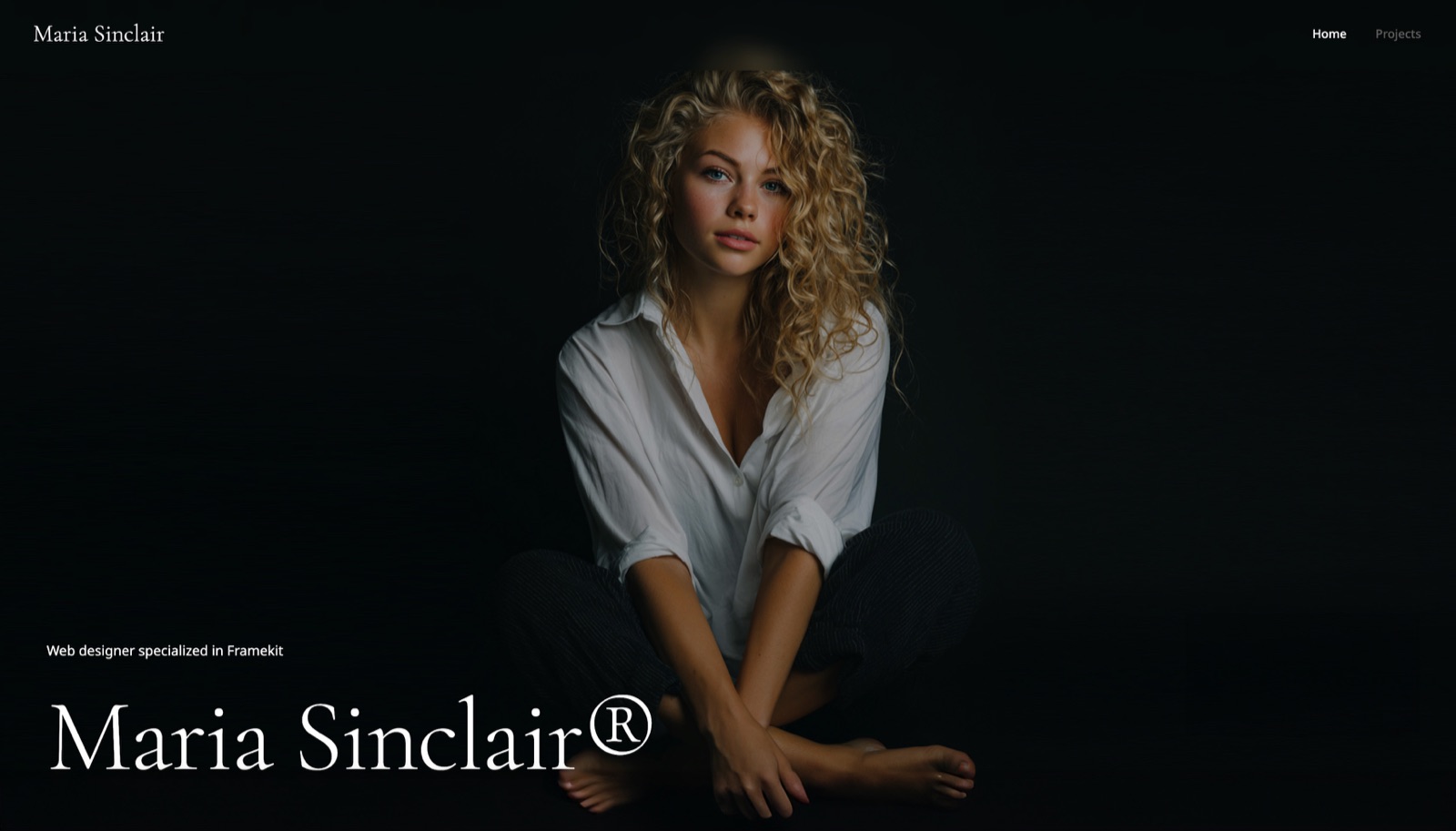
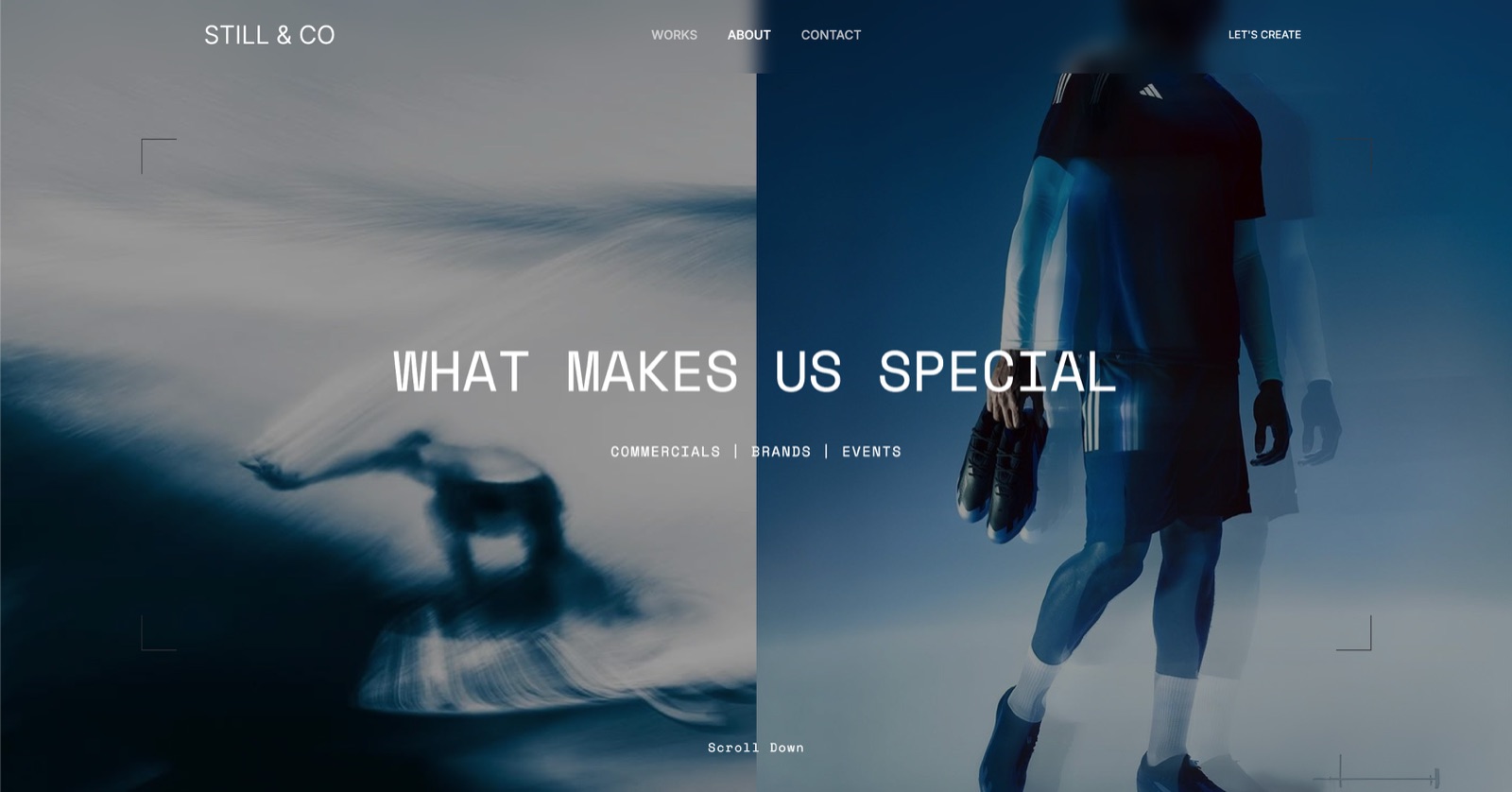
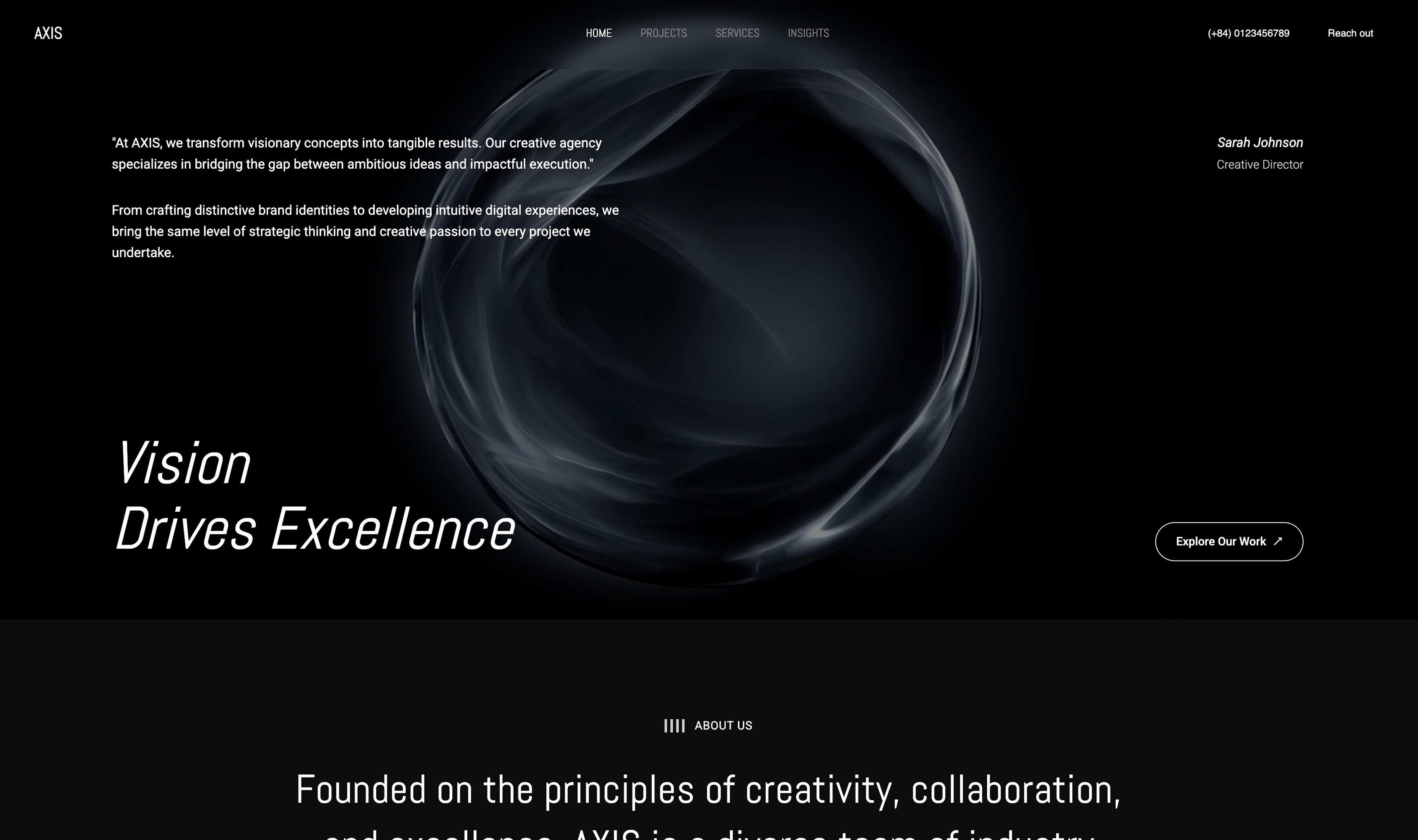
Start from a designer-made template
 Use template
 Use template
 Use template
 Use template
 Use template
 Use template
 Use template
 Use template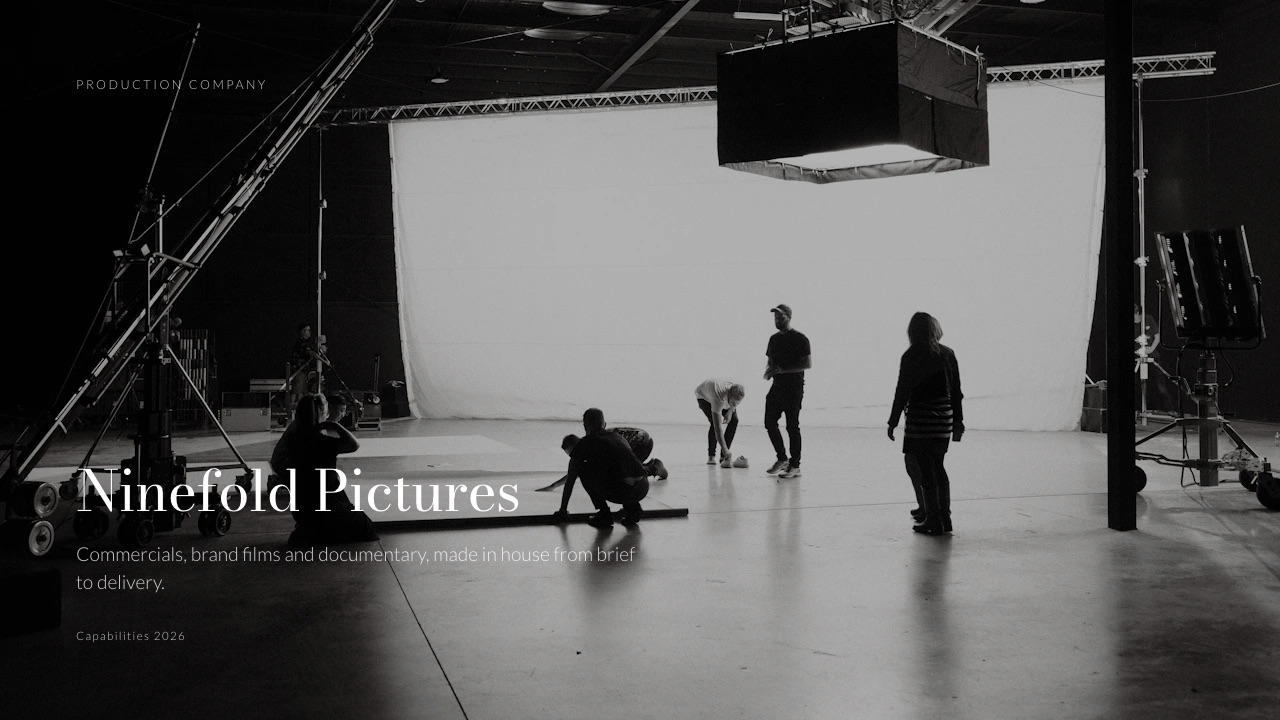
Most people asking whether to use Canva or PowerPoint have used both and want permission to drop one.
That is a sensible instinct, and it usually goes wrong in the same way: the comparison gets made on the editor, when almost every consequence lands somewhere else - when the file is opened on a client's laptop, when the deck has to be presented on a train, or when the renewal invoice arrives.
So this Canva vs PowerPoint comparison spends less time on which editor feels nicer and more on what each one costs you at handover, offline, in charts, in AI and over a year.
A presentation maker is software that lays out slides, handles type and motion, and gets the finished deck to an audience as a live show, an exported file or a shareable link.
Canva arrives at that job from design, with the deck as one output among many; PowerPoint arrives from documents, with the deck as the whole product and the .pptx as the format the rest of the business world opens.
Framekit is an AI website builder whose Slides tool makes treatments, lookbooks and portfolio decks beside a portfolio site, and it appears below as a labelled third option for that kind of deck only.
We re-verified Microsoft's consumer prices on its own plan comparison page on 12 October 2026, which corrected two figures an earlier version carried (Family is $129.99 a year, not $199.99, and Office Home 2024 is $179.99, not about $149.99), and we removed the build times, reviewer sends and offline test the old version reported, which we could not back.
Canva is the better choice for freelancers, small studios and marketing teams whose decks are judged on how they look, because 3.6 million templates, brand kits and image tools produce a designed deck faster, Canva Free is genuinely usable, and the same subscription covers social and print.
PowerPoint is the better choice whenever the editable file leaves your hands, the deck is heavy with charts, or you present offline, because .pptx is the format clients open, it embeds fonts, and the desktop app needs no connection.
On price PowerPoint is cheaper: Microsoft 365 Personal is $99.99 a year against Canva Pro at $144. Framekit Slides is a third option only for treatments and portfolio decks one person builds.
Full disclosure: Framekit is our own product. It is not scored against Canva or PowerPoint here, it loses to PowerPoint on editable files and to Canva on templates, and its section says so. Microsoft figures come from its own plan comparison and support pages, read on 12 October 2026; Canva's pricing page refused automated reads that day, so its figures carry the date and region they were last read in.
How This Canva vs PowerPoint Comparison Was Put Together
This comparison is built from what Microsoft and Canva publish about their own plans, features and limits, plus arithmetic on those prices, because the choice between them is mostly about money, file handover and where you work, and those are documented rather than matters of opinion.
Read at the source. Microsoft's plan comparison page, its support articles on the Morph transition, embedding fonts and Speaker Coach, all read on 12 October 2026.
For Canva, Canva's pricing page as read from Europe on 12 October 2026 for our Framekit vs Canva comparison (Pro at EUR 110 a year, Business at EUR 170 a person a year), the US prices Canva showed in September 2026 (Pro at $144 a year or $18 a month, Business at $25 a person a month), and its help article on download file types.
Calculated. A year of cost at three levels of use, and three years for one person, at each vendor's published rates.
Not covered. Microsoft 365 Business plans sit on a separate page that refused our automated read, so a company licensing PowerPoint for staff should price those directly. No speed figures or timed builds appear on this page.
Canva vs PowerPoint by the Numbers
These are the figures that settle most Canva vs PowerPoint decisions, each read from the vendor's own page in September or October 2026 or calculated from it, and each one returns further down in a table with the reasoning beside it.
- $99.99 vs $144. Microsoft 365 Personal a year, with desktop PowerPoint and 1TB of storage, against Canva Pro a year for one person.
- $129.99. Microsoft 365 Family a year, for one to six people with 2TB shared.
- $179.99. Office Home 2024, a one-time purchase for one PC or Mac with the classic 2024 apps.
- 1 person. Who may use a Canva Pro account. Teams go to Canva Business at $25 a person a month.
- 3.6 million. Templates on Canva's paid plans, 1.6 million on Free.
- $0. PowerPoint for the web with a free Microsoft account, and Canva Free.
- 2016. The release from which PowerPoint plays Morph, its object-matching transition; creating Morph needs Microsoft 365, PowerPoint 2019 or later, or the web app.
Canva vs PowerPoint at a Glance
This table sets Canva and PowerPoint side by side on the twelve rows readers decide on, ordered by how often each row settles the choice for a freelancer or small studio rather than by feature count.
| Canva | PowerPoint | |
|---|---|---|
| Price, one person | Free, or $144 a year on Pro | Free on the web, $99.99 a year on Microsoft 365 Personal |
| Price, a household of up to six | Per person on Business | $129.99 a year on Microsoft 365 Family |
| Templates and stock | 1.6 million Free, 3.6 million paid; 141 million stock items on paid | A built-in set plus Designer suggestions |
| Brand controls | Brand kits (1 Free, 5 Pro, 100 Business) | Slide masters, themes and templates |
| Font embedding in the file | Not documented; the help centre warns PowerPoint downloads may look different | Yes, on Windows and Mac, where the font's licence allows |
| Object-matching transition | Match and Move animation | Morph |
| Full offline editing | Not confirmed on Canva's own pages | Yes, in the desktop app |
| Charts | Common types from pasted or uploaded data | Excel-backed charts, including waterfall and combination charts |
| Rehearsal feedback | Not listed | Speaker Coach, in PowerPoint for the web |
| AI | Monthly allowance on every plan | Copilot at higher-than-free limits on Personal and Family |
| Native file | A Canva design, exported to PPTX or PDF | .pptx |
| Everything else | Social, print, video, websites, whiteboards | Word, Excel, Outlook and OneDrive in Microsoft 365 |
In one lineCanva raises the floor for anyone who is not a designer and covers four kinds of work in one subscription, while PowerPoint keeps the higher ceiling for precise, chart-heavy or client-edited decks and costs less a year for one person.
Where Canva Wins
Canva beats PowerPoint in five areas, and they are the reasons most freelancers and small marketing teams pick it: a better-looking deck sooner, a free plan that does real work, and one subscription that replaces three tools rather than one.
The design floor. Canva's 1.6 million free templates and 3.6 million on paid plans, with 141 million stock items on paid plans, mean a non-designer starts somewhere considered.
PowerPoint's template set is serviceable and its Designer pane suggests layouts from your content, but a person who cannot design will reach a finished look faster in Canva.
Photographs. Canva treats images as content, with frames, cropping, masking and a background remover on Pro. Decks for studios, brands and anyone selling visual work are mostly photographs, and that is where the gap shows.
Brand kits. Fonts, colours and logos held once and applied everywhere: one kit on Free, five on Pro, 100 on Business, with element locking and, on Business, brand controls and approvals. In PowerPoint, a slide master holds layout, not discipline.
Everything that is not a deck. Social carousels, print pieces, video, websites up to 45 pages, whiteboards and docs come from the same editor and brand kit.
For a small business, that turns $144 a year into a design budget rather than a presentation one. Present and record turns a deck into a shareable talk-over video.
A free plan that works. Canva Free includes 1.6 million templates, real-time collaboration and comments, presentations, websites and up to 20 uses a month of its Standard or Premium AI tools, resetting monthly.
Skip Canva if a client will edit your deck in their own PowerPoint, if a quarter of your slides are charts, or if you build decks on planes.
If Canva's per-seat price is the problem rather than its features, the best Canva alternatives for presentations ranks the field.
Where PowerPoint Wins
PowerPoint beats Canva in five areas, and they are the reasons it remains the default inside companies: the file opens everywhere, the fonts travel with it, the charts hold real data, it works with no connection, and for one person it costs less.
The file everyone opens. A .pptx is the format client organisations open, edit and lift slides from into their own decks. A deck built natively in PowerPoint arrives with nothing to translate.
Fonts that travel. Microsoft's font embedding article explains how PowerPoint on Windows and on Mac (Microsoft 365, 2021 and 2024) embeds fonts in the file when the font's licence allows, with "Embed all characters" recommended so others can edit.
A licensed brand typeface then renders on a machine that has never seen it. Canva's own help centre warns that a design may look different once downloaded as PowerPoint.
Charts backed by Excel. PowerPoint charts carry their data in an embedded workbook, so a client can check your numbers, and the chart set includes waterfalls and combination charts with a secondary axis.
Canva covers the common chart types well and styles them nicely, but the data does not travel the same way.
Offline, fully. The desktop app edits, saves and presents with no connection and syncs later. Canva is a browser-first product, and we could not confirm offline editing on its own pages.
Price. Microsoft's plan comparison lists Microsoft 365 Personal at $99.99 a year or $9.99 a month, with desktop PowerPoint, Word, Excel and 1TB of storage, against Canva Pro at $144 a year.
PowerPoint for the web is free with a Microsoft account.
Skip PowerPoint if nobody on your team designs and your decks are judged on looks, or if most of what you make is social and print.
If PowerPoint is the tool you have and dislike, the best PowerPoint alternatives covers what to move to.
Fonts, Files and the Handover
The handover is where Canva vs PowerPoint has the most expensive consequences, because a deck that looks right on your screen and wrong on a client's laptop costs you a revision round, and the failure is usually silent rather than obvious.
Canva to PowerPoint. Canva downloads presentations as editable PPTX files. Its help centre warns that a design may look different in PowerPoint and that animations and embedded videos are not supported there.
In practice, check every slide that uses a brand font, a layered image or an animation before you send it.
PowerPoint to Canva. Canva imports PowerPoint files as Canva designs, which is useful for restyling a client's deck, though a Morph transition and Excel-linked charts will not behave the same once inside Canva.
The font fix that works. If a client must edit the deck and your brand uses a licensed font, build it in PowerPoint and embed the font. If the deck only needs to be read, send a PDF from either tool and the problem never reaches anyone.
Run it on your last ten decks. Count how many were handed over as editable files and how many were repurposed into something that was not a deck, such as a social carousel or a one-pager.
If handovers outnumber repurposes, PowerPoint is the cheaper tool in both money and time. If repurposes win, Canva's higher price is buying you tools you would otherwise pay for separately.
Motion: Match and Move vs Morph
Both tools have a transition that matches objects between two slides and animates the difference, and on screen the results are comparable, but only one of them survives being sent as a file to someone who uses the other tool's format.
PowerPoint's Morph needs two slides that share at least one object and animates text, shapes, pictures, SmartArt and WordArt between them; charts do not morph.
Microsoft's Morph article says Microsoft 365, PowerPoint 2019 and 2021 and PowerPoint for the web can create it, with the web version available to subscribers when the file is stored in OneDrive for work or school or SharePoint, and that PowerPoint 2016 can play it but not create it.
Canva's Match and Move animation does a similar job inside Canva. Canva's help centre says animations are not supported once a design is downloaded as PowerPoint, so a Canva deck's motion stays in Canva's own presenter and in Present and record videos.
In one lineif motion is part of the pitch and you present from your own laptop, either tool works; if the file will be presented by someone else from PowerPoint, build the motion in PowerPoint.
Charts and Data
PowerPoint is the stronger tool for charts by a clear margin, because its charts are Excel charts with the data embedded, and once a quarter or more of a deck carries numbers that a client might check, that is a capability gap rather than a stylistic preference.
PowerPoint charts carry an editable data sheet, support linked workbooks, and include the chart types analysts expect, such as waterfalls and combination charts with a secondary axis. A client who wants to check a figure can open the data.
Our best presentation tools for consultants guide goes deeper on that.
Canva covers bar, line, pie and other common chart types from pasted or uploaded data and styles them better than PowerPoint does by default. For a deck with two or three illustrative charts, that is enough and looks better.
For a deck whose argument is the data, it sends you to a second tool.
The rule of thumb. Count the chart slides in your last deck. Under three, choose on design. Over a quarter of the deck, choose PowerPoint and finish the cover and section slides elsewhere if you must.
AI: Canva's Allowance vs Copilot in Microsoft 365
Both Canva and PowerPoint now come with generative AI on their paid plans, and both cap it, so neither offers AI without limits, and the useful comparison is what the allowance covers and who in a household or team gets to use it.
Canva. Canva's pricing FAQ gives up to 20 uses of Standard or Premium AI tools a month on Free, up to 200 Premium uses or 20 Ultra uses on Pro, and twice that on Business, with Standard tools such as Magic Write unmetered on paid plans.
The allowance resets monthly.
Microsoft 365. Microsoft's plan comparison lists Copilot features on Personal and Family at higher-than-free usage limits, covering Copilot chat, image creation and visual assistance, and notes that on Family the AI is for the subscription owner only.
Microsoft 365 Premium, at $199.99 a year, lists extensive usage. Microsoft does not print credit counts on that page.
In one lineon both tools AI drafts and the human finishes; Canva's allowance belongs to each person on a plan, and Microsoft 365 Family's belongs to the person who pays for it, which matters if you were counting on sharing it.
What a Year Costs at Three Levels of Use
PowerPoint is cheaper than Canva at every paid level for one person, and the gap widens for a household, but the totals only make sense next to what each subscription replaces, so here is a year priced at three realistic levels using each vendor's published prices.
| Level of use | Canva | PowerPoint | What decides it |
|---|---|---|---|
| Occasional decks, one person | $0 on Free | $0 for PowerPoint for the web | Whether you need desktop features such as full offline editing |
| Weekly client decks, one person | $144 on Pro (EUR 110 in Europe) | $99.99 on Microsoft 365 Personal | Whether you also use Canva for social and print |
| A household or micro-studio of up to six | $25 a person a month on Business, $1,500 a year for five | $129.99 on Microsoft 365 Family for up to six | Whether you need Canva's shared brand controls, or Microsoft's Business plans for a company |
Over three years for one person, Microsoft 365 Personal is $299.97 and Canva Pro is $432, and Office Home 2024 at $179.99 once is cheaper still if you keep the same computer and do not need Microsoft 365's storage, updates or Copilot features.
Canva Free costs nothing for as long as it covers you.
A note on teams. Microsoft 365 Family is a household plan; a company licensing PowerPoint for staff would normally price Microsoft 365 Business plans, which Microsoft lists on a separate page we could not read automatically.
Canva Business is priced per person, and Canva's pricing FAQ says a Pro account cannot be shared.
Run this on yourself. Add up what you paid last year for every design and office subscription. If Canva Pro is replacing a social scheduler, a stock library and a print designer, its $144 is cheap.
If you mostly made decks and documents, Microsoft 365 Personal at $99.99 does more of what you used.
Limits and Specs Side by Side
Most decisions between Canva and PowerPoint get settled by a limit you meet in the second month rather than a feature you saw on day one, so this table puts the published limits, export formats and plan gates next to each other.
| Limit or feature | Canva | PowerPoint |
|---|---|---|
| Free version | Canva Free, full editor | PowerPoint for the web with a Microsoft account |
| Desktop app | Available; offline editing not confirmed on Canva's pages | Full desktop app with Microsoft 365 or Office Home 2024 |
| Storage | 5GB Free, 100GB Pro, 500GB Business | 1TB on Personal, 2TB shared on Family |
| Who a plan covers | One person on Pro; per person on Business | One on Personal; up to six on Family |
| Font embedding | Not documented; PowerPoint downloads may look different | Yes, Windows and Mac, licence permitting |
| PowerPoint export | Yes, without animations or embedded video | Native |
| PowerPoint import | Yes, as a Canva design | Native |
| PDF export | Yes | Yes |
| Object-matching motion | Match and Move, inside Canva | Morph, created in Microsoft 365, 2019, 2021 and the web app |
| Rehearsal coaching | Not listed | Speaker Coach on the web, with a rehearsal report |
| One-time purchase option | No | Office Home 2024, $179.99 |
| AI | Monthly allowance on every plan | Copilot at higher-than-free limits on Personal and Family |
One caveat: Canva's pricing page refused our automated read in October, so anything Canva added after September may be missing from its column.
What Happens When Things Go Sideways
The edge cases are where the difference between Canva and PowerPoint stops being abstract, so here is what each tool does in six situations that come up on real decks, from what each vendor documents rather than from assumption.
A client opens your deck on a machine without your font. A PowerPoint file with the font embedded renders correctly. A Canva download may substitute the font, which is why Canva warns the design may look different.
You lose Wi-Fi an hour before the pitch. The PowerPoint desktop app keeps working. With Canva, download a PDF in advance and present from that.
The client sends their master template. PowerPoint opens it natively. Canva imports it as a design you can restyle, then exports a new PowerPoint.
Your rehearsal keeps running long. Speaker Coach in PowerPoint for the web reports on pacing, filler words and whether you are reading the slides. Canva's pricing page lists no rehearsal coaching.
A second person needs Canva Pro. They cannot share yours: it is one person, so the move is Canva Business priced per person, or Canva Free for them.
Your Microsoft 365 subscription lapses. Office Home 2024, bought once at $179.99, keeps working on one computer with no subscription; on Microsoft 365, keep a PDF and a .pptx of anything you need so the files stay usable in PowerPoint for the web.
Framekit: A Third Option for Treatments and Portfolio Decks

Framekit is not an alternative to Canva or PowerPoint for business decks, because it has neither PowerPoint's editable files nor Canva's template depth, but it is the better fit for a treatment, lookbook or portfolio deck that one person builds and sends with a link to their portfolio site.
Framekit is an AI website builder that also ships Slides, client galleries, video review and a store for digital files on one account, which is the reason it belongs here at all: a studio's credentials deck, the showreel site it links to and the gallery that delivers the job share one login and one storage pool.
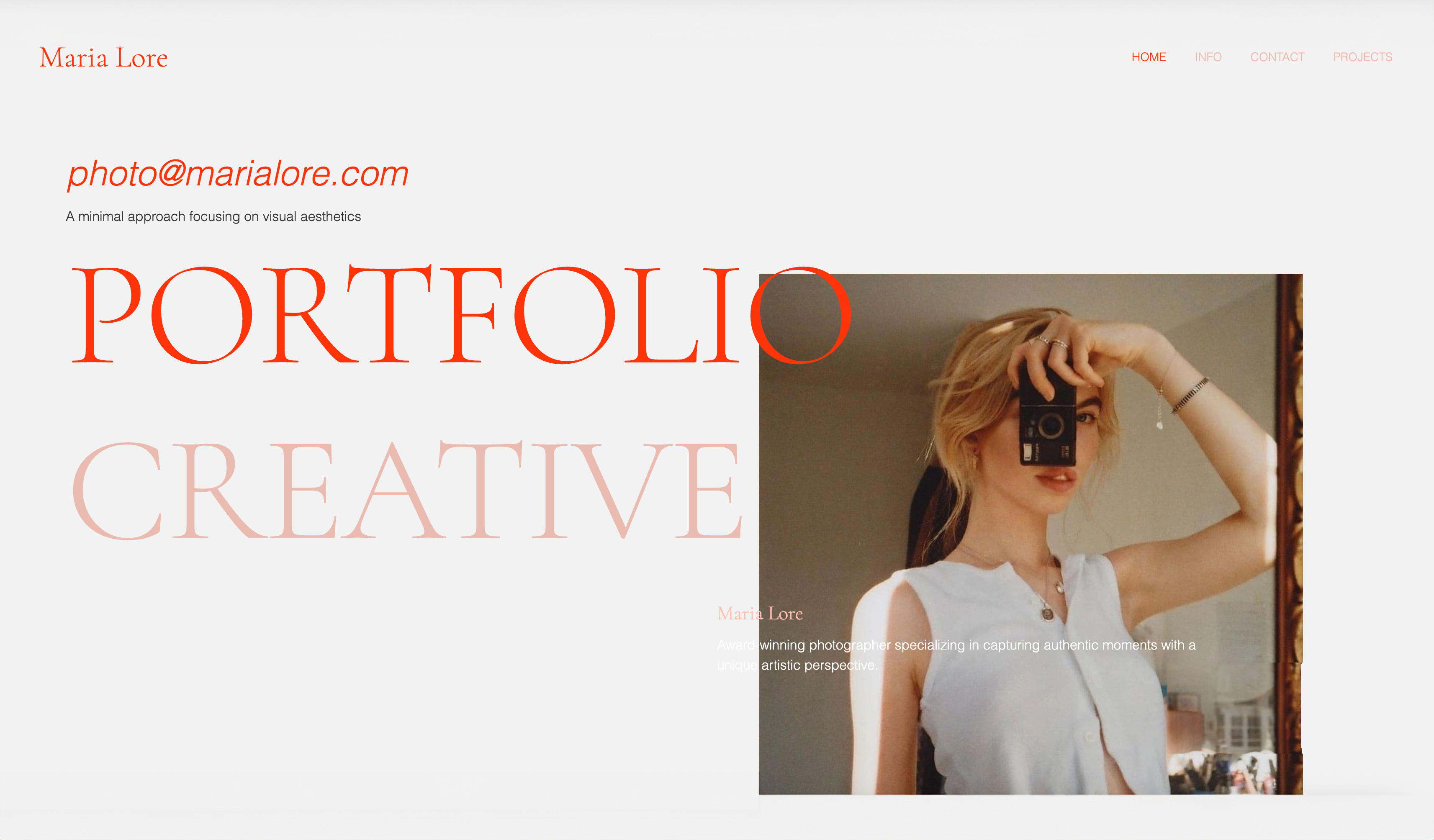
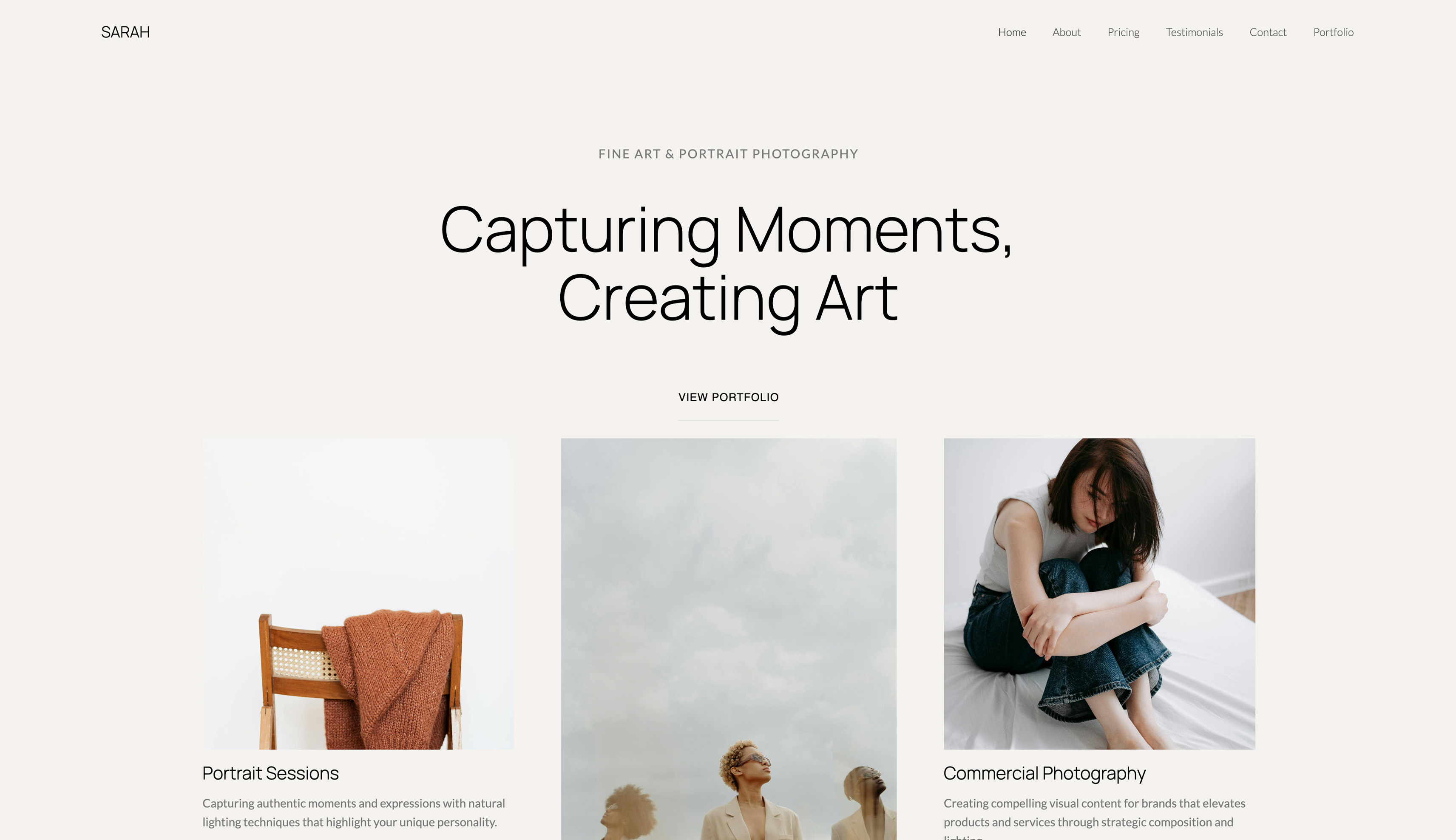
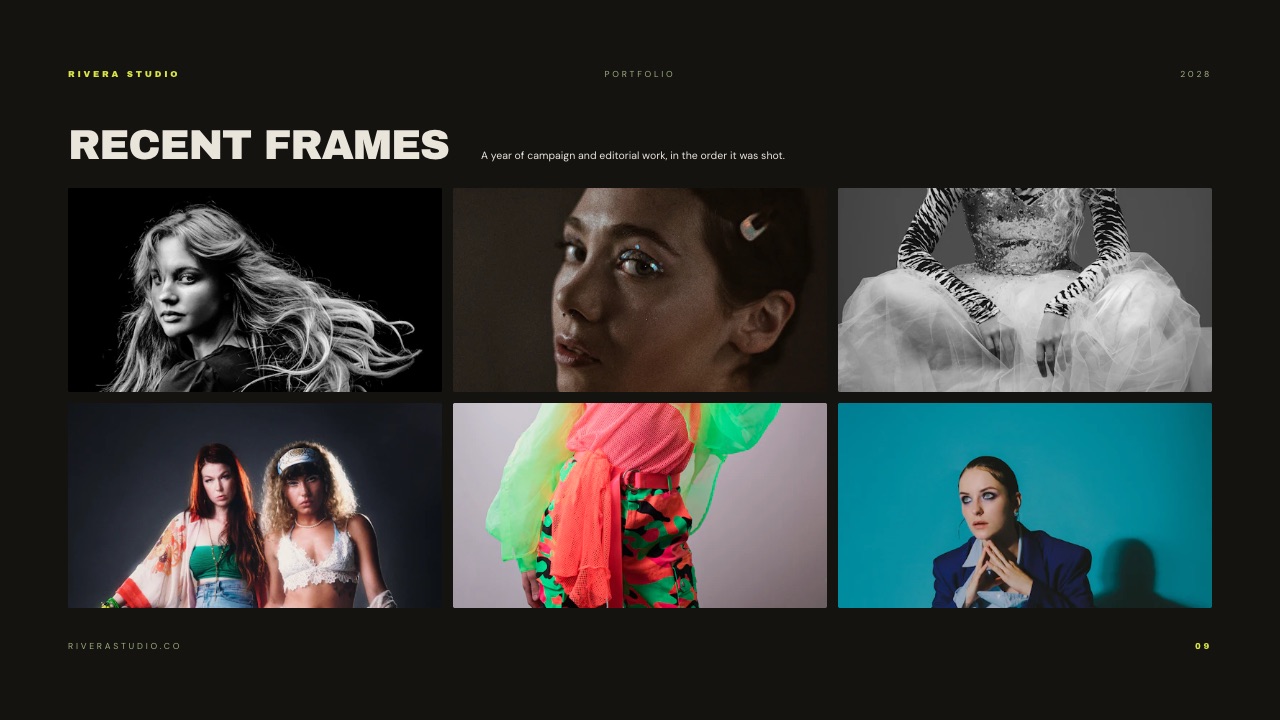
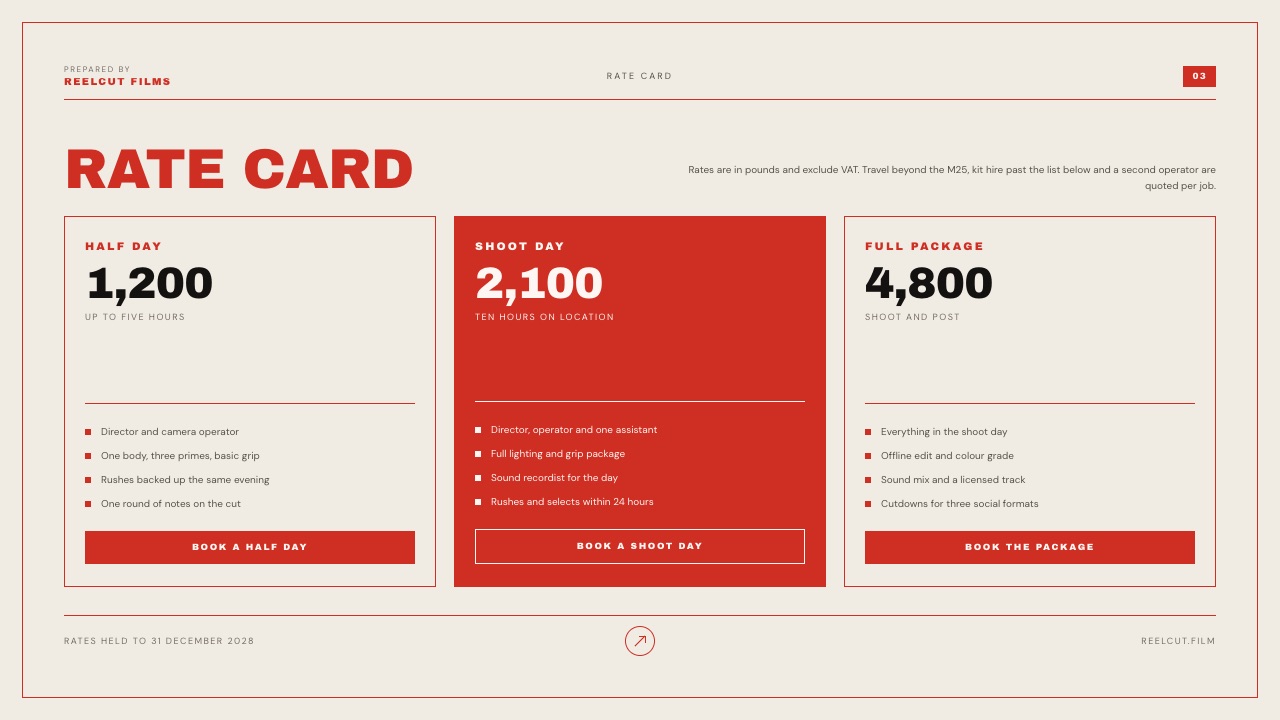
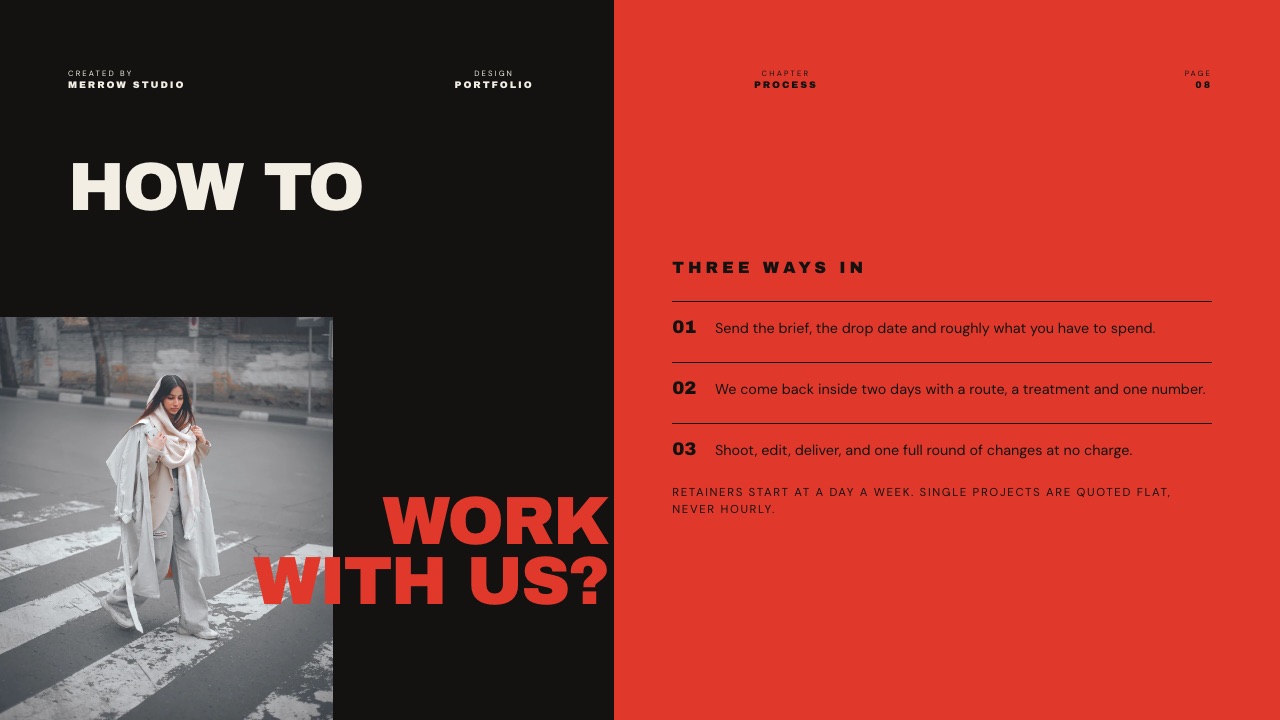
Its templates start from creative documents - director's treatments, production company credentials, photography portfolio books, proposals with a quote, rate cards - and ready-made elements cover shot lists, storyboard rows, moodboards, look cards, swatches, type specimens and charts.
A pasted YouTube, Vimeo or Instagram link plays on the slide.
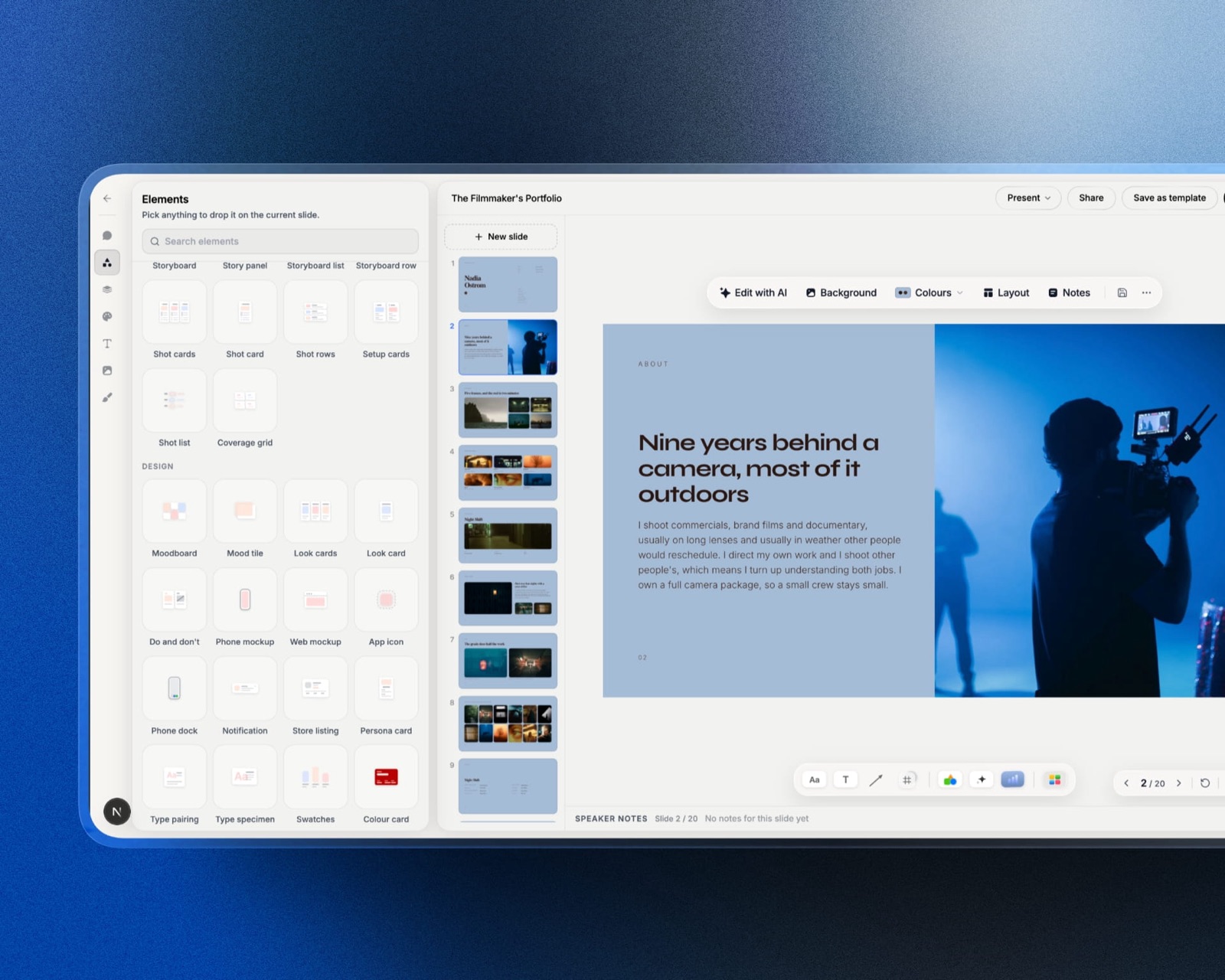
How its AI builds the deck. Describe what you need and Framekit's AI asks up to three quick questions - roughly how many slides, what should happen after the reader sees it, and whether it will be presented or read alone - then picks a design style, offers colour themes and asks you to paste the facts you have, such as credits, rates or a logline.
It proposes a titled outline for your OK and builds the slides a few per turn with speaker notes, marking anything you did not provide as a placeholder rather than inventing it.
AI generation draws on a monthly allowance that every plan has, Free included; decks are unlimited, and editing by hand or starting from a template spends nothing.
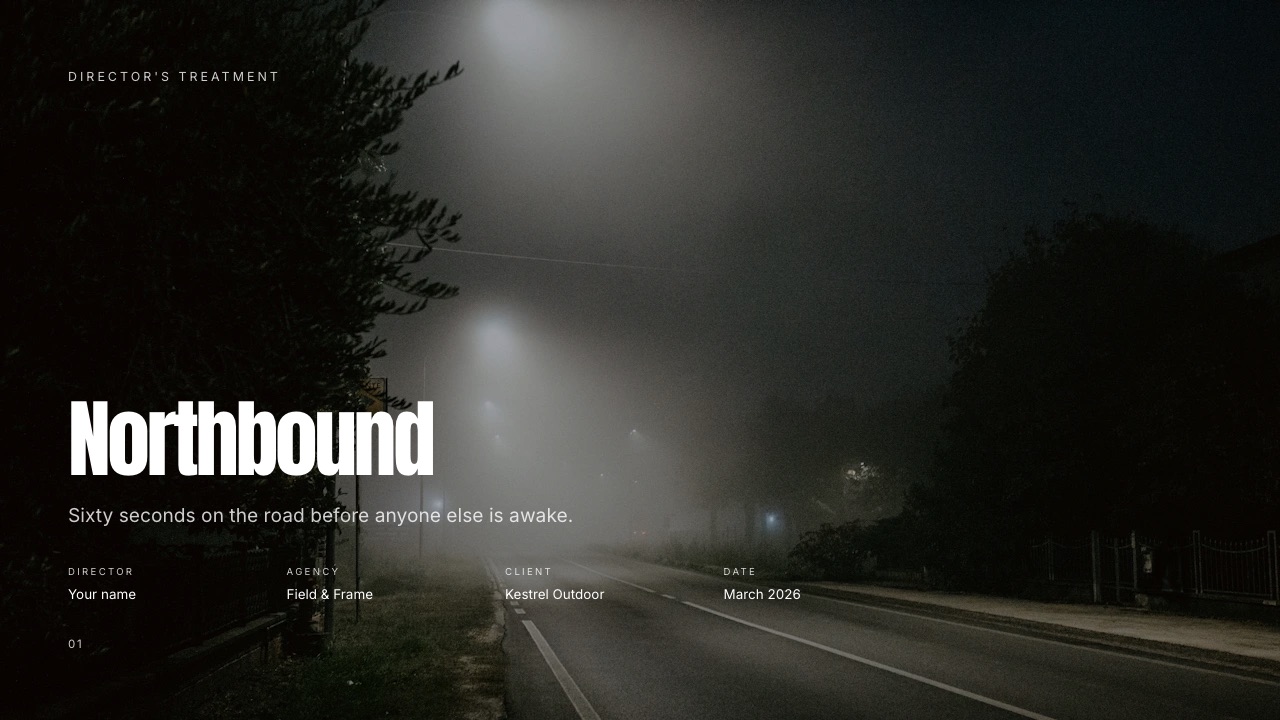
Where it loses to both. PowerPoint export starts on Pro and arrives as pictures, one full-bleed image per slide with speaker notes kept, so a client cannot retype anything; there is no PowerPoint import.
There is no presenter view with speaker notes on a second screen and no offline app, so download the PDF before you travel.
There is no live co-editing or commenting, and decks belong to the person who made them: team members on Pro or Business are website admins who cannot open decks, so a studio works with one deck builder and everyone else viewing by link or PDF.
A deck caps at 40 slides. Links have no password and show a total view count, not per-viewer data.
What it costs. Free makes unlimited decks with PDF export and a share link carrying a Made with Framekit badge; templates, custom fonts and badge removal start on Starter at $9 a month or $84 a year billed yearly; PowerPoint export on Pro at $19 a month.
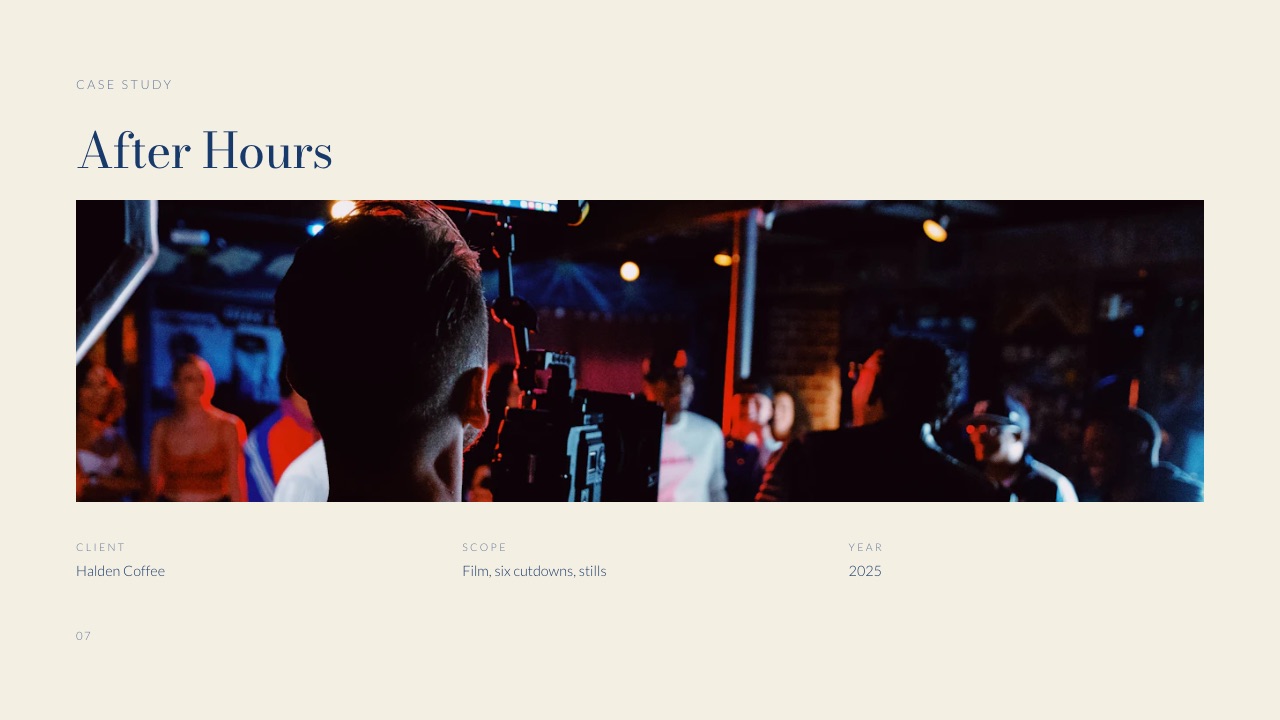
Verdict: for business decks, client masters and chart-heavy work, choose between Canva and PowerPoint and ignore Framekit. For a treatment, credentials deck or lookbook that one person builds and sends next to a portfolio site, Framekit Slides is the better fit; see the agency credentials deck template and the commercial treatment template.
When the Deck Should Be a Page
Some of what people build in both Canva and PowerPoint is not a presentation at all but a document they keep re-sending, such as a capabilities overview, a rate card or a case study, and for those a page on your own domain usually serves the reader better than any file.
A file goes stale the moment it is saved to someone's downloads folder, and no search engine indexes it. A page shows every visitor the current version and can be found when someone searches your studio's name.
Canva can publish websites of up to 45 pages; PowerPoint cannot publish a site at all.
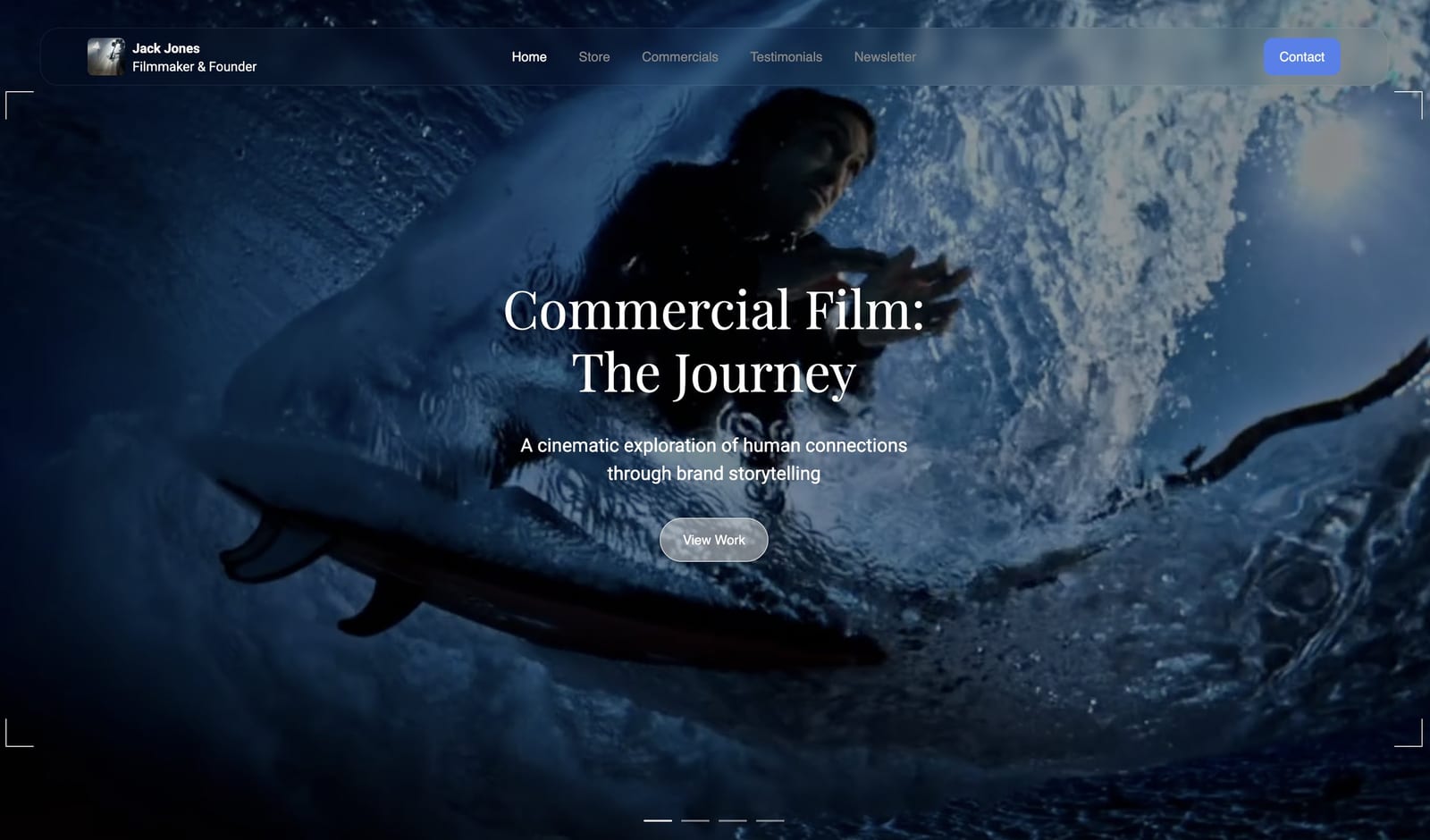
Keep slides for anything with a presenter and a running order. Publish the rest once, and link to it from the deck.
Switching Between Canva and PowerPoint: A Checklist
Moving decks between Canva and PowerPoint is a PowerPoint export one way and an import the other, so the work is mostly checking fonts, motion and charts after the move, and doing the steps in this order saves most of the clean-up.
| Step | Canva to PowerPoint | PowerPoint to Canva | Why |
|---|---|---|---|
| 1. Archive | Download each deck you keep as PDF | Save each deck as PDF and .pptx | Your archive outlives either subscription |
| 2. Fonts | Install the brand fonts on the PowerPoint machine, then embed them | Upload brand fonts into a Canva brand kit on Pro | Fonts break first |
| 3. Move the file | Download the presentation as PPTX | Import the .pptx into Canva | PowerPoint is the bridge |
| 4. Motion | Rebuild Match and Move as Morph | Rebuild Morph as Match and Move | Neither survives the trip |
| 5. Charts | Rebuild key charts as Excel-backed charts | Re-enter chart data in Canva | Data does not travel as a live chart |
| 6. Brand | Set the slide master and theme | Apply the brand kit in one pass | One pass fixes most drift |
| 7. Cancel last | Drop Canva Pro after a month of not missing it | Drop Microsoft 365 only if nobody needs .pptx | The test is a month of real work |
If the destination is Framekit, there is no import: rebuild only the treatments and credentials decks you send repeatedly, from the closest template.
Which Should You Use? A Decision Tree
Work through these questions in order and stop at the first yes, because the first three describe what happens to the file after you finish it, which settles Canva vs PowerPoint more reliably than anything about the editor.
1. Will a client or colleague edit the file in their own software? Yes: PowerPoint, with fonts embedded. No: go to question 2.
2. Is a quarter or more of the deck charts that someone might check? Yes: PowerPoint, for Excel-backed charts. No: go to question 3.
3. Do you build or present without a reliable connection? Yes: PowerPoint's desktop app. No: go to question 4.
4. Do you make social posts, print pieces or video as well as decks? Yes: Canva, one subscription for all of it. No: go to question 5.
5. Is nobody on your team a designer, and are decks judged on how they look? Yes: Canva, Free first. No: go to question 6.
6. Are you choosing on price for one person? Yes: Microsoft 365 Personal at $99.99 a year, or PowerPoint for the web for free. No: go to question 7.
7. Is the deck a treatment, lookbook or credentials deck you build alone and send with a link to your site? Yes: look at Framekit Slides, accepting picture-based PowerPoint export and no co-editing.
Frequently Asked Questions
Is Canva better than PowerPoint?
Canva is better than PowerPoint for design speed, template depth and covering social and print from one subscription, which makes it the stronger choice for freelancers and small marketing teams.
PowerPoint is better for font embedding, offline editing, Excel-backed charts and any deck a client will edit, because .pptx is the format client organisations open.
Is Canva cheaper than PowerPoint?
No. Canva Pro is $144 a year for one person against Microsoft 365 Personal at $99.99, and Microsoft 365 Family covers up to six people for $129.99, while Canva Business is $25 a person a month. Office Home 2024 is $179.99 once.
Canva Free and PowerPoint for the web both cost nothing, so for light use the price is the same.
Does Canva export to PowerPoint properly?
Canva exports presentations as editable PowerPoint files, but its help centre warns that the design may look different in PowerPoint and that animations and embedded videos are not supported there. Fonts are the first thing to check.
Check every slide before sending, or send a PDF if the recipient only needs to read the deck.
Can you use Canva offline?
We could not confirm offline editing on Canva's own pages, so treat Canva as a connected tool and download a PDF before presenting somewhere without Wi-Fi.
PowerPoint's desktop app, on Microsoft 365 or Office Home 2024, edits and presents fully offline and syncs when you reconnect.
Does Canva have a transition like PowerPoint's Morph?
Canva's Match and Move animation does a similar job, matching elements between two pages and animating the change, but it only plays inside Canva because animations are not supported in Canva's PowerPoint downloads.
PowerPoint's Morph is created in Microsoft 365, PowerPoint 2019 and 2021 and PowerPoint for the web, and PowerPoint 2016 can play it.
Is PowerPoint free?
PowerPoint for the web is free with a Microsoft account and handles ordinary decks, and Speaker Coach runs there too.
The desktop app needs Microsoft 365, from $99.99 a year on Personal or $129.99 on Family for up to six people, or Office Home 2024 at $179.99 once for one PC or Mac.
Which is better for charts and data?
PowerPoint is clearly better for charts: they are Excel charts with editable data inside the file, and the set includes waterfalls and combination charts with a secondary axis.
Canva covers common chart types and styles them better by default, but for a deck whose argument is the numbers, PowerPoint is the tool.
Can a team share one Canva Pro account?
No. Canva's pricing FAQ says only one person can use a Pro account, and teams move to Canva Business, priced per person at $25 a month in the US or EUR 170 a year in Europe.
Microsoft 365 Family covers up to six people in a household for $129.99 a year; a company would normally price Microsoft 365 Business plans instead.
Does PowerPoint have AI like Canva?
Yes.
Microsoft's plan comparison lists Copilot features on Microsoft 365 Personal and Family at higher-than-free usage limits, with the AI for the subscription owner only on Family, and extensive usage on Microsoft 365 Premium at $199.99 a year.
Canva gives every plan a monthly allowance: up to 20 uses on Free and up to 200 Premium uses on Pro.
Can Canva and PowerPoint be used together?
Yes. A common agency workflow designs the client-facing version in Canva and delivers PowerPoint, or imports a client's .pptx into Canva to restyle it. Expect to rebuild animations in either direction and to check fonts on every slide.
If the client will keep editing, finish in PowerPoint and embed the fonts.
Which is better for a pitch deck to investors?
PowerPoint or Canva both make a fundable deck; choose Canva if the deck looks amateur and PowerPoint if it is heavy on financial charts. Neither tells you which investor opened the deck.
Our guide on how to make a pitch deck covers the slides, and Pitch Team adds tracked links.
Is Framekit a replacement for Canva or PowerPoint?
No. Framekit Slides is not a replacement for either for business decks: its PowerPoint export is picture-based, it has no co-editing, no presenter view with notes on a second screen, and decks cap at 40 slides.
It is the better fit only for treatments, lookbooks and portfolio decks that one person builds next to a portfolio site, galleries and review links.
Should a client-facing deck live on a website instead?
A client-facing deck should live on a website when it is re-sent repeatedly without being tailored, such as a capabilities overview or rate card, because a page shows every visitor the current version and can be found in search.
Anything presented live, with pacing and a narrator, is still better as a deck.
Final Verdict
Canva is the better choice for most independent creatives and small marketing teams, because it makes a better-looking deck sooner, its free plan does real work, and the same subscription covers social, print and video.
PowerPoint is the better choice whenever the deck has to be edited by someone else, presented offline or filled with real charts, and at $99.99 a year on Microsoft 365 Personal it is also the cheaper paid option for one person.
The trade-off to be clear-eyed about is the handover.
A Canva deck downloaded as PowerPoint may look different on a client's machine, which is why many studios design in Canva and deliver PDFs, and why anyone whose clients edit files should build in PowerPoint and embed the fonts.
Where Framekit fits, and where it loses: Framekit Slides is the better fit only for treatments, lookbooks, credentials and creative pitch decks that one person builds and sends beside a portfolio site and client deliveries.
It does not export editable PowerPoint, does not co-edit, does not let teammates open your decks and has no presenter view with notes on a second screen, so it is not for business decks.
Keep reading: Keynote vs PowerPoint, Canva vs Google Slides, Pitch vs Canva and PowerPoint vs Google Slides.